Get phone and SMS alerts fromPingdom
Pingdom watches your uptime, page speed, and transactions from probe servers around the world. Spike turns every Pingdom alert into an incident — with on-call schedules, escalations, and phone, SMS, Slack, and email alerts.
Set up with AI
I use Pingdom for monitoring and Spike for on-call and incident management. Walk me through connecting them: create a Pingdom integration in Spike, copy its webhook URL, and add that webhook to Pingdom alert settings. Then help me send a test alert to confirm incidents show up in Spike.
What is Pingdom?
Pingdom, part of SolarWinds, is one of the most widely used website monitoring services. It runs uptime checks on your sites and APIs from a global network of probe servers, monitors full user transactions like logins and checkouts, and tracks real-user page speed — raising an alert the moment a check fails.
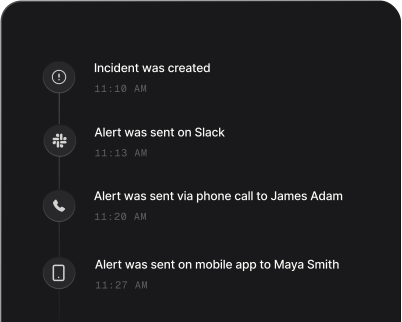
On its own, that alert is an email or an app notification, and those are easy to miss at 3 AM. Connected to Spike, the same alert becomes an incident: the on-call engineer gets a phone call and SMS within seconds, repeated failures are grouped so nobody drowns in noise, and when the check recovers, Spike resolves the incident automatically.
How to set up Pingdom alerts
Every Spike integration is a unique webhook URL. Paste it into Pingdom and alerts start flowing — no agents, no code.
Step 1: Create a Pingdom integration in Spike
In your Spike dashboard, open Integrations and choose Pingdom. Spike generates a unique webhook URL for this integration — copy it.
Step 2: Add a webhook in Pingdom
In Pingdom, go to Settings → Integrations and click Add integration. Pick Webhook as the type, name it something like "Spike", and paste the webhook URL you copied.
Step 3: Connect it to your checks and test
Edit any uptime or transaction check and tick your new Spike integration under "Connect integrations". Trigger a test — the alert shows up in Spike as an incident within seconds.
That's it — Pingdom alerts now page whoever is on call.