Get phone and SMS alerts fromAkamai mPulse
Akamai mPulse (formerly SOASTA) measures real user performance — page load times, errors and conversions as your visitors experience them — and fires an alert when a metric crosses its threshold. Spike pages a human for it: a phone call, SMS, Slack message or email to whoever is on call, escalating until someone picks it up.
Set up with AI
I use Akamai mPulse for monitoring and Spike for on-call and incident management. Walk me through connecting them: create a Akamai mPulse integration in Spike, copy its webhook URL, and add that webhook to Akamai mPulse alert settings. Then help me send a test alert to confirm incidents show up in Spike.
What is Akamai mPulse?
Akamai mPulse is a real user monitoring (RUM) platform, formerly known as SOASTA. It collects performance data from the browsers and apps of your actual visitors and lets you define alerts on the metrics that matter — page load time, bounce rate, JavaScript errors, conversion rate — so you hear about a slow checkout from your monitoring before you hear about it from customers.
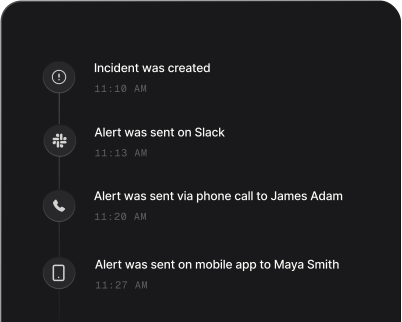
Inside mPulse, an alert is a notification waiting to be noticed. Pointed at Spike through mPulse’s Call Webhook action, the same alert becomes a page: the on-call engineer is called and texted within seconds, and an alert nobody acknowledges climbs the escalation policy until someone answers. The incident is titled with the alert’s name and the mPulse app it watches, so whoever wakes up knows which signal tripped before opening anything.
The alert name is how Spike tells mPulse alerts apart. A repeat of an alert that already has an open incident is grouped with it rather than paging the team a second time, while differently named alerts stay separate incidents. Who gets paged, and how hard, is decided in Spike: alert routing rules read the payload each alert arrives with, so a staging site’s slowdown doesn’t wake the same people as a production checkout does.
Spike does not auto-resolve mPulse incidents. Once the underlying problem is fixed, resolve the incident in Spike — from the dashboard, Slack or the mobile app — so the page stops escalating and the timeline records who closed it.
How to set up Akamai mPulse alerts
Every Spike integration is a unique webhook URL. Paste it into Akamai mPulse and alerts start flowing — no agents, no code.
Step 1: Create an Akamai mPulse integration in Spike
In your Spike dashboard, open Integrations and choose Akamai mPulse. Spike generates a unique webhook URL for this integration — copy it, and attach the integration to the service and escalation policy that should answer these alerts.
Step 2: Add a Call Webhook action in mPulse
In mPulse, open the alert you want to route to Spike and add a Call Webhook action to it. Paste the Spike URL as the webhook endpoint — the token in the URL is the credential, the same as every other Spike integration. Set the Mode slider to Custom and the method to POST, then paste the JSON body from Spike's Akamai mPulse setup guide on docs.spike.sh, so every alert arrives with its alert_name and app_name.
Step 3: Name your alerts clearly
Spike identifies an mPulse alert by its alert_name. Alerts that share a name are treated as the same alert, so give each mPulse alert a distinct, descriptive name — it is also the start of the incident title your on-call engineer sees.
Step 4: Watch an alert become an incident
When mPulse fires the alert, Spike opens an incident titled "{alert_name} on {app_name}", for example "Checkout page load time above 4s on shop-production". Spike does not auto-resolve mPulse incidents, so resolve the incident in Spike once the problem is fixed.
That's it — Akamai mPulse alerts now page whoever is on call.