Get phone and SMS alerts fromImperva Cloud WAF
Imperva Cloud WAF (formerly Incapsula) sits in front of your sites and networks, filtering web traffic and absorbing DDoS attacks. Spike turns the events Imperva sends — attacks starting, BGP sessions dropping, connections degrading — into incidents and pages whoever is on call by phone, SMS, Slack or email, escalating until someone answers.
Set up with AI
I use Imperva Cloud WAF for monitoring and Spike for on-call and incident management. Walk me through connecting them: create a Imperva Cloud WAF integration in Spike, copy its webhook URL, and add that webhook to Imperva Cloud WAF alert settings. Then help me send a test alert to confirm incidents show up in Spike.
What is Imperva Cloud WAF?
Imperva Cloud WAF, long known as Incapsula, is a web application firewall and DDoS protection service that proxies your traffic at the edge. Because it sees requests before your servers do, it is first to know when a volumetric attack begins against a website or IP range, when a BGP session to Imperva drops, or when a customer connection slows down.
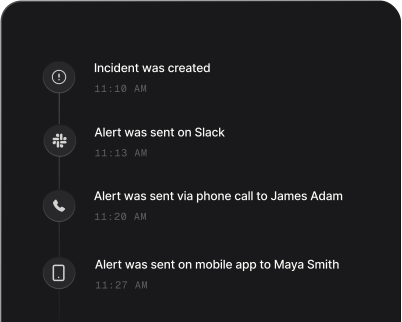
Imperva’s notifications by email are easy to miss when it matters. Sent to Spike, each event becomes an incident and the engineer who is on call is phoned and texted within seconds; if nobody acknowledges it, the escalation policy hands it to the next responder.
Spike identifies the incident by the Imperva asset the event is about, within the Imperva account that sent it, so repeated notifications about the same attack join the open incident instead of paging again, and Imperva’s matching stop, up or restored event resolves it. Events that are one-shot notices, such as a critical attack detected or traffic diverted to Imperva, open an incident but don’t resolve on their own; close those in Spike yourself.
The incident takes its title from Imperva’s own sentence about the event — “DDoS attack started on checkout.acme.com” — and alert routing rules can read the rest of the payload to send attacks on production sites to a different responder than lower-priority notices.
How to set up Imperva Cloud WAF alerts
A Spike integration is a unique webhook URL. Add it as a webhook connection in the Imperva console, attach it to a notification policy, and Imperva's attack and connection events start paging.
Step 1: Create an Imperva Cloud WAF integration in Spike
In your Spike dashboard, open Integrations and choose Imperva Cloud WAF. Spike generates a unique webhook URL for this integration — copy it, and attach the integration to the service and escalation policy that should answer Imperva's events.
Step 2: Add a webhook connection in Imperva
In the Imperva console, go to Account Management and open Webhook Connections. Add a connection, name it and paste the Spike URL as the destination. Imperva can add a secure code to the webhook header; Spike does not check it, because the token in the URL is the credential.
Step 3: Choose the events to send
In your notification policy, select the events you want delivered to the webhook connection — DDoS attacks on websites, IP ranges and single IPs, BGP session changes and connection performance. Choose the start and the matching stop events together so incidents can resolve.
Step 4: Send a test
Use the connection's Test Webhook button to confirm delivery. Spike recognises the test and opens no incident, so you can run it while a live escalation policy is attached.
That's it — Imperva Cloud WAF alerts now page whoever is on call.