Get phone and SMS alerts fromNotion
Notion is where many teams keep their tasks, and a Notion database automation can send a webhook the moment a task is added or changed. Spike turns that webhook into an incident titled with the task's own name, pages the on-call engineer by phone, SMS, Slack, and email, and resolves the incident when the task is marked Done.
Set up with AI
I use Notion for monitoring and Spike for on-call and incident management. Walk me through connecting them: create a Notion integration in Spike, copy its webhook URL, and add that webhook to Notion alert settings. Then help me send a test alert to confirm incidents show up in Spike.
What is Notion?
Notion is a connected workspace for documents, wikis, and databases, and a lot of teams run their task tracking in a Notion database: one page per task, with a title, a Status column moving from Not started through In progress to Done, and whatever else the team tracks alongside it — priority, assignee, due date. Paid plans add database automations, which react when a page is added or a property changes and can send a webhook as one of their actions.
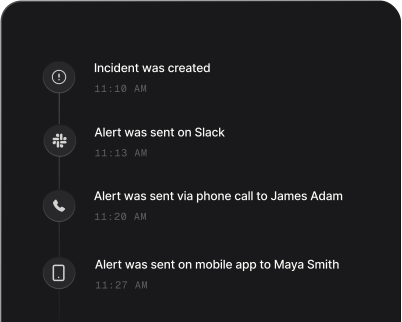
A task that lands in Notion still waits for someone to open the database, which is fine for planned work and far too slow for an urgent request at 2 a.m. Connected to Spike, the automation’s webhook becomes an incident named after the task itself — “Checkout API returning 500s for EU customers” — and pages the on-call engineer by phone and SMS within seconds, escalating to the next responder if nobody acknowledges it. Spike keys the incident on the Notion page, so a task that fires the automation again joins the open incident instead of paging twice, and the incident resolves itself the moment the task’s Status moves to a finished option such as Done.
The page title is found by its type, not its column name, so it works whether your database calls it Name, Task name, or anything else. A task with no title opens as “Notion task with no title”, and a long title is shortened at a word boundary. The filtering stays on the Notion side, in the automation’s trigger: page on every new task, or only on tasks marked High priority.
How to set up Notion alerts
Every Spike integration is a unique webhook URL. Paste it into Notion and alerts start flowing — no agents, no code.
Step 1: Create a Notion integration in Spike
In your Spike dashboard, open Integrations and choose Notion. Spike generates a unique webhook URL for this integration — copy it.
Step 2: Add an automation that pages
In your Notion tasks database, select ⚡ at the top of the database, then New automation. Pick the trigger that should page your team — Page added, or Property edited with Priority set to High — then add the Send webhook action with the Spike URL. Tick the task's title and its Status so Spike can name the incident and tell whether the task is open. Database automations and the Send webhook action need a paid Notion plan.
Step 3: Add a second automation that resolves
Add another automation on the same database: Property edited, with Status set to Done, sending the same webhook with the title and Status ticked. When a task reaches Done, Complete, Completed, Resolved, Closed, Cancelled or Canceled, Spike resolves the incident that task opened.
Step 4: Test it end to end
Create a task that matches your first trigger. An incident opens in Spike titled with the task's name and pages whoever is on call. Set the task's Status to Done, and the incident resolves itself, logged as "<task> marked Done".
That's it — Notion alerts now page whoever is on call.