Get phone and SMS alerts fromOracle Cloud
Oracle Cloud Infrastructure Monitoring watches metrics across your compute, database, and networking resources and raises an alarm when a threshold is breached. Spike turns every OCI alarm into an incident and pages the on-call engineer — by phone, SMS, Slack, or email — escalating until someone acknowledges it.
Set up with AI
I use Oracle Cloud for monitoring and Spike for on-call and incident management. Walk me through connecting them: create a Oracle Cloud integration in Spike, copy its webhook URL, and add that webhook to Oracle Cloud alert settings. Then help me send a test alert to confirm incidents show up in Spike.
What is Oracle Cloud?
Oracle Cloud Infrastructure Monitoring is OCI’s native metrics service, watching compute, database, load balancer, and networking resources and raising an alarm when a metric query crosses its threshold. Unlike most clouds, OCI has no direct webhook of its own — every alarm instead publishes into a Notifications topic, which fans it out to whichever subscriptions are attached to it: email, Slack, SMS, or an HTTPS endpoint.
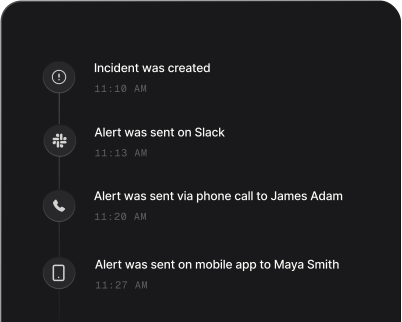
Routed to Spike through that HTTPS subscription, an OCI alarm becomes an incident: it puts a call and a text straight through to the engineer on rotation, hands the alarm to the next tier when it stalls without an acknowledgement, and collapses repeat firings of the same alarm into a single thread instead of a pile of pages. Because Spike reads the alarm’s own firing and clearing transitions, the incident closes itself the moment the alarm recovers — no leftover tickets to sweep up by hand.
How to set up Oracle Cloud alerts
Every Spike integration is a unique webhook URL. Paste it into Oracle Cloud and alerts start flowing — no agents, no code.
Step 1: Create an Oracle Cloud integration in Spike
In your Spike dashboard, open Integrations and choose Oracle Cloud. Spike generates a unique webhook URL for this integration — copy it.
Step 2: Create a Notifications topic and HTTPS subscription in OCI
In the OCI console, open Notifications, create a topic, and add a subscription with the protocol set to HTTPS (Custom URL). Paste the Spike webhook URL as the endpoint — Spike confirms the subscription automatically, so there's nothing else to click.
Step 3: Point an alarm at the topic and test
In Monitoring, create or edit an alarm and set its destination to Notifications, choosing the topic you just created. When the alarm enters the firing state it opens an incident in Spike, and the alarm clearing resolves it automatically.
That's it — Oracle Cloud alerts now page whoever is on call.