Get phone and SMS alerts fromPA Server Monitor
PA Server Monitor watches Windows and Linux servers and the services on them — CPU, disks, memory, event logs, ping and more — and runs an action when a monitor goes into an alert state. Spike turns that action into a page: a phone call, SMS, Slack message or email to whoever is on call, escalating until someone answers.
Set up with AI
I use PA Server Monitor for monitoring and Spike for on-call and incident management. Walk me through connecting them: create a PA Server Monitor integration in Spike, copy its webhook URL, and add that webhook to PA Server Monitor alert settings. Then help me send a test alert to confirm incidents show up in Spike.
What is PA Server Monitor by Power Admin?
PA Server Monitor is Power Admin’s monitoring software for Windows and Linux servers and the infrastructure around them. It runs monitors for CPU, memory, disks, services, event logs, ping and network checks, and when one crosses its threshold it runs an action — an email, a script, or an HTTP request.
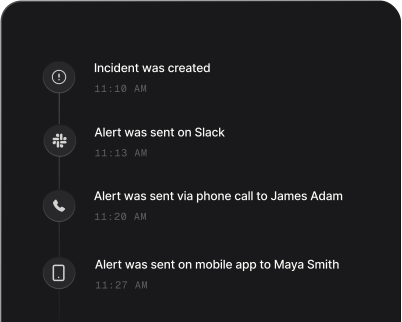
Inside PA Server Monitor, an alert is a line on a console and, at best, an email nobody reads overnight. Pointed at Spike through a Call URL action (Custom POST), the same alert becomes a page: the on-call engineer is called and texted within seconds, and an alert nobody acknowledges climbs the escalation policy until someone answers. The incident’s title is the custom message you set on the monitor in Advanced Monitor Options (or the monitor title if you set none) plus the computer it fired on, so whoever wakes up knows what broke and where before opening anything.
Each alert carries a key made of the computer name and the monitor title, so repeats stay together: a further alert from the same monitor on the same computer is added to the open incident rather than paging the team again, and alerts from different monitors stay separate incidents. Who gets paged, and how hard, is decided in Spike: alert routing rules read the computer, group, monitor type and the rest of the payload.
When the monitor returns to OK, the Resolved Action tells Spike, the incident is matched by the same key, and it resolves itself.
How to set up PA Server Monitor alerts
Every Spike integration is a unique webhook URL. Paste it into PA Server Monitor and alerts start flowing — no agents, no code.
Step 1: Create a PA Server Monitor integration in Spike
In your Spike dashboard, open Integrations and choose PA Server Monitor. Spike generates a unique webhook URL for this integration — copy it, and attach the integration to the service and escalation policy that should answer these alerts.
Step 2: Add a Call URL action in PA Server Monitor
In PA Server Monitor, create a Call URL action, paste the Spike URL as the URL to call, choose Custom POST with application/json, and send a JSON body built from PA's own variables: the status, the monitor key made of the computer name and monitor title, the single-line details, the monitor title, the computer, its group and the monitor type.
Step 3: Use it as the Error and Resolved Action
Attach the action to your monitors as the Error Action, and again as the Resolved Action. The same body works for both: Spike reads the status to decide whether to open or close the incident.
Step 4: Watch an alert become an incident
When a monitor alerts, Spike opens an incident titled with the monitor's custom message (or the monitor title if none is set) and the computer it fired on. Repeats join the same incident, and when the monitor returns to OK the incident resolves itself.
That's it — PA Server Monitor alerts now page whoever is on call.