Get phone and SMS alerts fromLightup
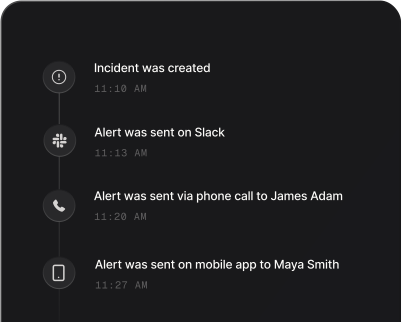
Lightup watches the data in your warehouse and logs an incident when a monitor sees a metric go out of bounds. Spike turns Lightup's notification email into a page for whoever is on call, escalating until someone picks it up.
What is Lightup?
Lightup is a data quality monitoring platform. You point it at a datasource, define metrics such as row counts or null rates, and attach monitors that learn what normal looks like. When a monitor detects a variation that is out of bounds, Lightup logs an incident and alerts the channels registered for that monitor.
Lightup has no webhook channel, so Spike connects through a Lightup Email List. Each email that reaches the integration’s address becomes a page: the on-call engineer is called and texted, and an alert nobody acknowledges climbs the escalation policy until someone answers. The incident title is the email’s subject.
Another email with the same subject joins the open incident instead of paging again, and an email with a different subject is a separate incident. The email’s body rides along on the incident, and alert routing rules can read it.
Spike does not auto-resolve Lightup incidents. Lightup does not document how its email for a resolved incident differs from a new alert, so incidents are resolved in Spike by hand once the data is healthy.
How to set up Lightup alerts
Every Spike integration is a unique webhook URL. Paste it into Lightup and alerts start flowing — no agents, no code.
Step 1: Create a Lightup integration in Spike
In your Spike dashboard, open Integrations and choose Lightup. Spike gives the integration its own email address — copy it, and attach the integration to the service and escalation policy that should answer these alerts.
Step 2: Add an Email List in Lightup
In your Lightup workspace, select Integrations, then Create Integration +, and choose Email List. Name the list, add the Spike email address with +, and select Add.
Step 3: Send monitor incidents to the list
Choose the Email List as the alerting channel in each monitor's Manage alerts setting. You can also add it to System Events alert channels to be paged when a datasource or metric stops working.
Step 4: Watch an incident become a page
When a monitor logs an incident, Lightup emails the list and Spike opens an incident titled with the email's subject. Spike does not auto-resolve Lightup incidents, so the responder resolves the incident in Spike once the data is healthy.
That's it — Lightup alerts now page whoever is on call.