Get phone and SMS alerts fromObserve
Observe is an observability platform built on Snowflake that unifies logs, metrics, and traces, with monitors that fire when your data crosses a threshold. Spike turns every Observe monitor alert into an incident and pages the on-call engineer by phone, SMS, Slack, or email until someone acknowledges it.
Set up with AI
I use Observe for monitoring and Spike for on-call and incident management. Walk me through connecting them: create a Observe integration in Spike, copy its webhook URL, and add that webhook to Observe alert settings. Then help me send a test alert to confirm incidents show up in Spike.
What is Observe?
Observe brings logs, metrics, and traces together on top of Snowflake, so teams can search and correlate telemetry from across their stack in one place. Its monitors watch that data and trigger when a value, error rate, or log pattern crosses a threshold you set.
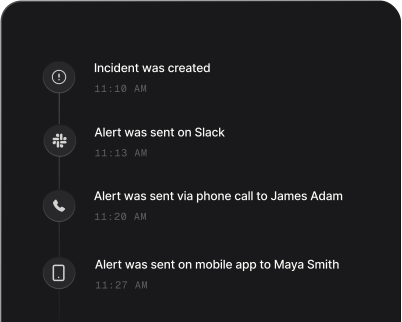
On their own, those alerts land in a channel or inbox where they are easy to miss. Routed to Spike through a webhook action, each triggered monitor becomes an incident: it puts a call and a text straight through to the engineer on rotation, hands the alert to the next tier when it stalls without an ack, and joins repeat notifications of the same alarm into one incident rather than a pile of pages. Each alarm is tracked by its own id, so a monitor that groups by a field raises one incident per alarm. Because Observe sends an update when the alarm stops triggering, the incident closes itself once the condition clears.
How to set up Observe alerts
Every Spike integration is a unique webhook URL. Paste it into Observe and alerts start flowing — no agents, no code.
Step 1: Create an Observe integration in Spike
In your Spike dashboard, open Integrations and choose Observe. Spike generates a unique webhook URL for this integration — copy it.
Step 2: Create a webhook shared action in Observe
In Observe, go to Monitors, then View shared actions, and choose New shared action. Set the Action Type to Webhook and paste the Spike webhook URL as the destination.
Step 3: Paste Spike's JSON body into the action
Replace Observe's default webhook body with the JSON body from the Spike guide at docs.spike.sh/integrations-guideline/integrate-spike-with-observe. Without it, Spike receives no alarm id or summary and cannot tell alarms apart.
Step 4: Attach the action to a monitor and test
Edit a monitor and, under Notification actions, add the shared action. Beneath it, turn on Send an update when the monitor has stopped triggering so Spike can resolve the incident when the alarm clears.
That's it — Observe alerts now page whoever is on call.