Get phone and SMS alerts fromPulseway
Pulseway is RMM for IT teams and MSPs, raising a notification the moment a monitored device needs attention. Spike turns every notification into an incident and pages the technician on call — by phone, SMS, Slack, or email — escalating until someone picks it up.
Set up with AI
I use Pulseway for monitoring and Spike for on-call and incident management. Walk me through connecting them: create a Pulseway integration in Spike, copy its webhook URL, and add that webhook to Pulseway alert settings. Then help me send a test alert to confirm incidents show up in Spike.
What is Pulseway?
Pulseway is a remote monitoring and management (RMM) platform for IT teams and managed service providers. Its agent watches the servers, workstations, and network devices across every client you look after, and raises a notification when one of them needs attention — a disk filling up, a service that stopped unexpectedly, a machine that has gone offline, a patch that failed. Each notification carries a priority, from Low through Critical, and identifies the device it came from.
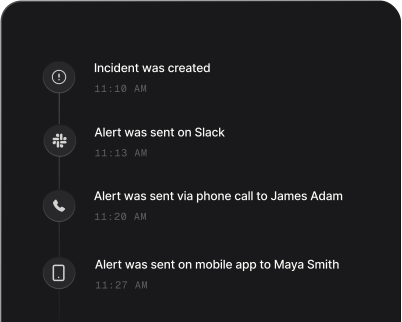
Those notifications land in the Pulseway console and its mobile app, which is fine while someone is watching and useless at 3am. Routed to Spike, each one becomes an incident instead: the technician on call gets a phone call and an SMS within seconds, and an unacknowledged Critical climbs the escalation policy until a human answers. The incident is titled with Pulseway’s own notification title — “Low disk space”, “Service stopped” — so whoever is looking at a phone screen knows what broke before opening anything, and the full message, device, and organization ride along on the incident page.
Repeat notifications about the same problem on the same device join the open incident as events rather than paging the team once per monitoring cycle, and the same problem on a different device opens its own incident, so one noisy machine never hides another — the same grouping Spike applies to Zabbix and the rest of your infrastructure monitoring. Which devices and clients page which on-call rotation is decided in Spike, where alert rules read each notification’s priority and payload before it reaches anyone.
How to set up Pulseway alerts
Every Spike integration is a unique webhook URL. Paste it into Pulseway and alerts start flowing — no agents, no code.
Step 1: Create a Pulseway integration in Spike
In your Spike dashboard, open Integrations and choose Pulseway. Spike generates a unique webhook URL for this integration — copy it.
Step 2: Create the webhook in Pulseway
Pulseway's notification webhooks are created through its REST API. POST to https://api.pulseway.com/v3/notifications/webhooks with your Pulseway API token as the Basic auth username, naming the webhook and passing the Spike webhook URL as Url.
Step 3: Choose which priorities page someone
The same request takes a Priorities list — set it to the priorities worth waking a technician for, typically Critical and Elevated. Filtering happens on Pulseway's side, so Normal and Low notifications never reach Spike at all unless you ask for them.
Step 4: Send a test notification
Trigger a notification on a test device in Pulseway — or wait for the next real one — and confirm it opens an incident in Spike within seconds and pages whoever is on call.
Step 5: Set a resolve timer
Pulseway never sends a recovery notification, so nothing arrives to close the incident. Set the integration's resolve timer in Spike and quiet incidents close themselves once the window passes, or resolve them by hand after the device is fixed.
That's it — Pulseway alerts now page whoever is on call.