Get phone and SMS alerts fromSpotlight on SQL Server Enterprise
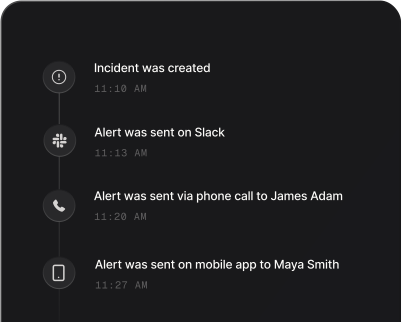
Spotlight on SQL Server Enterprise monitors the health and performance of your SQL Server estate and raises alarms when something degrades. Spike turns those alarms into incidents, routed to the on-call DBA by phone, SMS, Slack, and email, with escalations if nobody responds.
Set up with AI
I use Spotlight on SQL Server Enterprise for monitoring and Spike for on-call and incident management. Walk me through connecting them: create a Spotlight on SQL Server Enterprise integration in Spike, copy its webhook URL, and add that webhook to Spotlight on SQL Server Enterprise alert settings. Then help me send a test alert to confirm incidents show up in Spike.
What is Spotlight on SQL Server Enterprise?
Spotlight on SQL Server Enterprise is Quest’s database performance monitoring tool. It watches SQL Server instances for problems such as blocking, long-running queries, and resource pressure, and raises alarms when thresholds are crossed.
An alarm that only lands in a console or an inbox is easy to miss out of hours. Connected to Spike, a Spotlight alarm becomes an incident: the on-call engineer gets a phone call and SMS within seconds, and the alert escalates to the next responder if it goes unacknowledged. When Spotlight reports that the alarm has been cleared, Spike resolves the incident on its own, keeping your timeline honest.
How to set up Spotlight on SQL Server Enterprise alerts
Every Spike integration is a unique webhook URL. Paste it into Spotlight on SQL Server Enterprise and alerts start flowing — no agents, no code.
Step 1: Create a Spotlight integration in Spike
In your Spike dashboard, open Integrations and add Spotlight on SQL Server Enterprise. Spike generates a unique webhook URL for this integration — copy it.
Step 2: Add a Run a Powershell script alarm action
In the Spotlight Client, open Configure | Alarm Actions and add a rule with the condition The alarm severity is … and a Run a Powershell script action that posts the alarm details to the Spike webhook URL with state set to raised. The Spike docs guide for Spotlight has the script.
Step 3: Add a clear action and test
Add a second rule on The alarm has been cleared whose script posts the same alarm key with state set to cleared, so Spike closes the incident automatically. Spotlight has no test button for a script action: run the script by hand, or lower a threshold until an alarm fires, and the alarm appears in Spike as an incident within seconds.
That's it — Spotlight on SQL Server Enterprise alerts now page whoever is on call.