OpsGenie to Spike,
concept by concept
Find the Spike version of everything you already use. See what maps one to one, what works differently, and what has no match. Our team is here to help at every step.
The short version
Most of your OpsGenie setup has a direct home in Spike. A few things are set up differently.
Most things map one to one
Schedules, rotations, overrides, escalation policies, routing rules, and integrations all have a direct Spike equivalent.
A few things work differently
Each integration carries its own escalation policy, repeat escalations are set per integration, and every monitoring tool needs a new webhook URL.
One thing has no equivalent
Spike does not have heartbeat monitoring. The section on what has no direct match covers what to do instead.
Look up any concept
Search for any OpsGenie term to see its Spike equivalent, or browse by topic.
Download PDFIn OpsGenie
Team
In Spike
Team
What to know
Multiple teams in one workspace are available on the Business and Enterprise plans.
In OpsGenie
Schedule
In Spike
On-call schedule
What to know
Same idea: who is on call, and when. To route alerts to whoever is on call, add the schedule as a step in an escalation policy. A schedule on its own does not route anything.
In OpsGenie
Rotation
In Spike
Layer
What to know
Each layer has its own members, rotation and handoff time. When layers overlap, the higher layer takes over. Layers can also have start and end dates, for example holiday coverage.
In OpsGenie
Rotation time restrictions
In Spike
Slots
What to know
Limit a layer to certain hours each day, or to certain days and hours of the week.
In OpsGenie
Override
In Spike
Override
What to know
Replace one person for a period, or cover everyone for a window. You can add a comment. Press O on the on-call page to add one.
In OpsGenie
Calendar export
In Spike
Calendar sync
What to know
Sync shifts to Google Calendar, Apple Calendar or Outlook. You can also link external calendars, such as a holiday calendar, into Spike.
In OpsGenie
Time off
In Spike
Out of Office
What to know
Individuals can set it, and admins can set it for anyone on the team. You can offload your alerts and shifts to a teammate while you are away.
In OpsGenie
On-call reports
In Spike
Shift reports
What to know
Download a CSV breakdown of every on-call shift per responder, with times in both your time zone and the responder’s. Useful for on-call pay and audits. Available on Business plans and higher.
In OpsGenie
Escalation policy
In Spike
Escalation policy
What to know
Levels with a timeout between them. You choose the channel for each level, so one policy can call at step one, text at step two and post to Slack at step three. Alerting several people or channels at once means adding them in the same level. Each integration uses one escalation policy, and routing rules can swap it based on conditions.
In OpsGenie
Repeating an escalation
In Spike
Repeat escalations
What to know
Different setup. It is a checkbox on each integration, not on the policy. When all levels are used up, Spike restarts from the top after 10 minutes, up to 5 times.
In OpsGenie
Delay before alerting
In Spike
Wait time
What to know
Set a wait time on an escalation policy so Spike holds alerts for a few minutes. Helpful for issues that often resolve on their own.
In OpsGenie
Alert
In Spike
Incident
What to know
Spike calls them incidents. They move from triggered to acknowledged to resolved.
In OpsGenie
Close
In Spike
Resolve
What to know
Same action, different name. You can add a resolution note when you resolve.
In OpsGenie
Acknowledge
In Spike
Acknowledge
What to know
Same, and acknowledging pauses escalation. You can acknowledge or resolve from the dashboard, a phone call (press 4 to acknowledge, 6 to resolve, 9 to escalate), SMS, an email reply (#ack or #res), WhatsApp, Telegram, or the Slack and Teams buttons. An optional acknowledge timeout moves an incident back to triggered if it is not resolved in time.
In OpsGenie
Snooze
In Spike
Mute
What to know
Stops alerts for 1 hour, 10 hours, 1 day, 1 week, 1 month or forever. The incident stays open.
In OpsGenie
Priority (P1 to P5)
In Spike
Priority (P1 to P5)
What to know
Same scale. Spike also has severity (SEV1 to SEV3) as a separate field.
In OpsGenie
Alert deduplication
In Spike
Incident grouping
What to know
If an integration already has an open incident with the same title, Spike logs the new event under it instead of creating another one, and shows a repeat count with first and last seen times.
In OpsGenie
Auto-close
In Spike
Auto-resolve and Resolve Timer
What to know
Many integrations resolve incidents when the tool reports recovery. Resolve Timer closes an incident after a set time.
In OpsGenie
Alert details and tags
In Spike
Incident details
What to know
The payload your tool sends is kept as incident details, and routing rules can match on any key in it.
In OpsGenie
Incoming integration
In Spike
Integration, inside a service
What to know
Each integration gets its own webhook URL. Your OpsGenie API keys and URLs do not carry over, so each monitoring tool needs to point at its new Spike URL. There are 80+ integrations available on Spike.
In OpsGenie
Heartbeats
In Spike
No heartbeat monitoring
What to know
Spike does not have it. A tool like Cronitor or Healthchecks can watch your jobs and send alerts into a Spike integration.
In OpsGenie
Service (JSM)
In Spike
Service
What to know
A service stands for a part of your infrastructure, such as a payments API. It holds one or more integrations.
In OpsGenie
Routing rules
In Spike
Alert routing rules
What to know
Conditions with AND and OR logic, then actions. Conditions include title, incident details (with number comparisons), priority, severity, time of day, day of week, repeats and suppression.
In OpsGenie
Alert policies
In Spike
Alert routing rules
What to know
Actions include set priority or severity, load a different escalation policy, reassign, change integration, route to another team, set a resolve timer, or ignore the incident.
What to know
Rewrite incident titles using values from the payload so responders see context straight away.
In OpsGenie
Alert actions and outgoing integrations
In Spike
What to know
Playbooks run steps for you when an incident is triggered, acknowledged or resolved, for example open a Jira ticket or start a war room.
In OpsGenie
Terraform and API
In Spike
Terraform provider(opens in a new tab) and Spike API(opens in a new tab)
What to know
Build your setup as code. The provider covers services, escalation policies, integrations, routing rules, outbound webhooks and schedules.
In OpsGenie
Notification rules (per user)
In Spike
Personal alert settings
What to know
Each person chooses how they are alerted: phone, SMS, mobile app, email, WhatsApp, Telegram, Discord, Slack or Teams. Settings can differ in and out of office hours. These cannot be exported from OpsGenie, so each person sets theirs once.
In OpsGenie
Mobile app
In Spike
Spike mobile app (iOS and Android)
What to know
Acknowledge, resolve, check who is on call, and create overrides. Critical notifications on iOS sound even in Focus mode.
In OpsGenie
Slack and Teams
In Spike
Spike Slack app and Teams bot
What to know
Connect again from scratch, since the OpsGenie connection does not carry over. In Slack you can mention @Spike to run an incident in plain language.
In OpsGenie
Incoming call routing
In Spike
Live Call Routing
What to know
Route incoming calls to whoever is on call, with up to two fallback responders. Works with Twilio and Plivo numbers, and our team can help you get a number. Starter includes limited live call routing (5 calls a month). Business and above include unlimited.
In OpsGenie
Jira integration
In Spike
Jira integration
What to know
Create Jira tickets from incidents (Business plan), and trigger Spike incidents from new Jira issues. ClickUp, Linear and Shortcut are also supported.
In OpsGenie
Incident Command Center
In Spike
Incident page, war rooms and Slack incident channels
What to know
Not a one to one match. Responders, notes, links and a timeline live on the incident page. War rooms are on the Business plan.
In OpsGenie
User roles
In Spike
Roles and access
What to know
Admin, Manager, Responder and Viewer by default, plus custom roles with their own permissions.
In OpsGenie
Statuspage (separate Atlassian product)
In Spike
Status pages, built in
What to know
Included on every plan. Custom domain, subscribers, planned maintenance and an embeddable widget.
Clear the search to see all 35 concepts, or write to [email protected] and we will help.
Escalation policies, step by step
This is a Spike escalation policy. Hover a label to see the part it points at.
Explore escalations Primary on-call
 Slack
Slack Secondary on-call
 Maya KhanJordan Reid
 James Adam
Add schedules to your policies
Add an on-call schedule as a step in an escalation policy, and Spike alerts whoever is on call at that step.
One policy per integration
Each integration uses one escalation policy. Alert routing rules can switch it to another policy based on conditions.
Repeat is set per integration
Turn on Repeat escalation for an integration. If no one responds, Spike restarts the policy after 10 minutes, up to 5 times.
Schedules, layers and overrides
Each OpsGenie rotation becomes a layer in Spike, and overrides cover any shift without editing the schedule.
Explore on-call Chen TaylorOn-call now· Maya Khan up next
 Maya Khan
 James Adam
 Jordan Reid
 Alex Smith
 Chen Taylor
Rotations are layers
Use separate layers for weekdays, weekends or holidays. When layers overlap, the higher layer takes over.
Restrictions are slots
Slots limit a layer to specific hours of the day or days of the week.
Overrides cover any shift
Add an override from the on-call calendar to cover a shift without changing the schedule.
Routing rules, in plain conditions
Pick an incident and watch the rule decide. OpsGenie routing rules and alert policies both become alert routing rules.
Explore alert routingIF
Title contains payments
OR IF
Incident has P1 priority
THEN
Change policy → Payments on-call
Mark severity SEV1
One place for rules and policies
OpsGenie routing rules and alert policies both become alert routing rules in Spike.
Match on anything in the payload
Conditions can use the title, any incident detail, priority, severity, time of day or day of the week.
Build them as code
Alert routing rules can also be created with the Terraform provider, the Spike API, or the MCP server.
From alert to resolved
Alerts become incidents, and every incident moves through three statuses.
Explore incidentsClose is Resolve
Resolving an incident is the same as closing an alert, and you can add a resolution note.
Snooze is Mute
Muting pauses alerts for a set time, from an hour to forever. The incident stays open.
Deduplication uses the title
Spike groups an alert under an open incident when it comes from the same integration with the same title. If you send alerts through the API, use a consistent title for each problem.
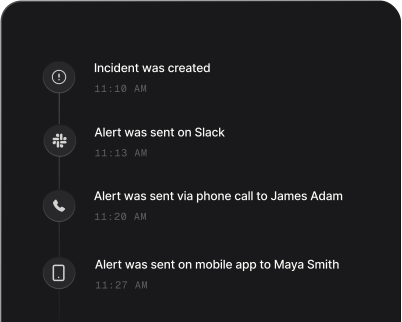
Alerts reach people where they are
Phone, SMS, push, WhatsApp, Slack and Teams, with each person choosing their own.
Explore alertsPhone call
Mobile app
WhatsApp & SMS
- #incidents
SpikeAPP20:05
Running out of disk space
StatusTriggeredSeveritySEV1Slack bot
Spike10:56 PM
Running out of disk space
Repeated 2 times · Suppressed 14 times
IncidentENGG-24
ServiceDatabase service
SeveritySEV1
Microsoft Teams bot
Personal settings, set once
OpsGenie notification rules do not carry over, so each person sets theirs in a few minutes.
Reconnect Slack and Teams
Install the Spike Slack app or Teams bot. The OpsGenie connection does not carry over.
Incoming calls
Live Call Routing sends incoming calls to whoever is on call.
What has no direct match
The gaps, stated plainly, with what to do about each.
Heartbeat monitoring
Spike does not have it. If you rely on heartbeats, a tool like Cronitor or Healthchecks can watch your jobs and send alerts into a Spike integration.
Maintenance windows that silence alerts
Planned maintenance on a Spike status page tells your subscribers about downtime but does not stop alerts. For recurring quiet periods, use a routing rule with a Time of day condition and the Ignore incident action. For a one-off window, mute the incident.
Exporting personal notification rules
Not possible from OpsGenie, so each person sets their own preferences in Spike.
Things Spike has that OpsGenie did not
A few extras you get along the way.
Status pages on every plan
No separate product to buy.
Per-step channel choice
Choose the channel for every step, for example a call first, then SMS, then Slack.
Test your setup
Test Escalation and test alerts let you check your setup before a real incident.
Playbooks
Automate the first steps of your response.
Spike AI and MCP
Mention @Spike in Slack, or connect Claude, Cursor and other AI tools to your incidents.
Which plan fits
Any of the three can work for a team coming from OpsGenie, depending on what you need.
See pricingStarter
For small teams. Includes 100 phone and SMS alerts in total. Slack, Teams, WhatsApp, Telegram, Discord and email alerts are unlimited.
Business
Adds unlimited phone and SMS, multiple teams, unlimited live call routing, and Jira, ClickUp and Linear integrations.
Enterprise
Adds SSO and a dedicated support channel.
Moving off OpsGenie?
You don’t have to figure it out alone.
Book a call and we will help you map your schedules, escalation policies, and integrations.