Your OpsGenie to Spike
parallel run plan
Run Spike next to OpsGenie for a short time, so you can confirm every alert reaches the right person before you switch. OpsGenie keeps covering your team the whole time, and you move to Spike one phase at a time.
The plan in three phases
Download PDFPhase 1
Observe
- Pages as today
- Slack only
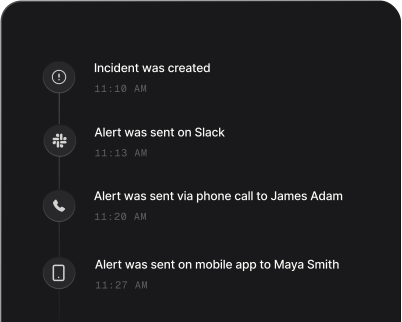
Send every alert to both tools. OpsGenie keeps paging people as it does today, and Spike posts incidents to a Slack channel only, so nobody gets a second page.
- Add the Spike webhook to each monitoring tool, next to the OpsGenie one. See creating integrations and services.
- Give each Spike escalation policy a single Slack step for now. See creating an escalation policy (docs).
Phase 2
Page from Spike
- Backup
- Pages one team
After a few days without a gap, start paging from Spike for one team or a few low-risk integrations. OpsGenie stays on as your backup.
- Add the phone, SMS, or mobile app (docs) steps to those escalation policies, and run Test Escalation on each one.
- Ask the people on-call to confirm they received their pages. Everyone should set their alert preferences first.
Phase 3
Spike first
- Receives alerts only
- Pages every team
Extend Spike paging to every team and integration, and turn off OpsGenie notifications for your responders so nobody gets duplicate pages. Keep OpsGenie receiving alerts, so you can still compare.
- Tell the team that pages now arrive from Spike.
- Keep doing the daily check until you have covered a full on-call rotation.
Then continue with the cutover steps in the migration checklist.
The daily check
Compare yesterday’s alerts in OpsGenie with the incidents in Spike.
- Every alert matches.Each OpsGenie alert has a matching Spike incident.
- The right people were alerted.The same responders were reached, on the same channels and at the same priority.
- Acknowledge and resolve work.Try them from each channel your team uses.
- Incidents close on their own.Alerts that recover in your monitoring tool resolve in Spike.
- Shift notifications arrive.People are told when their on-call shift starts and ends.
Common gaps and how to fix them
An alert in OpsGenie but no incident in Spike
- Likely cause
- The monitoring tool is not sending to the Spike webhook, or is sending to the wrong integration.
- What to do
- Check the webhook URL in the tool, and use the tool’s test notification to send an alert.
The wrong person was alerted
- Likely cause
- A schedule layer, slot, or policy step (docs) is set differently from OpsGenie.
- What to do
- Compare the on-call calendar (docs) with your OpsGenie schedule, and check the order of the policy steps.
Too many incidents
- Likely cause
- Spike groups incidents by title, so a changing title creates new incidents.
- What to do
- Use Title Remapper to give repeated alerts the same title, and add an alert routing rule (docs) for noise you want to ignore.
An incident does not close
- Likely cause
- The tool is not sending a recovery event.
- What to do
- Enable the OK or resolved notification in the tool, or set a Resolve Timer on the integration.
Someone was not reached
- Likely cause
- Their phone or email is not verified, or Do Not Disturb blocked the call.
- What to do
- Ask them to verify their contacts and add Spike’s contact card to their favorites.
When to switch
We suggest switching when all of these are true:
Moving off OpsGenie?
You don’t have to figure it out alone.
Book a call and we will help you map your schedules, escalation policies, and integrations.