Welcome to the new Spike
We rebuilt the Spike app with a new design, faster navigation, and keyboard shortcuts throughout.
Read the full story in our blog post →
Here is everything that changed.
Navigation & global
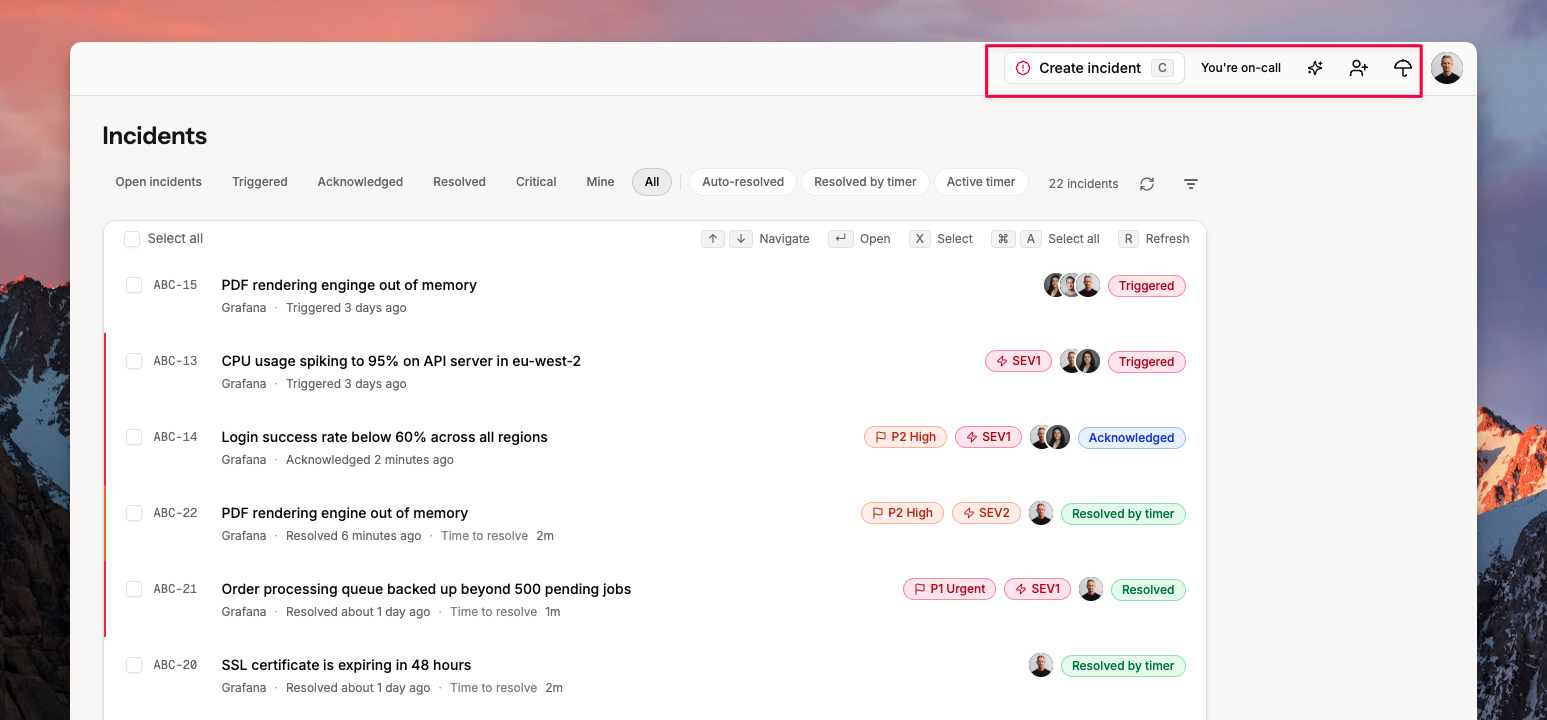
When you log in, you now land directly on the incidents list. The Home tab is renamed to Incidents.
The header is re-organized around what you need most:
- Your on-call status, which is visible on every page
- Create Incident button (Click it or press
Cto create one manually) - Invite team members button
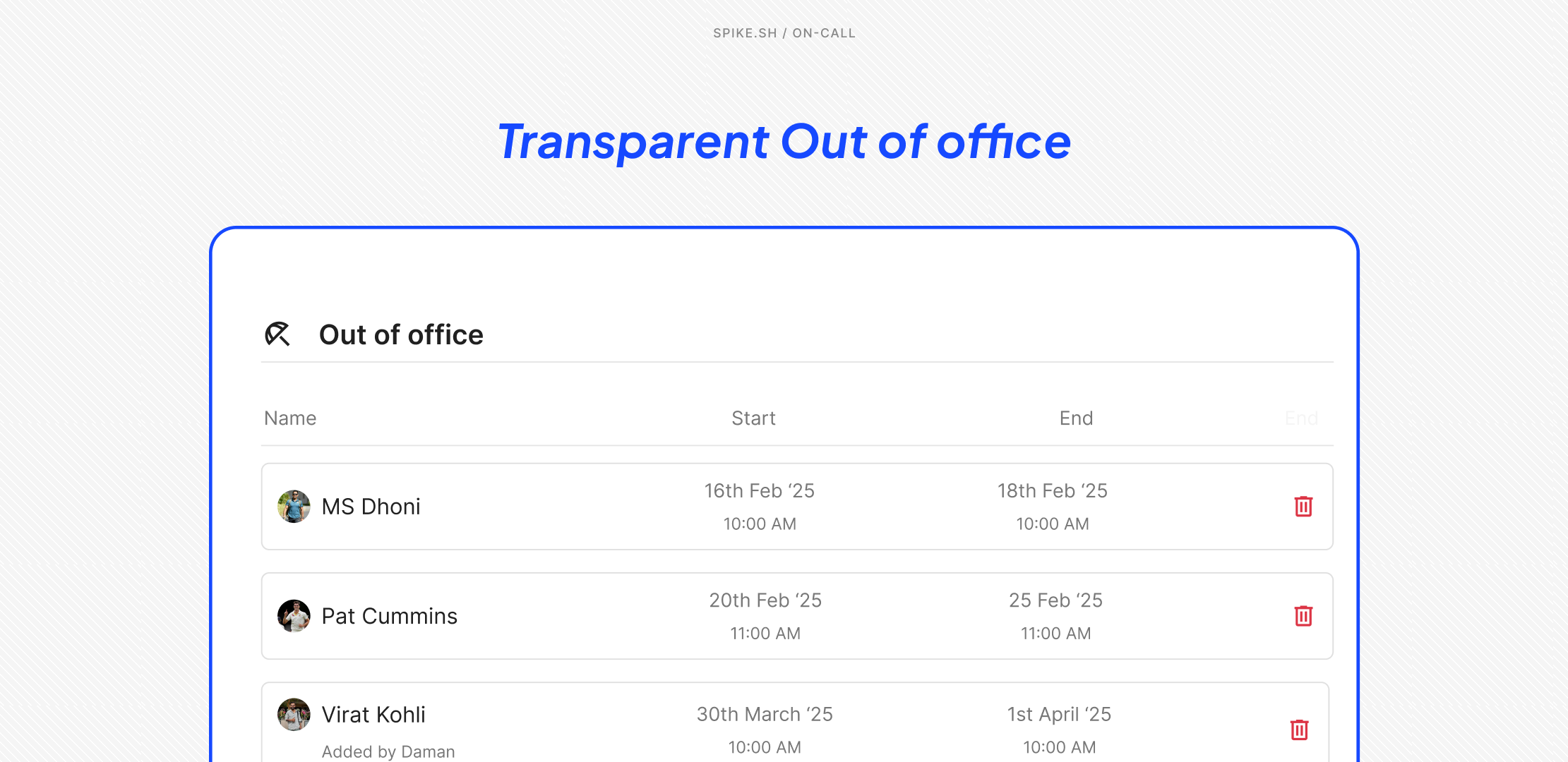
- Out-of-office mode
Cooldown and Deep Work modes are deprecated.
Incidents list
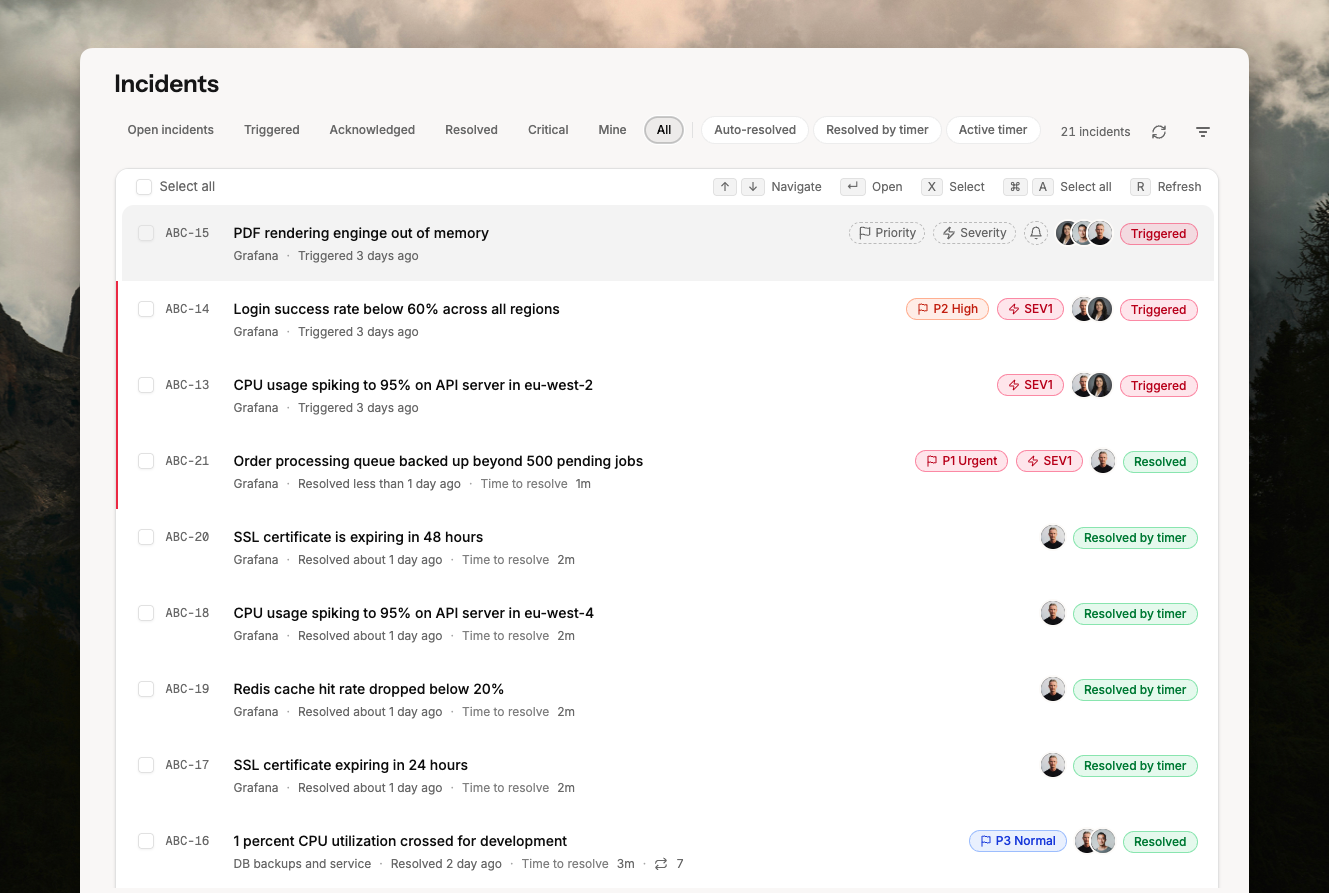
The incidents table is redesigned for faster triage.
- Click a row to open an incident, or move between rows with the up and down arrow keys.
- Select and deselect rows with
Xor Shift+Down. - Press
Command+Kon selected incidents to run status, priority, severity, mute, and manage responders’ actions. - Bulk-acknowledge, resolve, and add/remove responders. Change priority or status from the keyboard or action buttons.
- Manage responders, status, mute, priority, and severity directly from a row without opening the incident.
- Press
Ror use the refresh button to fetch new incidents. Useful while testing integrations. - New filters include: assigned to you, critical only, has a resolution note, and incidents that mention you.
Incident details
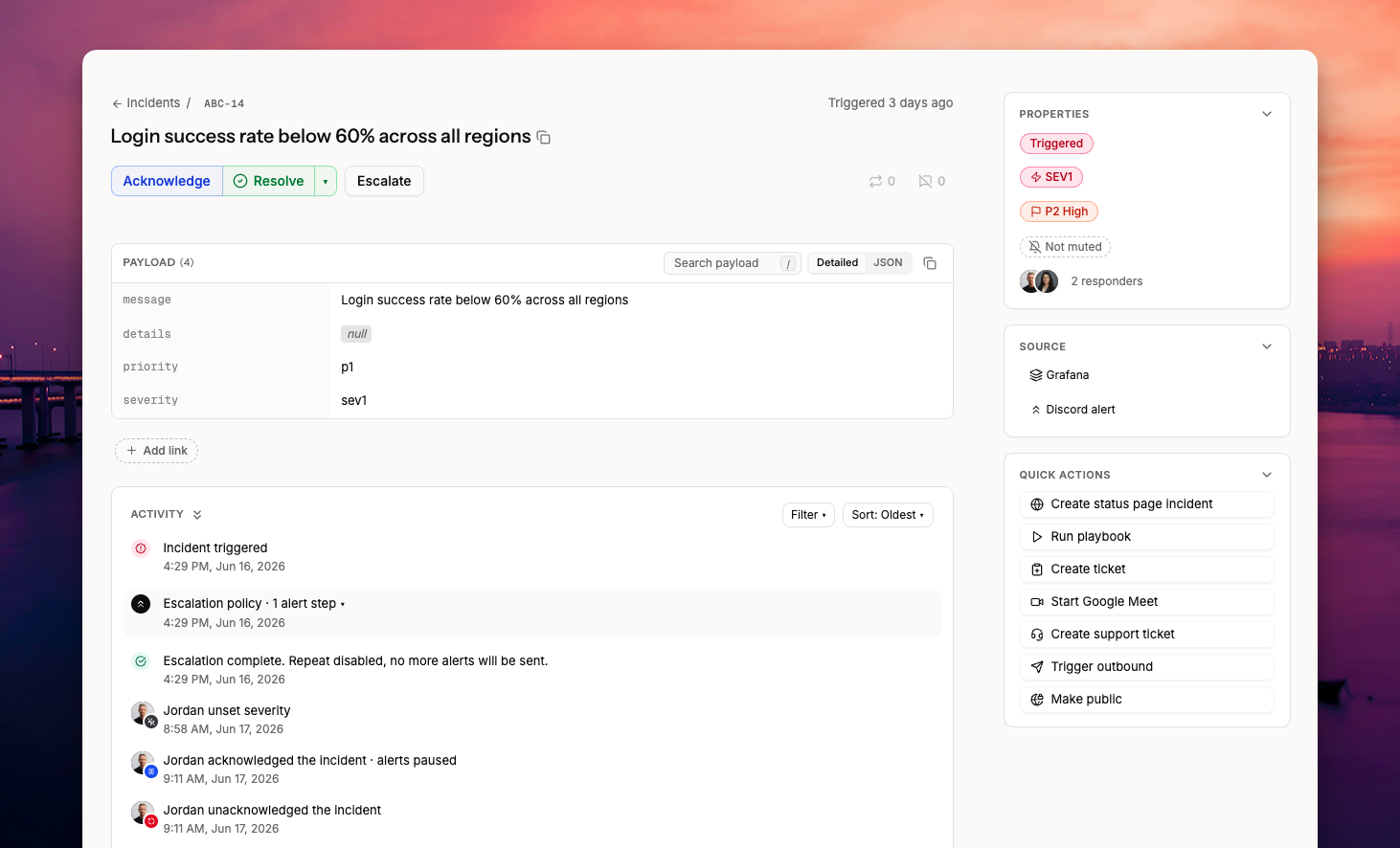
When you open an incident, you'll find a cleaner layout focused on the title and message. All the key actions: acknowledge, unacknowledge, resolve, and escalate are at the top.
- Add a resolution note and resolve in one action. Or add a note to an open incident and resolve it later.
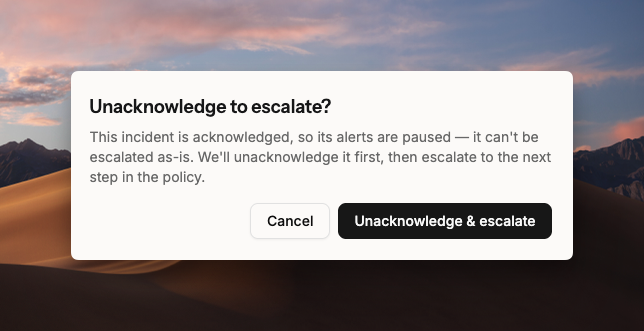
- Escalating an acknowledged incident now prompts you to unacknowledge and escalate in one click. Acknowledged incidents pause escalation alerts.
- Improved view of how repeated and suppressed incidents were resolved previously.
- Quick actions panel: resolve, change severity and priority, jump to the integration or escalation.
- Create a status page incident with a custom message, make the incident public, start a conference call, or create a Linear or Jira ticket.
- The payload view is redesigned. Copy any key, search with
/, view as JSON, and copy the full payload. You can also add links to the incident. - The activity log has filters and sorting. Escalation alerts are grouped by level so you can see how far an incident escalated.
- Comments and notes are merged into a single Note. Tag teammates with
@nameand link incidents with@ID. - Press
Command+Kto run common actions from the incident page.
On-call
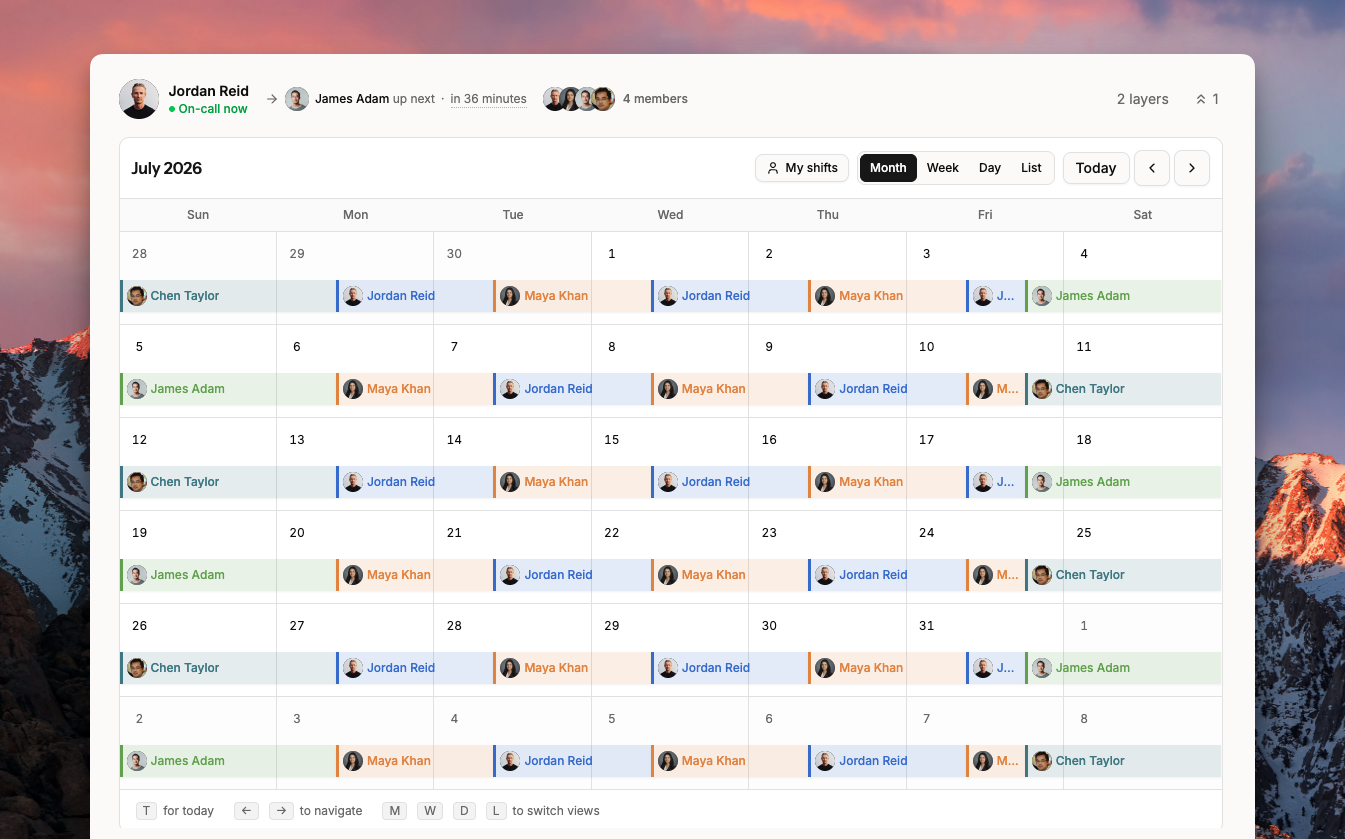
The on-call page puts the calendar front and center. No more scrolling to reach it.
- Switch between month, week, and day views using keyboard shortcuts.
- Filter the calendar to show only your shifts.
- Add overrides by clicking a shift to overwrite it, or drag across empty dates to create one. Remove overrides directly from the calendar.
- Switch between on-calls with
Command+Kor by clicking the schedule name. - Open All Schedules to see everyone's shifts. Filter by your own shifts or by a specific schedule.
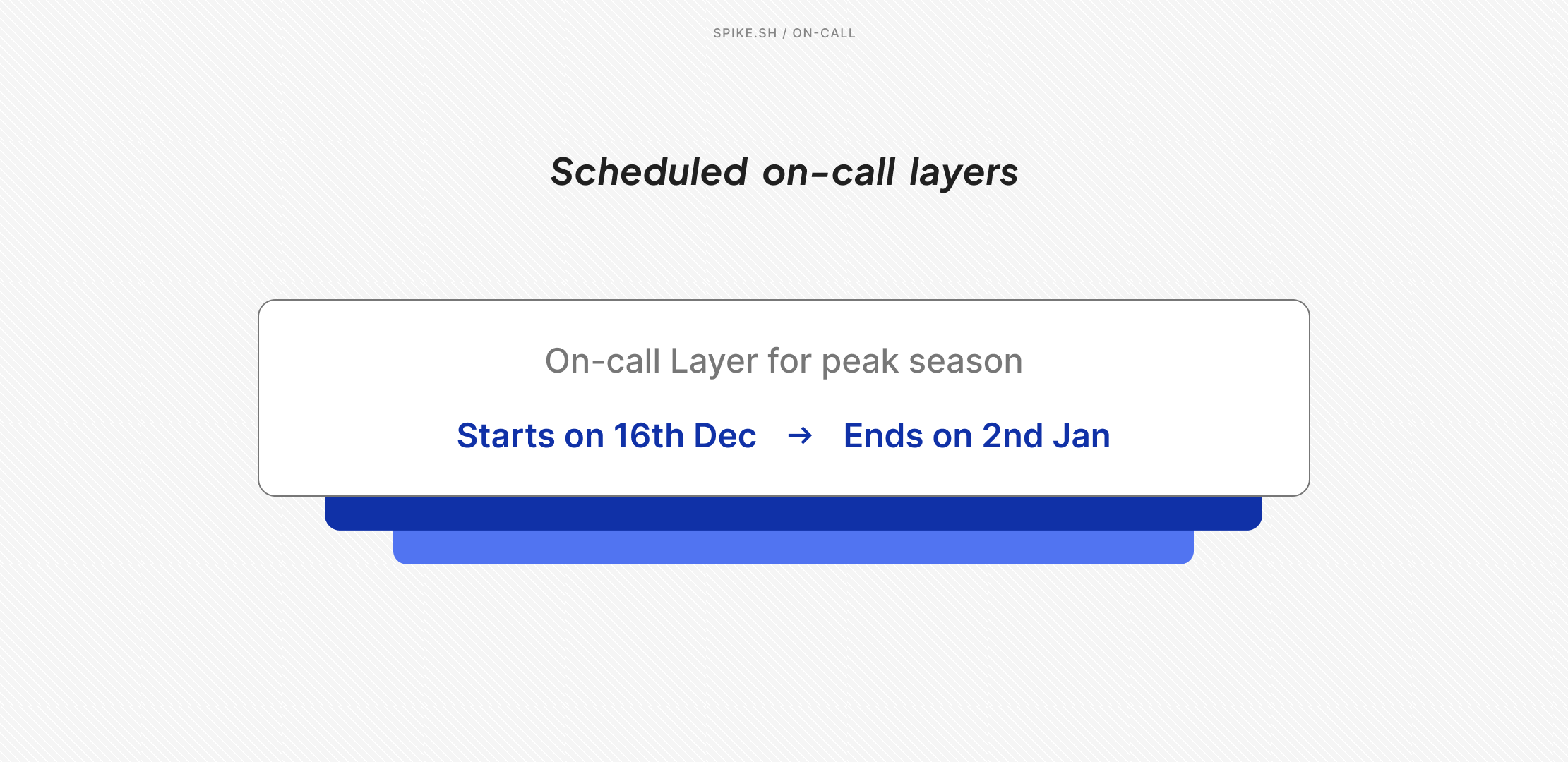
- Layer configuration is in a compact panel. Open it to view layers, swap members, and reorder.
- Connected escalations are accessible from the same view.
- Contact the current on-call member via email or call.
Escalations
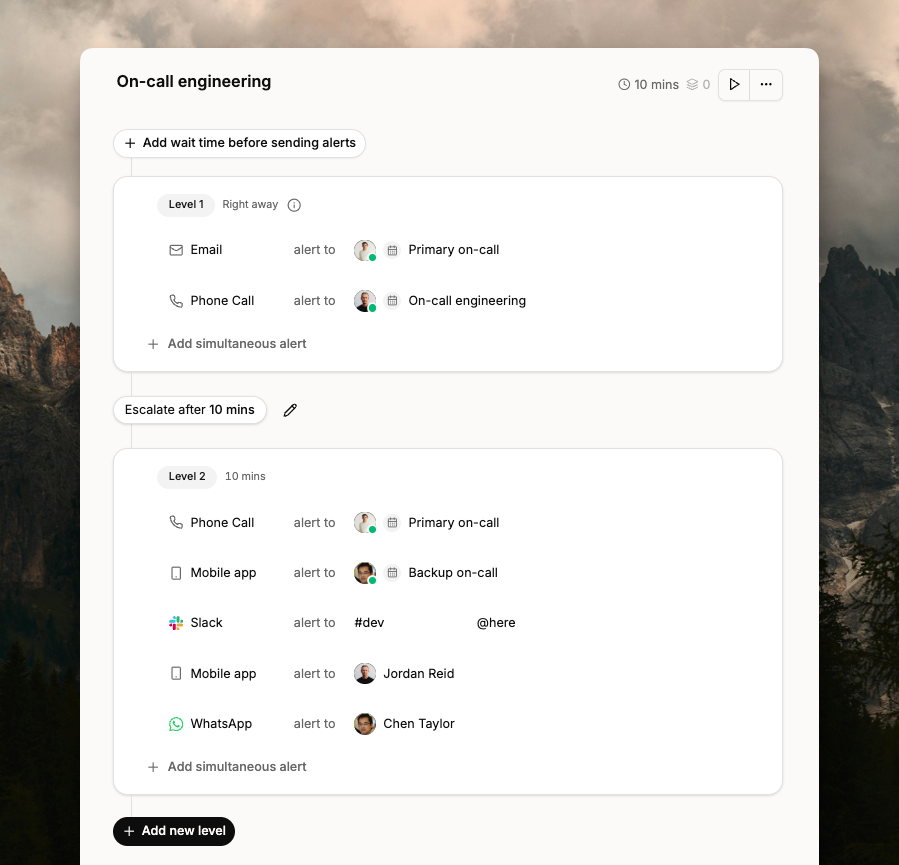
Navigating to the right escalation policy is faster now. Use the left panel to switch between policies. Filter by on-call schedule, user, integration, or number of levels.
Editing is faster too. You can make changes easily. Undo or redo changes at any point, and a full history of edits is available.
Each level now shows how many minutes after trigger it runs, and the total escalation duration.
Integrations
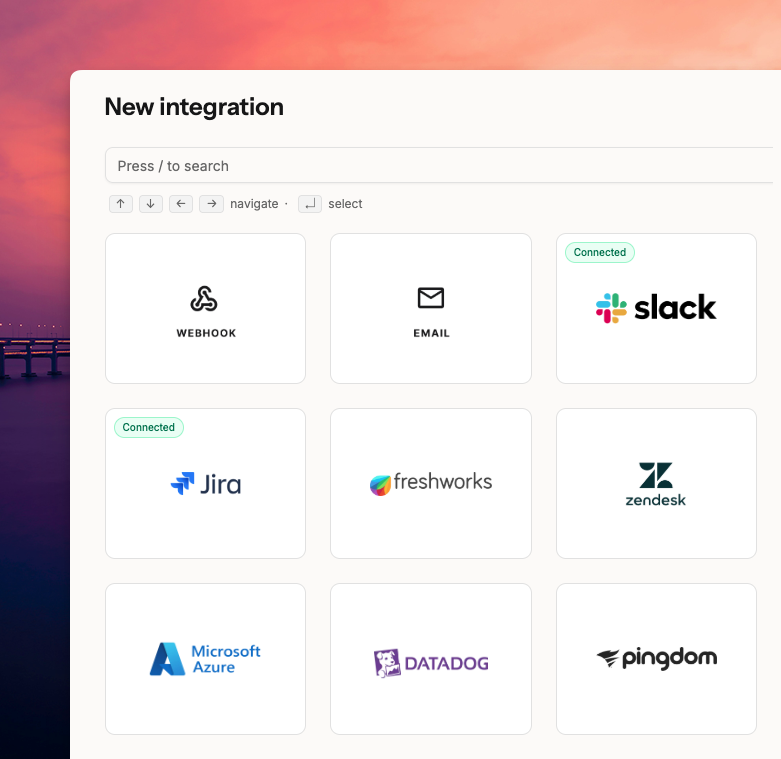
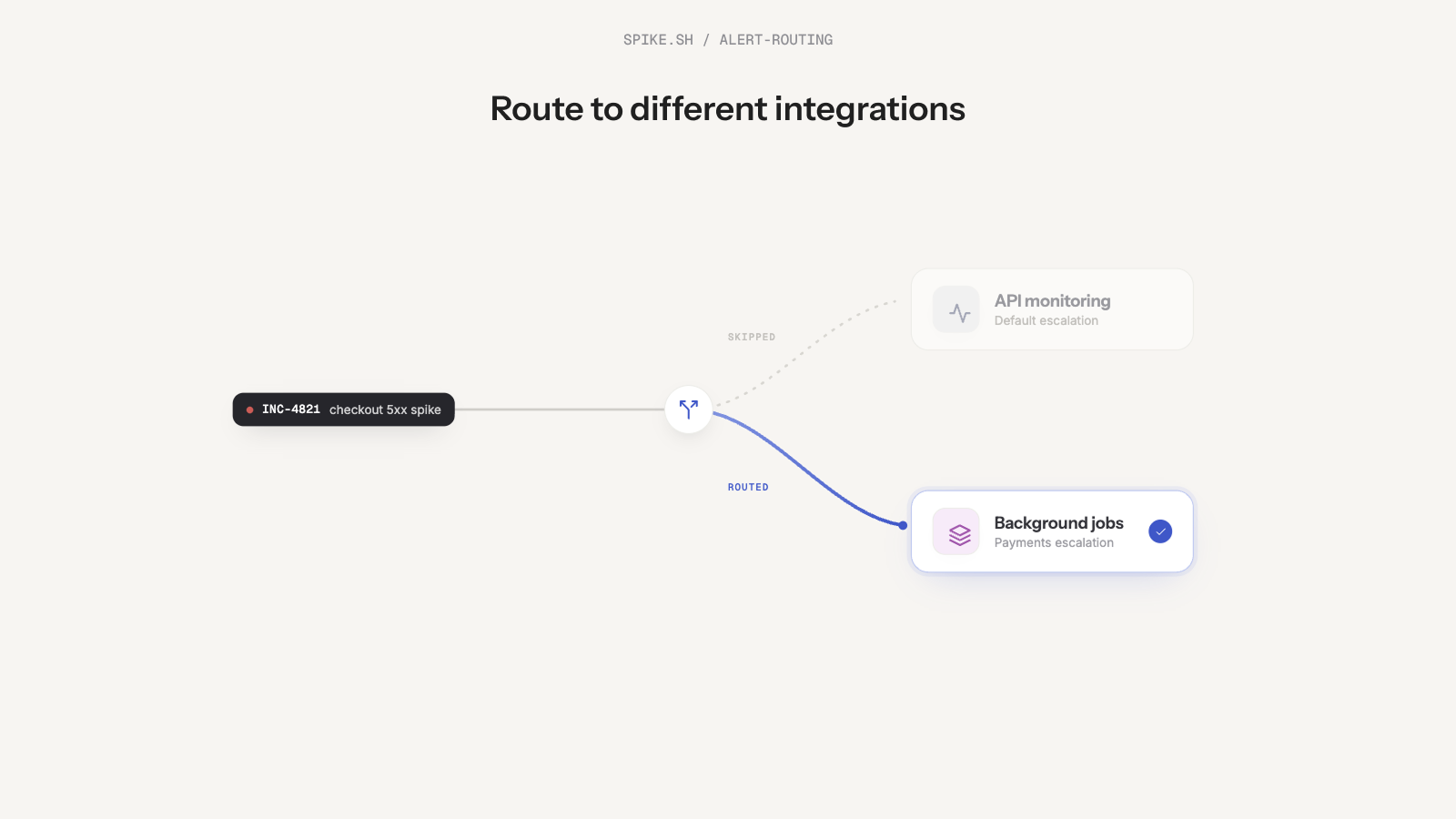
All integrations (Slack, Microsoft Teams, Linear, Jira, Freshdesk, etc) live in one place.
Add incident-triggering sources (like Grafana) and outbound integrations (like Slack) from the same flow.
Teams
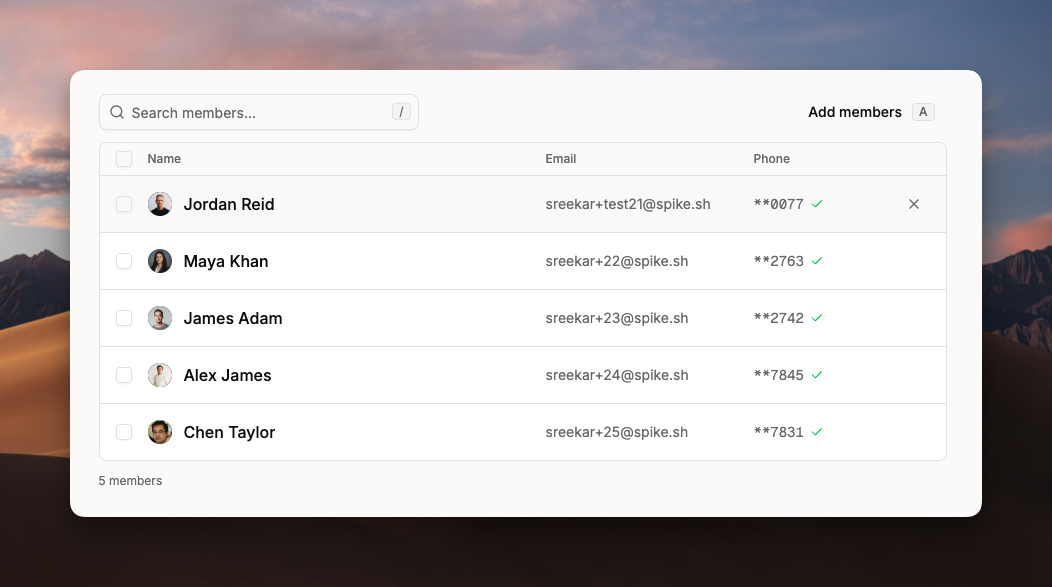
Team management is improved.
- Filter teams and find what you need faster.
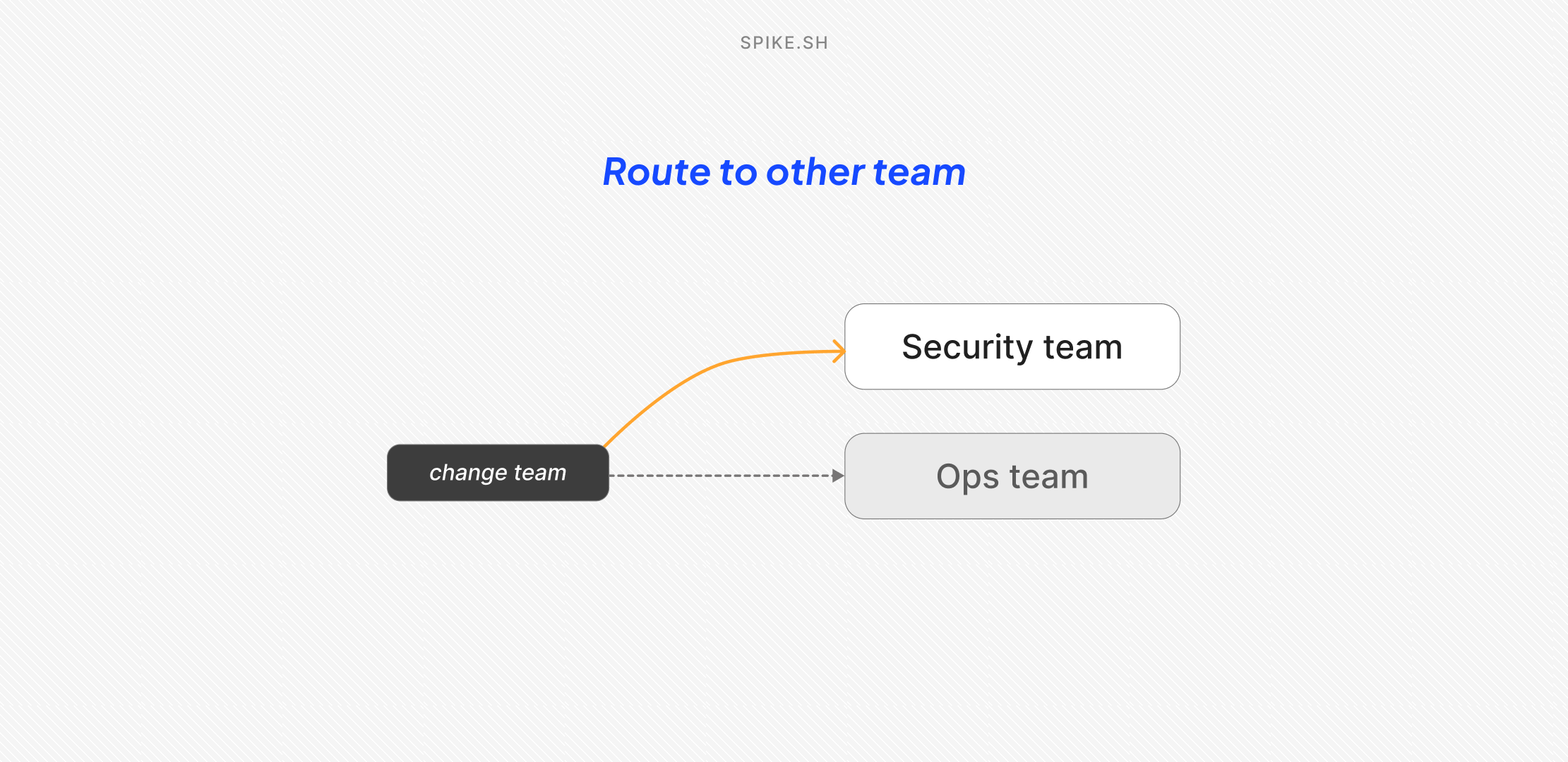
- Join or move to a team more easily.
- Move and remove members with fewer steps.