

TL;DR
Jira Service Management (JSM) is a capable choice for OpsGenie migrators already on Jira, with strong bi-directional Jira sync and flexible escalation customization. But status pages cost extra, escalation timing only counts down from the top, and key features are locked behind Premium or Enterprise plans. For a simpler, more affordable dedicated incident management platform, Spike covers the same core workflows without those gaps.
Atlassian is shutting down OpsGenie. New sales already stopped on June 4, 2025, and the platform will be completely offline by April 5, 2027.
As an OpsGenie user, you now face a critical decision: Migrate to Jira Service Management (JSM), Atlassian’s recommended path, or choose a different solution. And if you’re not sure JSM is the right fit for your team’s incident management needs, this review will help you decide.
I signed up for JSM and put it through real-world testing. I created integrations, escalation policies, on-call schedules, and triggered test alerts. Then, I reviewed JSM’s incident management capabilities across 4 key criteria (you’ll discover them as you read on).
For each criterion, I shared what I liked and what I didn’t. This gives you a balanced look at JSM’s incident management features.
As you finish reading this review, you’ll know if JSM fits your team’s needs. If you decide JSM isn’t right for you, I’ve also included an alternative that might suit you better.
Let’s dive in!
My Evaluation Criteria for JSM’s Incident Management Capabilities
- Alerting: I checked how JSM alerts teams when an incident occurs. This covers ease of setup, the different alert channels, and how it prevents alert fatigue.
- Incident Response: Once an incident is declared, what tools are available to tackle initial response, team collaboration, stakeholder communication, and post-incident analysis?
- On-Call Management: I reviewed how easy it is to create, manage, and override on-call schedules. This includes everything from daily rotations to last-minute changes.
- Pricing: I broke down the costs, plans, and overall value of JSM. This helps you see what you get for your money.
Jira Service Management (JSM) Review for Incident Management
| Criteria | What I liked | What I didn’t like |
|---|---|---|
| Alerting | Dual control at both team and individual levels. Extra notify options like next/previous member on rotation. Repeat escalation with customizations. | Can’t specify how alerts are delivered in escalation policies. Contact methods felt nested in UI. Can’t reply to emails to take action. No relative delay time in escalation policies. |
| Incident Response | Strong manual controls. Flexible automation with Alert Policies and Automation. Instant Zoom and Teams war room buttons. Bi-directional Jira sync. | No built-in status page. Can’t acknowledge from email. No instant war room button on Slack. Can’t see ongoing war rooms. |
| On-Call Management | Intuitive schedule setup. Side-by-side calendar preview. Easy overrides from calendar. Duplicate schedules and rotations. | No activity logs for schedule changes. No comments on overrides for context. No override history. Calendar preview has three separate tabs. |
| Pricing | A free tier to test the basics. Lower starting price than PagerDuty. | Postmortem feature locked behind Premium and Enterprise plans. Status pages require paid Statuspage.io integration. True cost rises with add-ons. |
1. Alerting
JSM gives users control over how they get alerted. Each person sets preferences for channels, timing, and order. Teams build escalation policies that route alerts to specific people, on-call schedules, or entire teams.
What I liked
JSM offers dual control over alerts at both team and individual levels. You set individual notification preferences and create team-level escalation policies. This matches what OpsGenie offers.
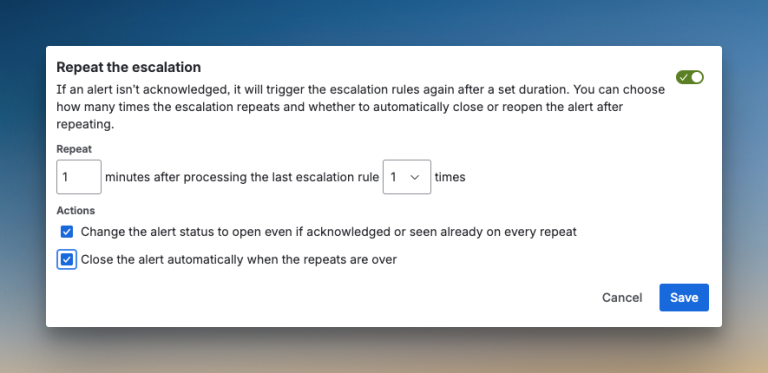
JSM adds more notify options in escalation policies. You can notify the next member on rotation, the previous member, or a random team member. JSM also adds repeat escalation with customizations like time delay, maximum repetitions, and automatic alert closure when repeats finish.
What I didn’t like
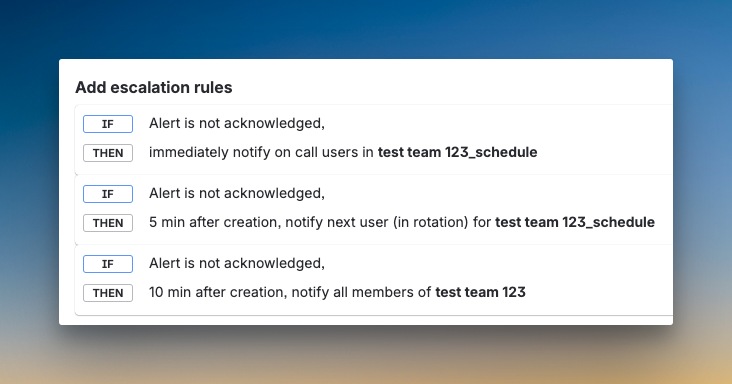
The delay time in escalation policies is not relative. You have to calculate the time from the top of the policy. For example, if you want to escalate after 5 minutes, then after 10 more minutes, you need to set the second step at 15 minutes from the start. This adds mental overhead.
You can’t specify how someone gets alerted in the escalation policy. You can tell JSM to alert a user, but not whether that should be a phone call or SMS. Contact methods aren’t obvious in the interface. Email alerts show a button to view the alert, but you can’t acknowledge or resolve it by replying.
For a detailed review on alerting, read the blog: JSM Review for Alerting (202)
2. Incident Response
JSM carries forward OpsGenie’s approach to manual triage. You can update priority from Slack or the dashboard. For automatic triage, JSM gives you Alert Policies and Automation, which work like if-else-then rules.
What I liked
The manual controls are solid. You can acknowledge alerts from all channels except email. You do it from Slack, the dashboard, or the mobile app.
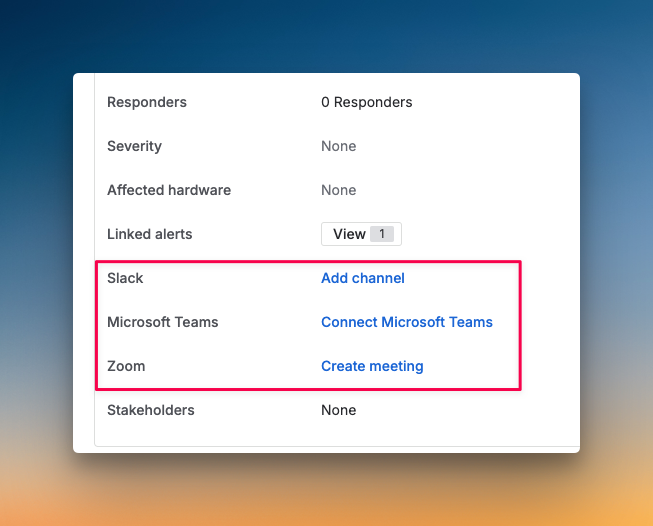
The instant war room buttons for Zoom and Teams are convenient. You click a button on the incident dashboard and start a call. JSM maintains OpsGenie’s strong bi-directional sync with Jira. You create Jira tickets instantly from the dashboard. Changes sync both ways.
What I didn’t like
JSM does not have a built-in status page. You need to integrate with Atlassian’s Statuspage.io, which costs an additional $29-109 per month on top of your JSM subscription.
There’s no instant war room button on Slack. You need to visit the dashboard to start a call. You can’t see ongoing war rooms. If multiple incidents are active, you have no way to know which war rooms are live or to request to join them.
For a detailed review on incident response, read the blog: JSM Review for Incident Response (2026)
3. On-Call Management
JSM follows the same team-based on-call schedules of OpsGenie. You first add a team and then create an on-call schedule for that team. The configuration sits inside the team’s on-call dashboard.
What I liked
The side-by-side calendar preview makes it easy to see changes as you configure your schedule. You can view the preview in timeline view and calendar view. When you place your cursor on a member’s name, you see their shift start and end times.
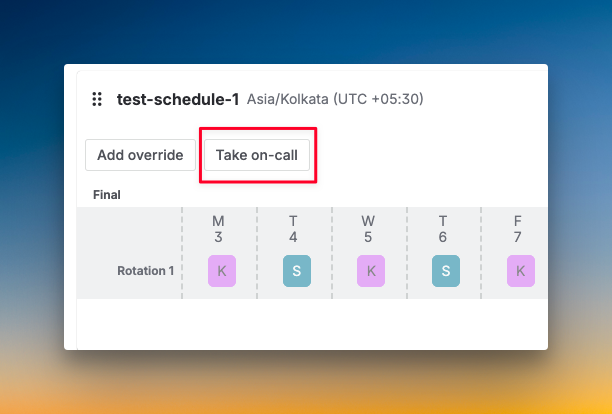
You can duplicate entire schedules or individual rotations. This saves time when setting up similar coverage patterns. Creating overrides is simple with direct calendar interaction. JSM adds a “Take on-call” button that overrides all rotations and makes you the only on-call participant for one hour.
What I didn’t like
No activity log is available. When you create a schedule, add rotation, or override a shift, nothing gets logged. There’s no way to track who made changes and when.
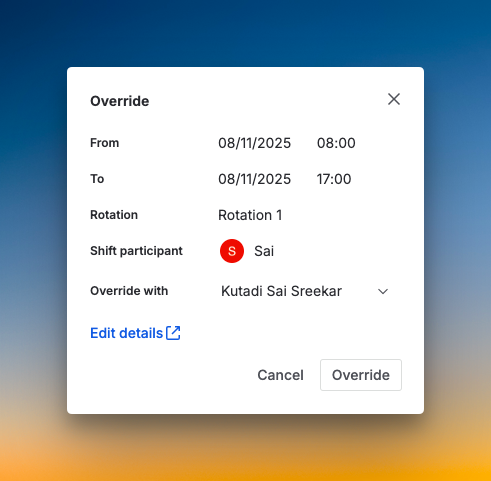
You can’t add comments to overrides. The person covering for you gets zero context about why they’re stepping in. Also, there’s no separate override history.
4. Pricing
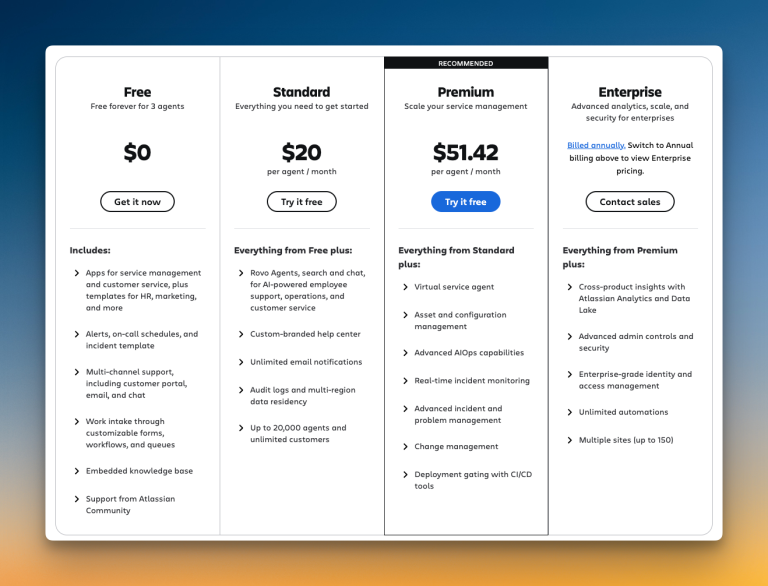
JSM offers a free tier and paid plans starting at $20/user/month. The structure appears straightforward at first glance, but includes hidden charges.
What I liked
I appreciate that JSM offers a free tier to test basic features before committing. This lets small teams explore the platform without upfront costs. If you already use Jira heavily across your organization, this adds value.
What I didn’t like
Many features sit behind higher tiers. Status pages require a separate Statuspage.io subscription. That adds $29 to $109 each month on top of JSM’s cost. Postmortems only appear on Premium and Enterprise plans.
So, Should You Consider Jira Service Management (JSM) for Incident Management?
JSM gets the core of incident management right. It keeps many of OpsGenie’s strengths and adds some helpful new features.
You get dual control over alerts and solid triage options. The bi-directional Jira sync remains a strong point. The “Notify Stakeholders” button is a welcome addition for post-incident updates.
However, JSM has clear gaps. It doesn’t have a built-in status page. You need to pay extra for Statuspage.io, which adds to the cost. The on-call management also feels incomplete.
Key quality-of-life features are missing. You can’t add comments to overrides or track schedule changes. Calculating escalation timing from the top also makes the setup more complex than needed.
So, pick JSM if you already use Jira heavily and can handle the extra costs. It works well for teams deeply invested in the Atlassian ecosystem.
If that doesn’t sound like you, there’s a better alternative that might fit your needs.
Spike: A Better Jira Service Management (JSM) Alternative for Incident Management
The main difference between JSM and Spike is focus: JSM is a broad ITSM platform where incident management is one feature among many, while Spike is built end-to-end for the incident lifecycle, from the first alert to the final postmortem, without the complexity or hidden costs.
Here’s why Spike is a better alternative to JSM for your incident management needs:
Alerting improvements:
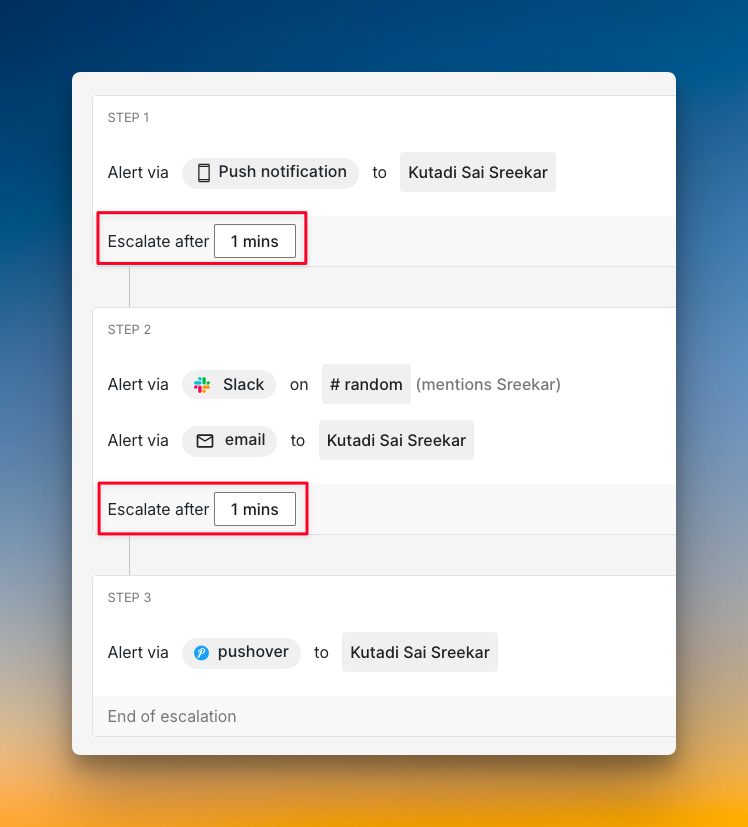
- Spike lets you set relative escalation timing. You define “escalate after X minutes” for each step, not from the top. You can also add wait time at the start for auto-resolvable incidents.
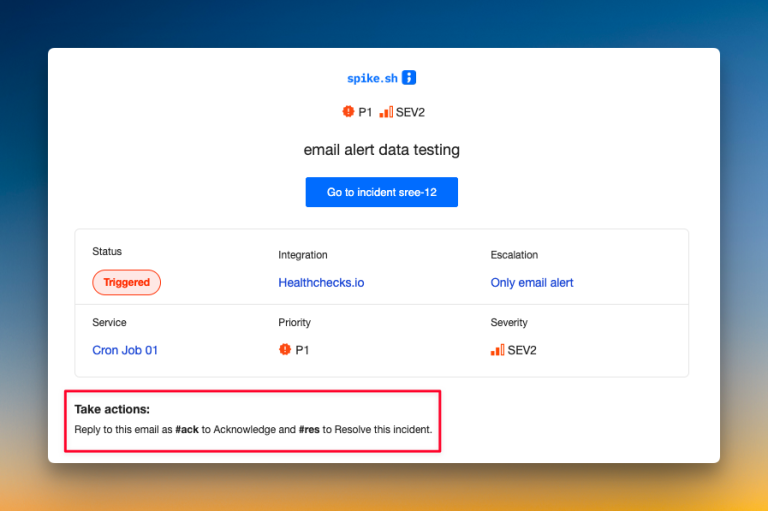
- You can acknowledge from all channels, even email. Unlike JSM, Spike lets you acknowledge incidents by replying with
#ackor#res. This gives your team more flexibility.
Incident Response improvements:
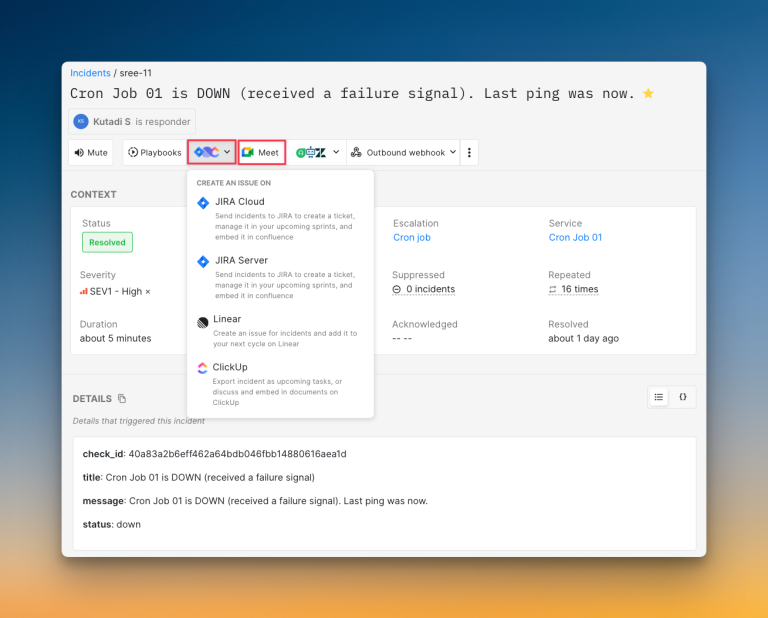
- One-click war rooms with visibility. Spike uses Google Meet for war rooms. You create one with a single click from the dashboard. You can see all ongoing war rooms and request to join them.
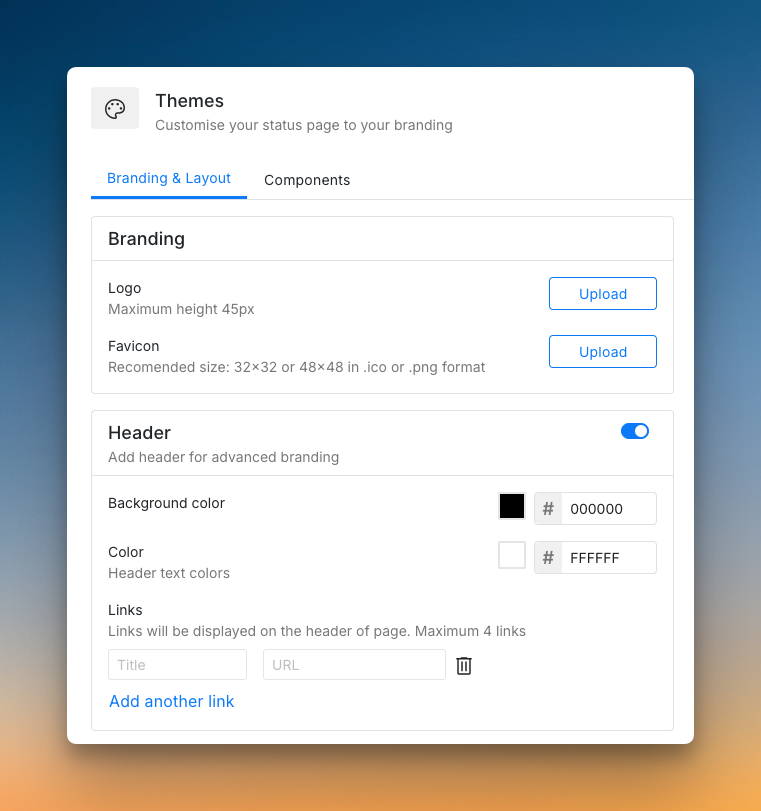
- Built-in status pages at no extra cost. Spike gives you status pages on all its plans. You can create public or private pages, host them on your own domain, and customize branding. There are no surprise costs.
On-Call improvements:
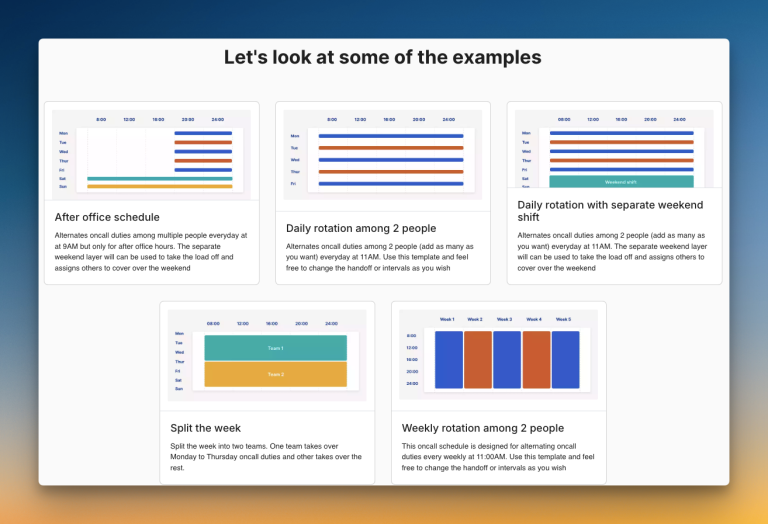
- Spike provides ready-to-use on-call templates. You can star-mark your most-used schedules. You get a complete activity log showing who made changes and when.
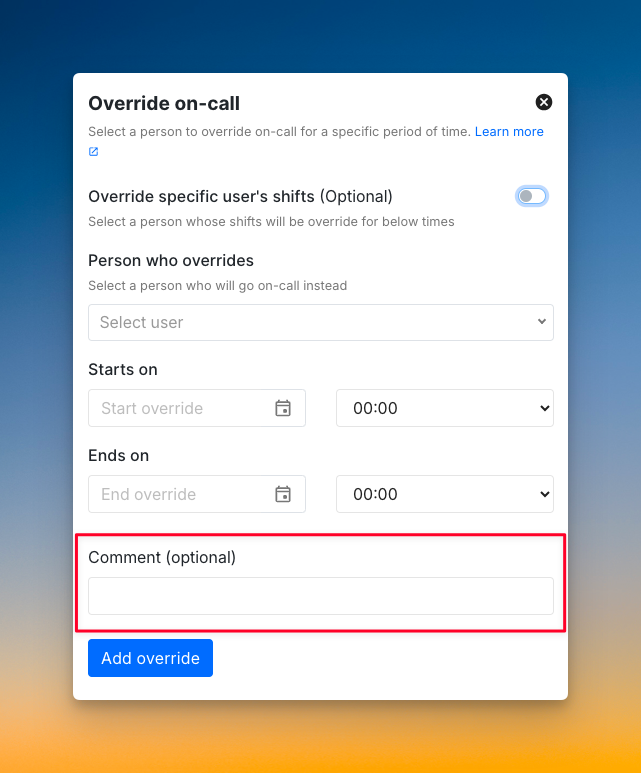
- You can add comments to every override in Spike. The person covering for you knows why they’re stepping in and what to watch for.
Pricing advantage:
- You get Spike for about one-third of what you would pay for JSM with similar capabilities.
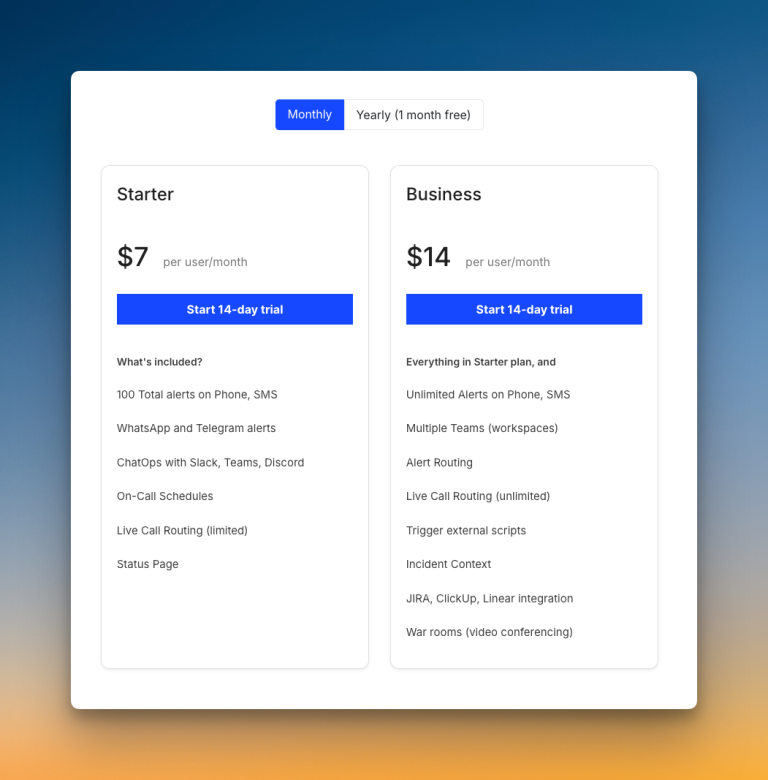
- For OpsGenie users, Spike is running an exclusive discount of 50%. Learn more →
Read JSM vs. Spike: Incident Management for a detailed comparison.
Success Story: Virtually Human Moving from OpsGenie to Spike
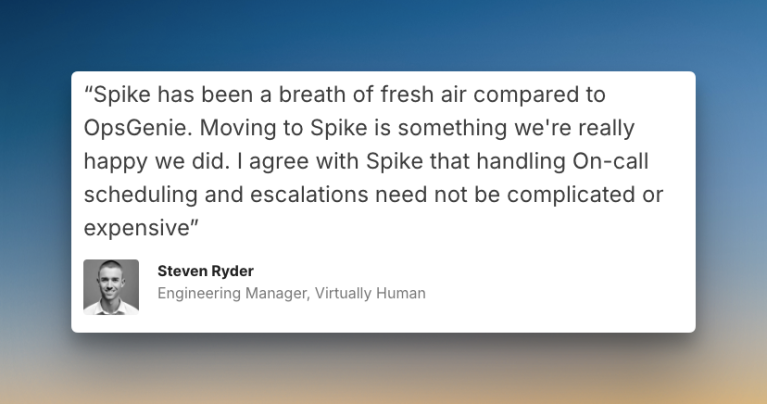
When Virtually Human, a company that develops consumer-first entertainment experiences with blockchain, needed an alternative to OpsGenie, they chose Spike.
Steven Ryder, former Engineering Manager at Virtually Human, led the transition to Spike. The entire migration process was seamless.
This smooth transition helped them set up their on-call schedules that now include 15 members spread across 8 different time zones.
Final Thoughts
JSM is a solid tool with strong Jira integration and flexible automation. I was impressed by its repeat escalation customizations, bi-directional Jira sync, and convenient war room buttons.
However, I found key gaps. Status pages cost extra, escalation timing is calculated from the top, and you can’t add comments to overrides. Many essential features are locked behind Premium or Enterprise plans.
Spike solves these problems. It offers a simpler, more flexible platform designed for modern teams. You get all the incident management tools in one straightforward package, at a much lower cost.
OpsGenie will shut down completely by April 5, 2027. Atlassian points you toward JSM, but that’s not your only option.
You don’t have to follow Atlassian’s recommended path just because they suggest it. Tools like Spike offer more flexibility, no hidden costs, and features JSM lacks. Plus, the migration is simple, and you can start right away.