

Atlassian is sunsetting OpsGenie. This means you need to pick a new tool to manage your on-call schedules.
And if you are stuck between Jira Service Management (JSM) vs. Spike, this blog post will help you make a clear choice.
To write this blog, I created on-call schedules, rotations, and overrides in both tools. I ran a full, hands-on comparison to see which one performs better in real-world scenarios.
By the end of this blog, you’ll understand the key differences between JSM and Spike and pick the right tool for your team.
Table of Contents
Jira Service Management (JSM) vs. Spike: My On-Call Comparison Criteria
- On-Call Schedule Creation: How easy is it to create a new on-call schedule? Are there any templates to give you a head start?
- On-Call Flexibility: How simple is it to adjust schedules for weekends or holidays? Can you easily modify on-call shifts as your team’s needs change?
- On-Call Dashboard & Visibility: How clearly can you see who is on call right now? Can you check upcoming shifts at a glance?
- On-Call Override Functionality: When life happens (like a dentist appointment, your kid’s birthday), how quickly can you create an override?
Jira Service Management (JSM) vs. Spike: On-Call Comparison
| Criteria | Jira Service Management | Spike |
|---|---|---|
| On-Call Schedule Creation | Multi-step process inside Jira projects | Single-page setup with live preview, plus ready-to-use templates |
| On-Call Flexibility | Manual schedule editing, no cloning | One-click cloning, favorites, and layers |
| On-Call Dashboard & Visibility | Embedded in Jira, multiple timeline views | Centralized dashboard with activity logs |
| On-Call Override Functionality | Basic overrides, no comments or history | Overrides with comments, history, and work modes |
1. On-Call Schedule Creation
On-Call Schedule Creation in JSM
In JSM, you first add a team and then create an on-call schedule for that team. The configuration is inside the team’s on-call dashboard. Creating the schedule is a three-step process. You add members, set up the rotation, and define a start time.
The user interface can feel nested. It may take a few clicks to find exactly where to create the schedule. The process is structured and requires you to move through different settings to get it done.
On-Call Schedule Creation in Spike
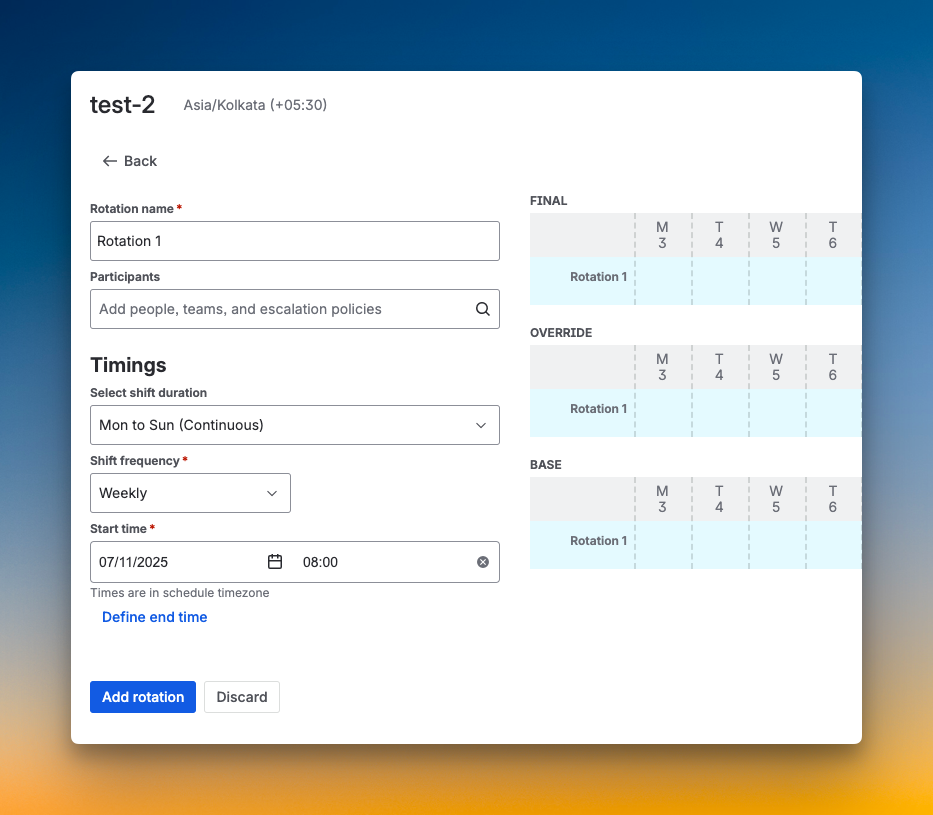
Spike offers a clean, single-page UI for creating on-call schedules. You can build your entire schedule without navigating through multiple menus. It also features a live calendar preview on the side that shows changes in real-time as you build.
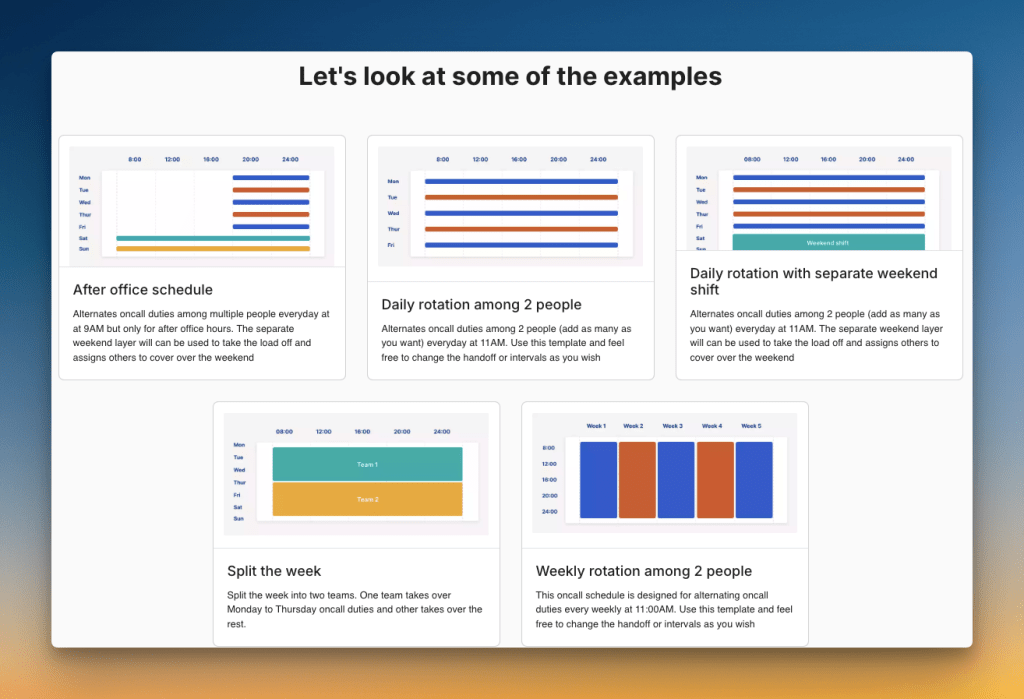
Spike also provides ready-made on-call templates. These help you create schedules quickly without starting from scratch. The focus is on a simple and fast setup experience.
Who should pick what?
- Pick JSM if you don’t mind navigating through a few menus to set things up
- Pick Spike if you want a faster setup experience and ready-to-use templates
2. On-Call Flexibility
On-Call Flexibility in JSM
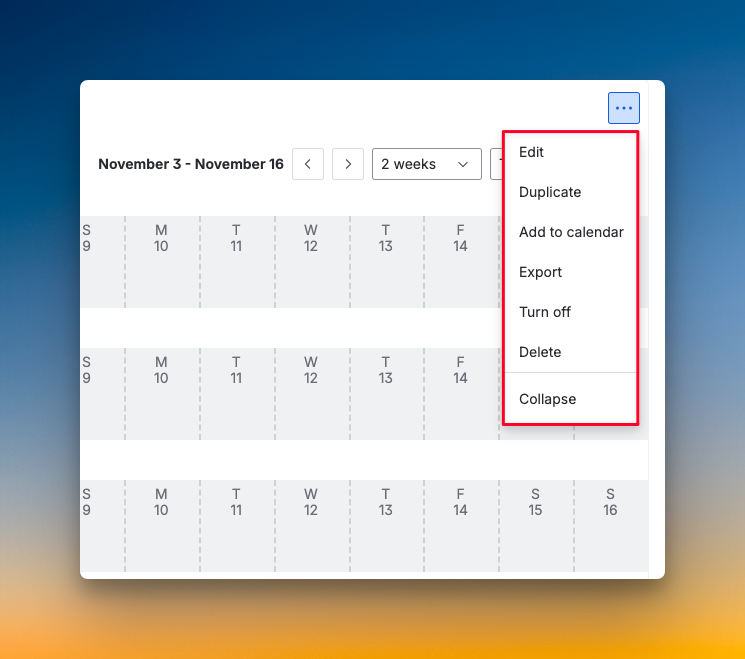
You can edit, duplicate, or delete both schedules and individual rotations in JSM. Adding a new rotation is straightforward through the on-call dashboard.
You also get options to turn schedules on and off, add them to your calendar, and export them as files. The flexibility is there, but you work through multiple dashboard menus to make changes.
On-Call Flexibility in Spike
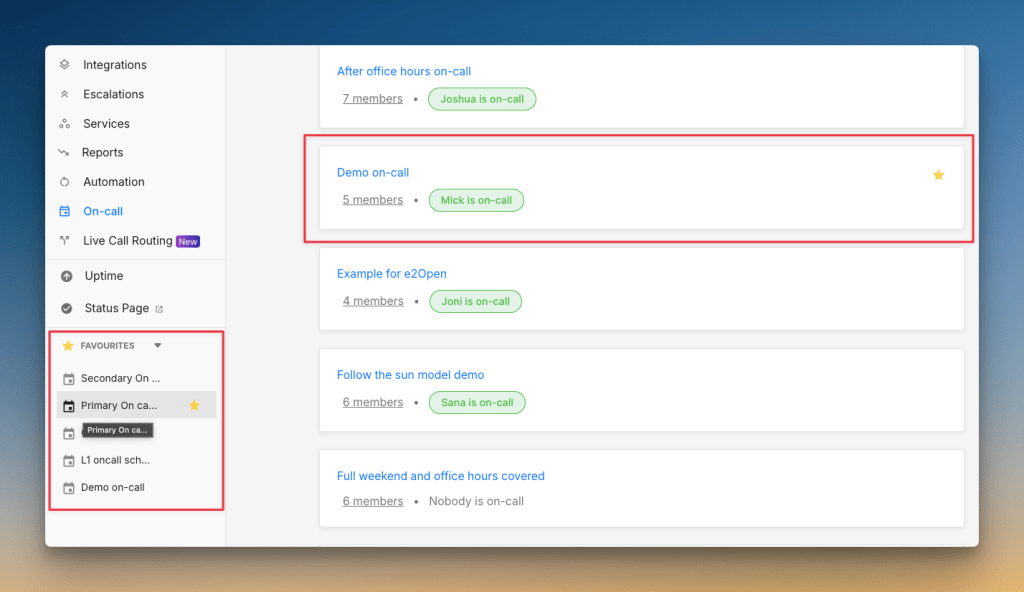
Spike makes schedule management quick and intuitive. You can clone an entire schedule and instantly start with a new one. You can star schedules as favorites to find them in your sidebar without searching.
Adding a new layer to a schedule happens with one click. The calendar preview updates immediately as you make changes. You can also connect Slack and Teams channels for on-call alerts, sync with Linear for task assignments, and set up calendar integrations, all from the on-call settings.
Who should pick what?
- Pick JSM if you need to duplicate schedules and manage rotations through a dashboard interface.
- Pick Spike if you want faster edits, one-click layer additions, and instant access to favorite schedules.
With OpsGenie shutting down, businesses are switching to Spike with 50% off. Learn more →
3. On-Call Dashboard & Visibility
On-Call Dashboard & Visibility in JSM
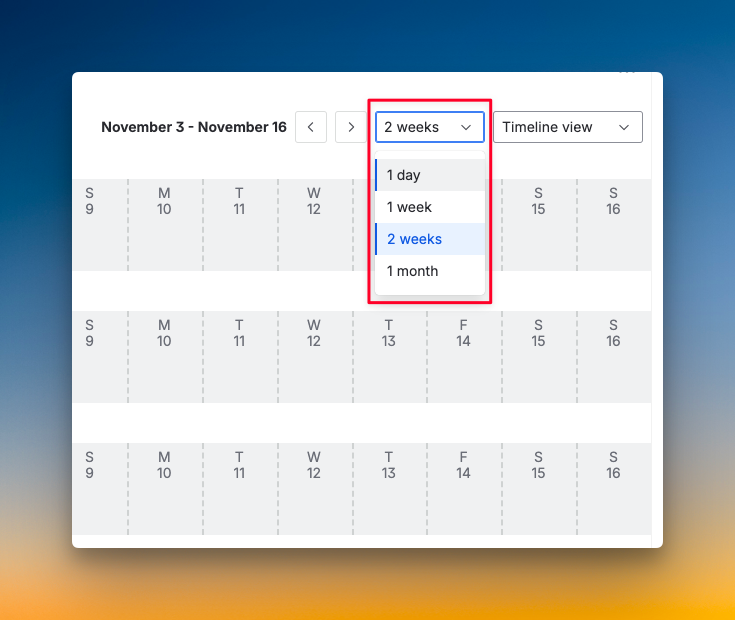
JSM has an On-Call Schedules tab where you can see all schedules at a glance. You get two views: timeline views for different time ranges (1 day, 1 week, 2 weeks, 1 month) and a calendar view. When you click on a member’s name, you see their shift start and end times.
However, JSM does not offer an activity log for on-call schedules. Actions like creating a schedule, adding rotations, or making overrides are not tracked anywhere. This means you cannot see who made changes or when they happened.
On-Call Dashboard & Visibility in Spike
Spike gives you a clean, centralized dashboard for all your schedules. You can see both your schedules and everyone else’s in list or calendar view. The list view shows the schedule name, number of members, and who is on-call right now. The calendar view shows your on-call coverage across all schedules for an entire month.
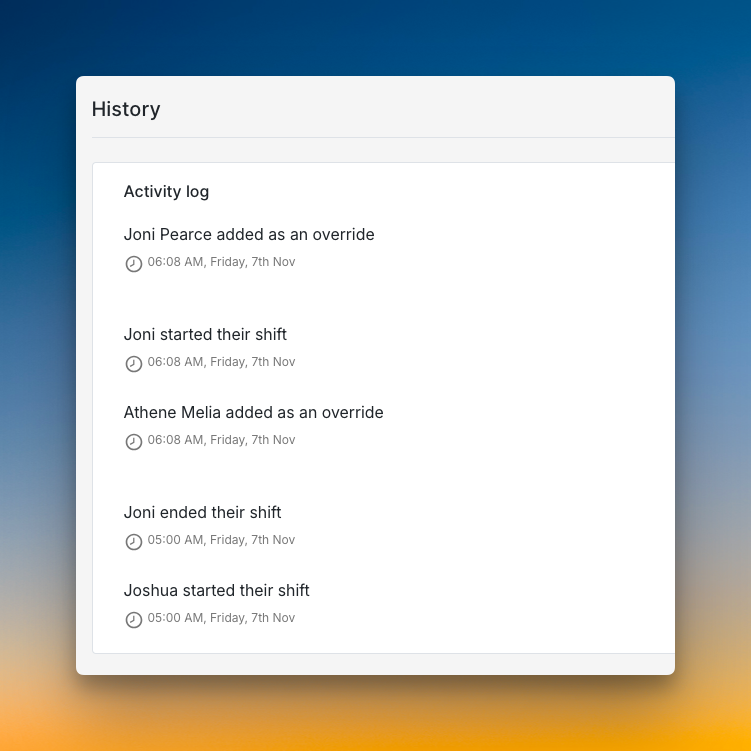
Spike also tracks everything that happens. You get detailed activity logs and a separate history of past overrides for each schedule. This means you know exactly what changed and who made the change.
Who should pick what?
- Pick JSM if you want different views for schedules and don’t need activity tracking.
- Pick Spike if you want a clear dashboard with a complete audit trail of all schedule changes and overrides.
4. On-Call Override Functionality
On-Call Override Functionality in JSM
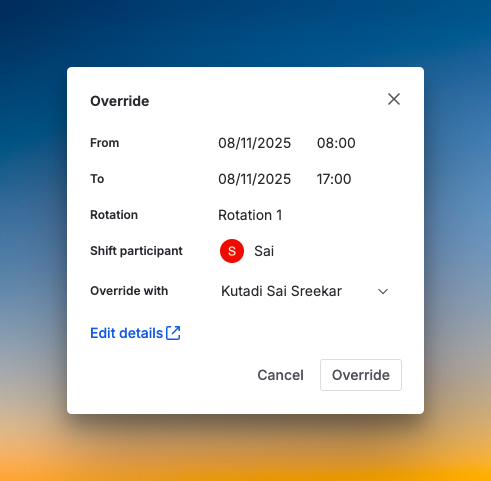
Creating an override in JSM is straightforward. You can click the “Add override” button or click directly on a team member’s name in the calendar. You then fill in the details and confirm. JSM also offers a “Take on-call” button that makes you the sole on-call person for one hour.
However, you cannot add comments when creating an override. This makes it hard for your team to understand why a change was made. JSM also does not track override history. When you create an override, it does not appear in any log or history view.
On-Call Override Functionality in Spike
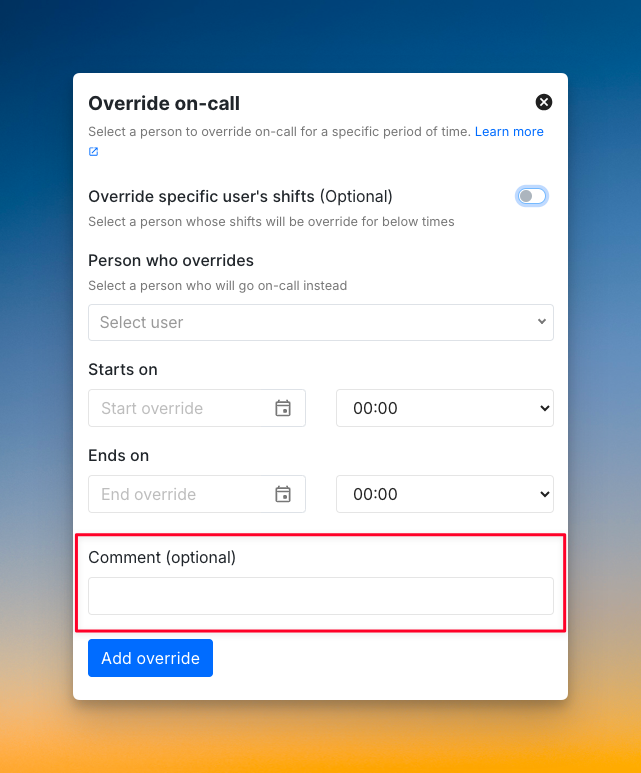
Spike makes creating overrides fast and simple. An override button sits at the top of each schedule. You select who will cover for you, pick the time, and you’re done.
The key difference is context. You can add comments to every override to explain why the change happened. Plus, Spike keeps a separate history of all past overrides for each schedule.
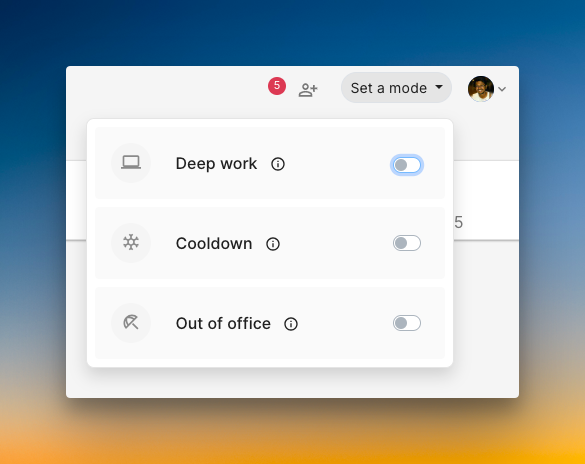
Spike also offers on-call work-life balance features to help you manage time off better. You can activate Out of Office or Cooldown mode. When you do, your duties automatically shift to the next person. No manual overrides needed.
Who should pick what?
- Pick JSM if you need basic overrides and a simple “Take on-call” button for quick coverage.
- Pick Spike if you want context-rich overrides with comments, a full override history, and on-call work-life balance features.
Jira Service Management (JSM) vs. Spike: On-Call Comparison Checklist
| Criteria | JSM | Spike |
|---|---|---|
| Ready-to-use on-call schedule templates | ❌ | ✅ |
| Clone entire schedules | ✅ | ✅ |
| Favorites/starred schedules for quick access | ❌ | ✅ |
| Three separate preview tabs (Base, Override, Final) | ✅ | ❌ |
| Activity logs for schedule changes | ❌ | ✅ |
| “Take on-call for an hour” instant coverage button | ✅ | ❌ |
| Comments on overrides for context | ❌ | ✅ |
| Export schedules as ICS files for calendar sync | ✅ | ✅ |
| Team-based schedule organization | ✅ | ❌ |
| Override history tracking | ❌ | ✅ |
Final Thoughts
Both JSM and Spike can handle on-call scheduling. JSM is the default migration path from OpsGenie. It makes sense if your team already works heavily within Jira.
However, Spike offers a more modern and flexible approach. It takes the best parts of OpsGenie and improves on them. With features like one-click cloning, context-rich overrides, and a clear activity log, Spike simplifies on-call management.
OpsGenie will shut down completely by April 2027. Now is the perfect time to explore your options and migrate on your own terms. If you want a tool that makes your on-call life easier, Spike is the clear choice.