

If you’re considering Squadcast for incident management, this review will provide the clarity you need to make a decision.
To write this Squadcast review, I’ve done more than just browse their website. I signed up and tested the platform thoroughly.
I had set up services, configured alert sources, and created on-call schedules. I triggered incidents to test its alerting and response capabilities. I also explored its automation features to see how flexible they are.
Then, I evaluated Squadcast’s incident management capabilities based on four key criteria, which you’ll find as you read on. And for each criterion, I’ve shared what I liked and what I didn’t.
After reading this review, if you feel Squadcast isn’t the one you are looking for, I will also introduce a better alternative that might be the right fit for your team.
Let’s get started!
Table of Contents
My Evaluation Criteria for Squadcast’s Incident Management Capabilities
- Alerting: I assessed how the platform notifies teams about incidents. This includes the variety of alert channels, ease of setup, and its effectiveness in reducing alert fatigue.
- Incident Response: I examined the tools available for managing active incidents, such as team collaboration features, stakeholder communication, and post-incident analysis.
- On-Call Management: I reviewed the process of creating, managing, and overriding on-call schedules, from daily rotations to handling exceptions.
- Pricing: I analyzed the costs, plans, and overall value, including any potential hidden fees or expensive add-ons.
Squadcast Review for Incident Management
| Criteria | What I liked | What I didn’t like |
|---|---|---|
| Alerting | Flexible, with both team and individual controls. Machine learning helps group alerts and reduce noise. | You cannot send test alerts to check channels. The platform has too many configuration options. |
| Incident Response | Automatic creation of dedicated Slack channels. One-click button to create postmortems. Built-in runbooks to automate repetitive tasks. | No native Google Meet or Zoom integration for war rooms. Creating Jira tickets from alert channels or dashboard requires setting up workflows first. |
| On-Call Management | Easy to create schedules and spot coverage gaps. Can clone schedules and add reasons for overrides. | Doesn’t use schedule layers, which might be less flexible for complex, overlapping rotations. Lacks a history of past overrides and activity log. |
| Pricing | Includes a free tier. Starting paid plan is lower than some competitors. | There’s nothing significant I didn’t like about Squadcast’s pricing structure. |
Alerting in Squadcast
Squadcast gives you flexible control over alerts. It also uses machine learning to group related alerts, which helps reduce noise.
You can set working hours for each service. This lets you route alerts differently during off-hours.
What I liked
I liked that both managers and team members have control. Managers can set rules for the team, but individuals can also set their own alert preferences.
The escalation policies are also flexible. You can use round-robin routing and set policies to repeat or send reminders. This helps make sure someone always responds.

What I didn’t like
You can’t trigger test alerts. This makes it hard to confirm if your notification channels are working correctly before a real incident happens.
The platform also offers many configuration options (in escalations, alerts, etc). While this offers flexibility, it can mean making too many decisions during setup.
Incident Response in Squadcast
Squadcast has strong automation features for incident response. You can create workflows to handle routine tasks automatically.
The platform also supports creating dedicated Slack channels for incidents. This keeps communication organized during a crisis.
What I liked
The “Workflows” feature is great. You can automatically update status pages, create tickets, and add communication links when an incident is triggered.
I also liked the unified incident timeline. It logs every action and event, which makes post-incident analysis much easier. Plus, you can create postmortems with a single click.

What I didn’t like
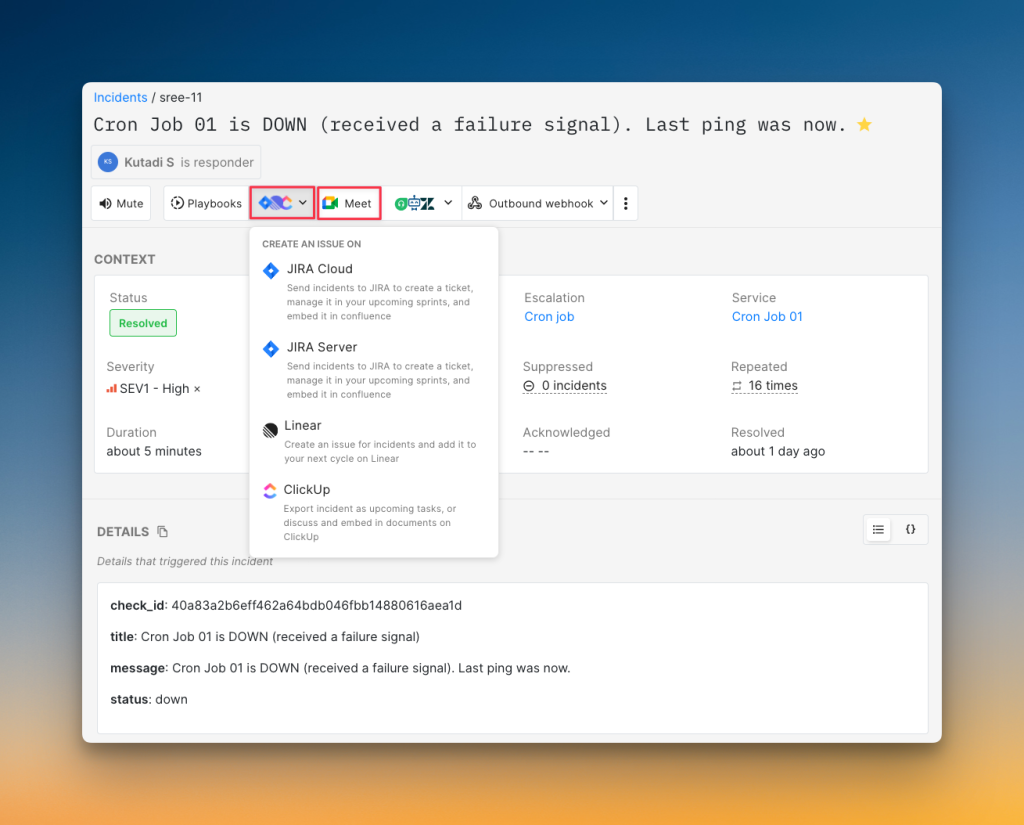
Squadcast lacks native integration for Google Meet or Zoom. You have to manually create a meeting link and add it to the incident.
There is also no auto-acknowledgment feature for incidents. And creating a Jira ticket isn’t a one-click action. You have to set up a workflow or trigger a webhook manually.
On-Call Management in Squadcast
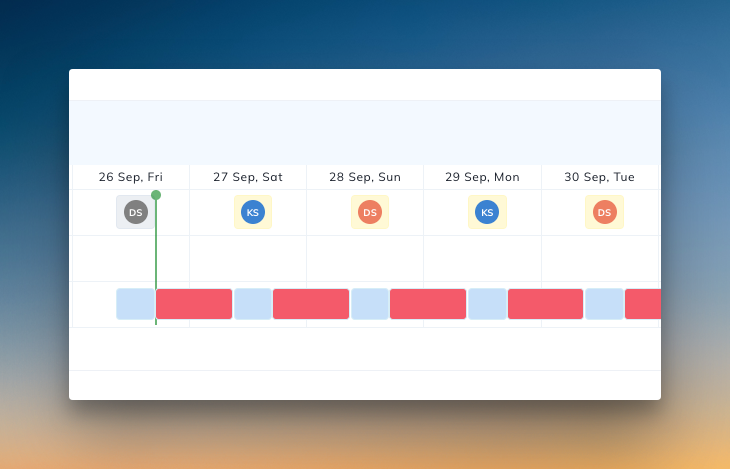
Creating on-call schedules in Squadcast is straightforward. Pre-set rotation patterns make the setup process quick.
A built-in feature also helps you find gaps in your coverage instantly. This is a nice touch for preventing missed alerts.
What I liked
The platform makes it easy to manage schedules. You can clone entire schedules and add new people without much effort.
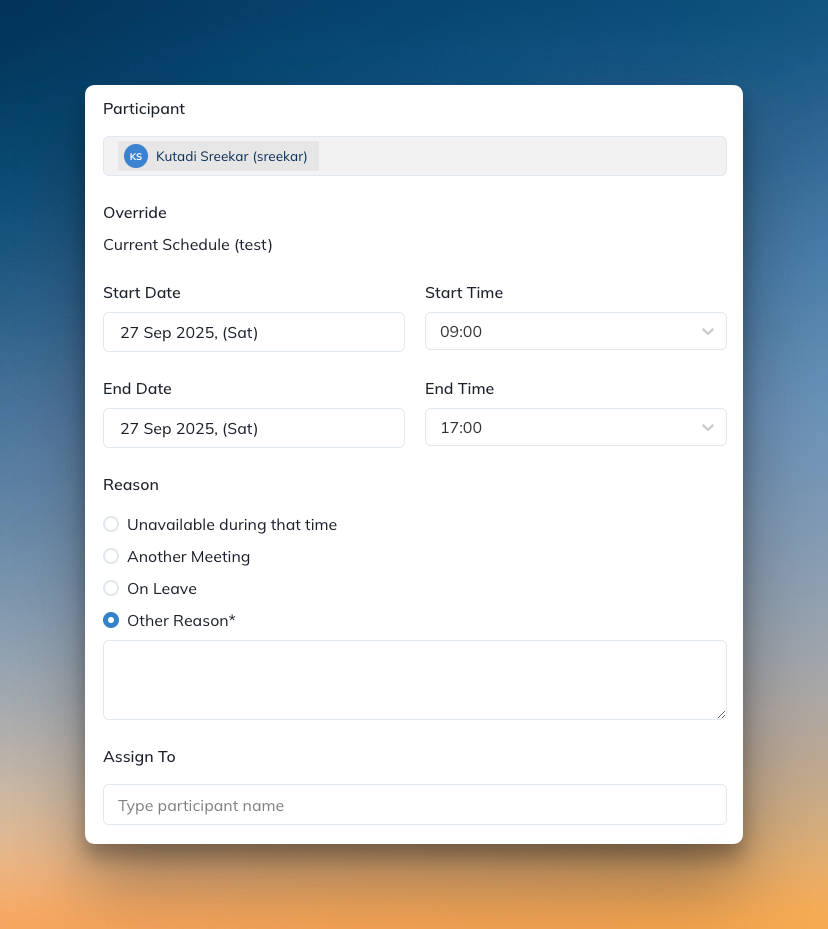
Creating overrides is simple. You just click on the calendar. You can also add a reason for the override, which gives your team helpful context.
What I didn’t like
Squadcast doesn’t use schedule layers. This might be a problem if you have complex, overlapping rotations.
It also doesn’t keep a history of past overrides or an activity log. This makes it difficult to track changes over time.
Squadcast’s Pricing
Squadcast offers four main plans: Free, Pro ($12/user/month), Premium ($19/user/month), and Enterprise (need to contact sales).

What I liked
The free plan is generous for small teams. You get 5 users, basic on-call management, and 175+ integrations. This lets you test the platform before you commit.
The Pro plan at $12/user/month is affordable for growing teams. You get unlimited users and services, which makes it competitive compared to other platforms.
What I didn’t like
There’s nothing significant I didn’t like about Squadcast’s pricing structure. The plans are fairly priced for what you get, and the free tier provides good value for testing the platform.
So, Should You Choose Squadcast for Incident Management?
Squadcast is a capable tool with good automation. The flexible alerting and easy on-call scheduling are definite strengths.
However, it has some clear limitations. The lack of native video call integration is a drawback. Simple actions, like creating a Jira ticket, are more complex than they should be.
The need to contact support for basic features like phone call alerts is also a hassle. The platform can feel a bit clunky in key areas.
Choose Squadcast if you are a small to medium-sized team who can work around some of its setup complexities and integration gaps.
If that doesn’t sound like you, there is a better alternative. It fills the gaps Squadcast leaves and offers a much smoother experience.
Spike: A Better Squadcast Alternative for Incident Management
Spike is a modern incident management platform built for simplicity and speed. It provides all the tools you need without the complexity or hidden costs.
Here’s why Spike is a better choice for your team:
- You can create war rooms or tickets with a single click. No need to build complex workflows for basic actions.
- On-call management is more transparent. You get a full activity log and history for all schedule changes.

- With Spike, you can trigger test alerts to check alert channel configuration and escalation policies.

- While Squadcast can’t auto-acknowledge incidents, Spike has smart Alert Rules that can auto-acknowledge based on conditions you set.

- Spike offers well-being features like cooldown and out-of-office modes, which handle all your on-call shifts automatically when you’re away.

- Spike costs $7/user/month compared to Squadcast’s $12/user/month, and you get more features.

Read Squadcast vs. Spike: Incident Management for a detailed comparison
Final Thoughts
Squadcast gets a lot right. Its automation through workflows is impressive. The on-call scheduling is also user-friendly.
But the platform feels unpolished in some areas. The lack of native integrations and the extra steps for simple tasks hold it back. And Squadcast, sometimes, makes incident management more difficult than it needs to be.
Spike solves all these problems. Plus, it’s simpler and more flexible. And you get it at a better price.