

If you’re not sure whether to pick Incident.io for your team’s incident management needs, this review will clear things up and help you make a decision.
To write this review, I didn’t just rely on Incident.io’s documentation. Instead, I signed up for the tool and tested it thoroughly.
I set up services, connected them to alert sources, designed escalation policies, and triggered test alerts. This way, I could understand how Incident.io handles alerting and incident response.
For on-call experience, I built the on-call schedules and configured rotations. I also tested overrides for the last-minute changes.
Then, I reviewed Incident.io across four key criteria (You’ll get to know them as you read on). For each criterion, I’ve shared what I liked and disliked about the tool.
After reading this review, if you feel Incident.io isn’t the right match, I’ve also included a better alternative that might work for your team.
Let’s get started!
Table of Contents
My Evaluation Criteria for Incident.io’s Capabilities
- Alerting: I looked at how the platform alerts teams about an incident. This includes the setup process, alert channels, and tools to reduce alert noise.
- Incident Response: After an incident is active, what tools does it offer? I checked team collaboration, stakeholder updates, and post-incident analysis.
- On-Call Management: I reviewed how simple it is to build, manage, and change on-call schedules. This covers everything from daily handoffs to last-minute swaps.
- Pricing: I looked at the costs, plans, and overall value. This shows what you get for your money and what features might cost extra.
Incident.io Review for Incident Management (2026)
| Criteria | What I liked | What I didn’t like |
|---|---|---|
| Alerting | Flowchart-like escalation policies. Triage state to reduce alert noise. | Complex setup process. Managers can’t set alert methods for team. You can’t acknowledge/resolve on email alerts. |
| Incident Response | Powerful workflow automation. Detailed post-incident dashboards. | War room creation requires workflow configuration. Status pages are very limited on lower plans. |
| On-Call Management | Easy schedule creation. Concurrent shifts for pairing. Plain language overrides. | You cannot clone entire schedules. No option to add comments to overrides. |
| Pricing | A free tier is available. | On-call management is a costly add-on. Unlimited status pages are only on the Enterprise plan. |
Alerting in Incident.io
On Incident.io, users can configure their own alert preferences. Also, they can auto-subscribe to specific incidents.
The platform supports standard alert channels like phone, SMS, email, Slack, and push notifications.
What I liked
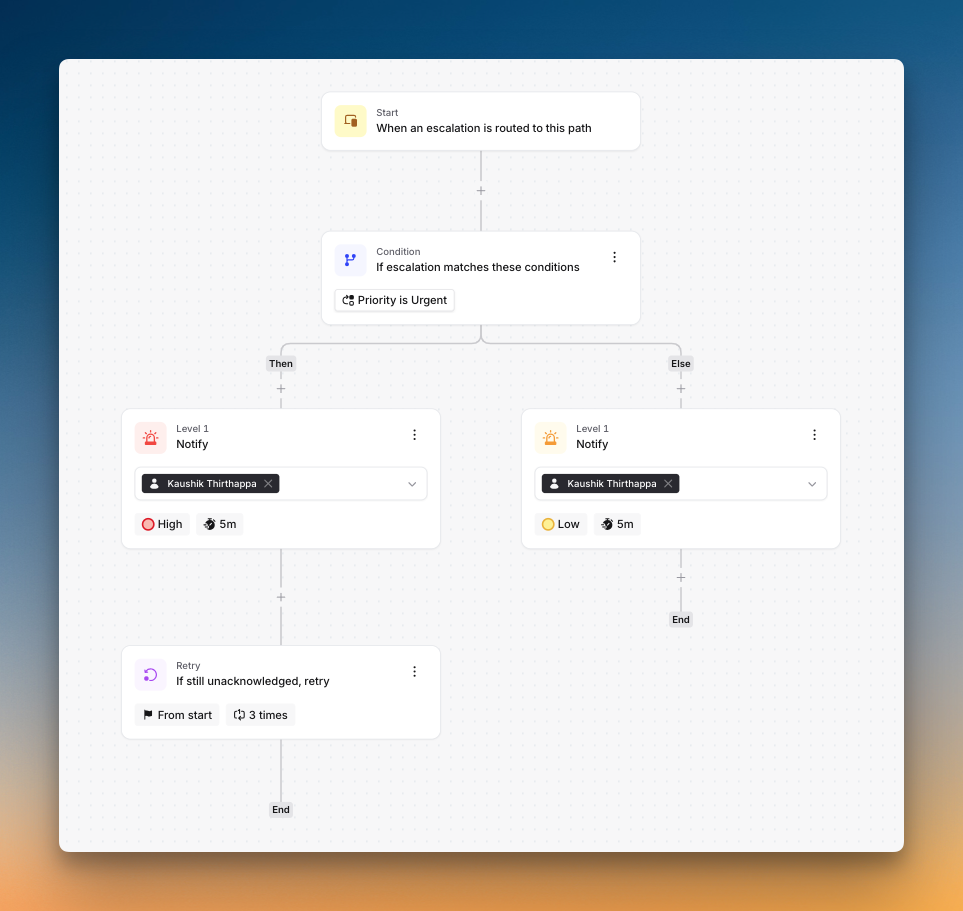
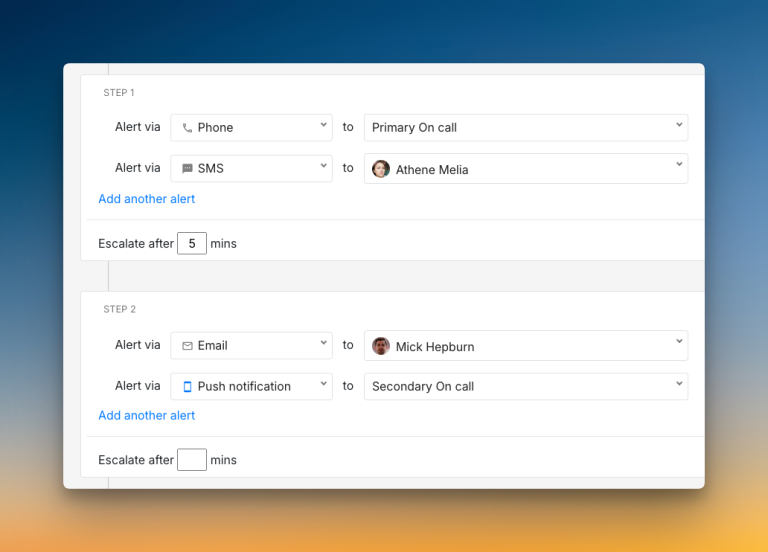
The escalation policies are intuitive. They work like flowcharts with if-else conditions for routing alerts based on incident priority, time of the day, or other factors. For example, you can route an alert to one user during working hours and another after hours.
I also liked the triage state for new alerts. An alert does not trigger an escalation until you declare it an incident. This helps to cut down alert noise.
What I didn’t like
The setup process felt complex. With so many options, it can be hard to know where to start. It creates a high cognitive load when you just want to get going.
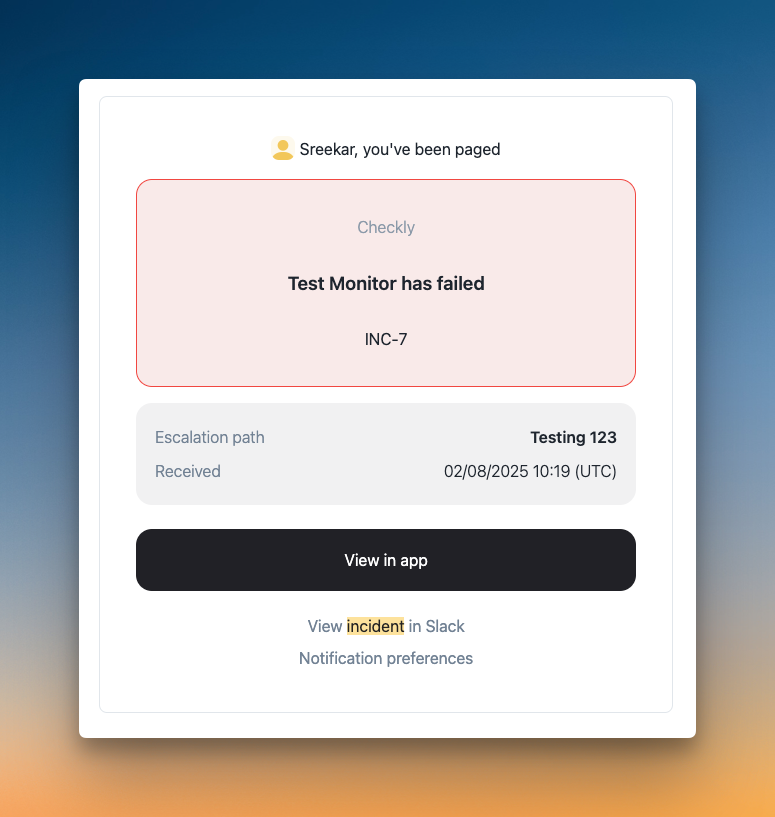
Also, managers cannot set alert methods for their team members. And you can’t acknowledge or resolve alerts directly from an email alert.
Incident Response in Incident.io
Incident.io offers strong tools for incident response. You can manage incidents directly from Slack or through the web dashboard.
It also provides status pages for external communication and detailed dashboards for post-incident analysis.
What I liked
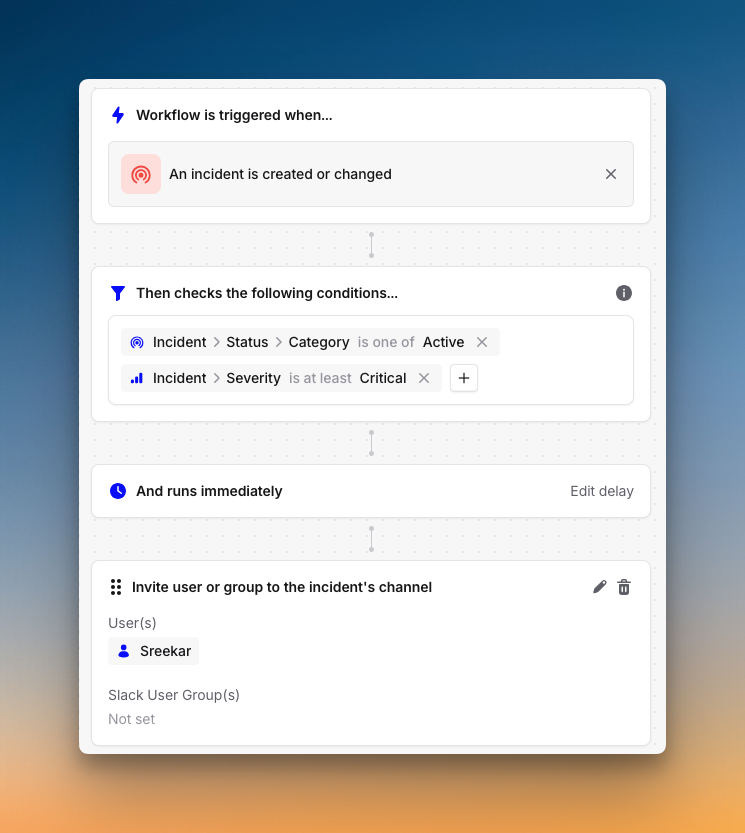
The workflows are powerful. You can automate many administrative tasks, like assigning roles or inviting users to an incident channel. This helps speed up the response.
The post-incident dashboards are detailed. You can track metrics like MTTR, incident frequency, and trends over time. This helps teams learn and improve.
What I didn’t like
Creating war rooms is not instant. You need to configure workflows first. This adds complexity when you need quick action during an incident.
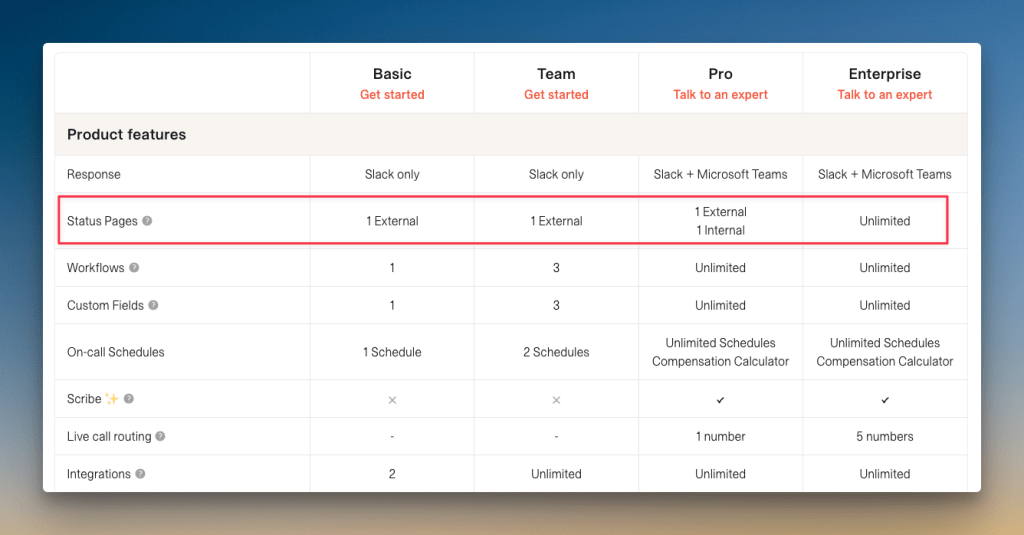
Status pages are very limited. Lower-tier plans only give you one or two pages. You need the expensive Enterprise plan for unlimited pages.
On-Call Management in Incident.io
Incident.io makes it straightforward to create on-call schedules. You can set up multiple schedule layers, add users, configure rotations, and pick handoff times.
The platform offers flexibility for managing schedules. You can sync with personal calendars through iCal and create overrides by clicking directly on the calendar.
What I liked
The schedule creation process is easy to follow. A standout feature is concurrent shifts. This lets you pair two or more people for a shift, which is great for training.
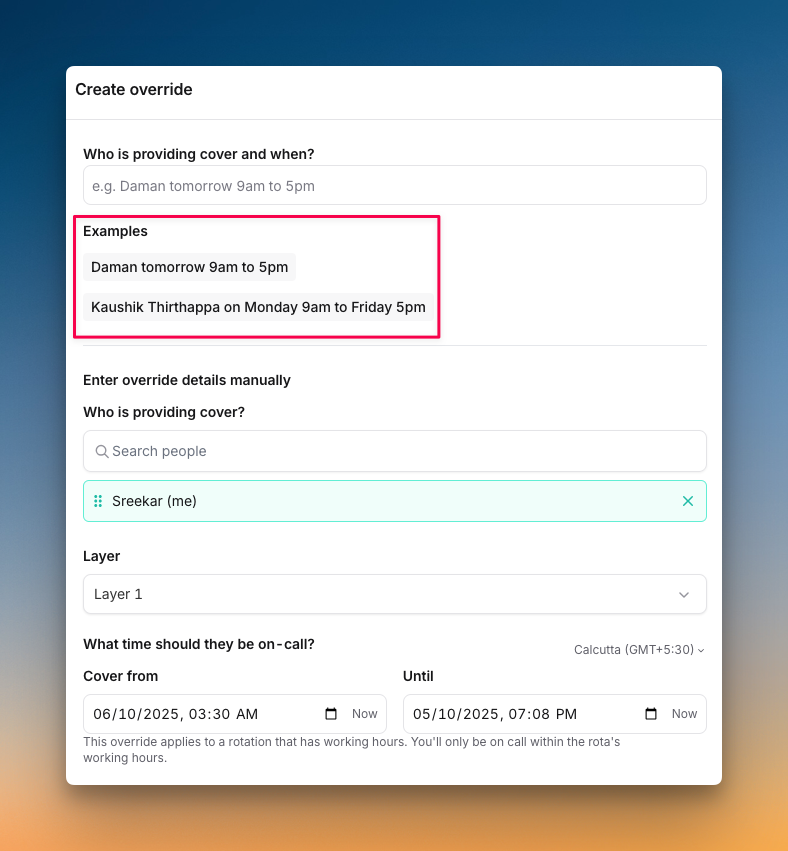
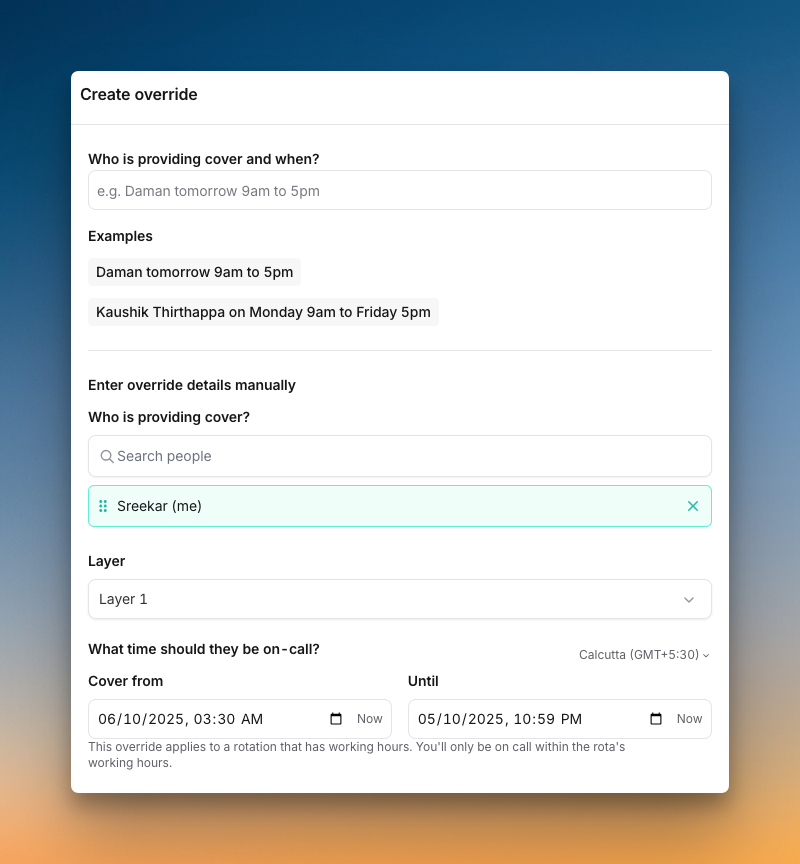
You can create an override by just typing it in plain language, like “Kaushik today from 11 pm to tomorrow 7 am.”
What I didn’t like
You cannot clone entire schedules. If you need a similar schedule for another team, you have to rebuild it from scratch.
There is no option to add comments when creating overrides. This makes it hard to explain why a change happened.
Incident.io’s Pricing
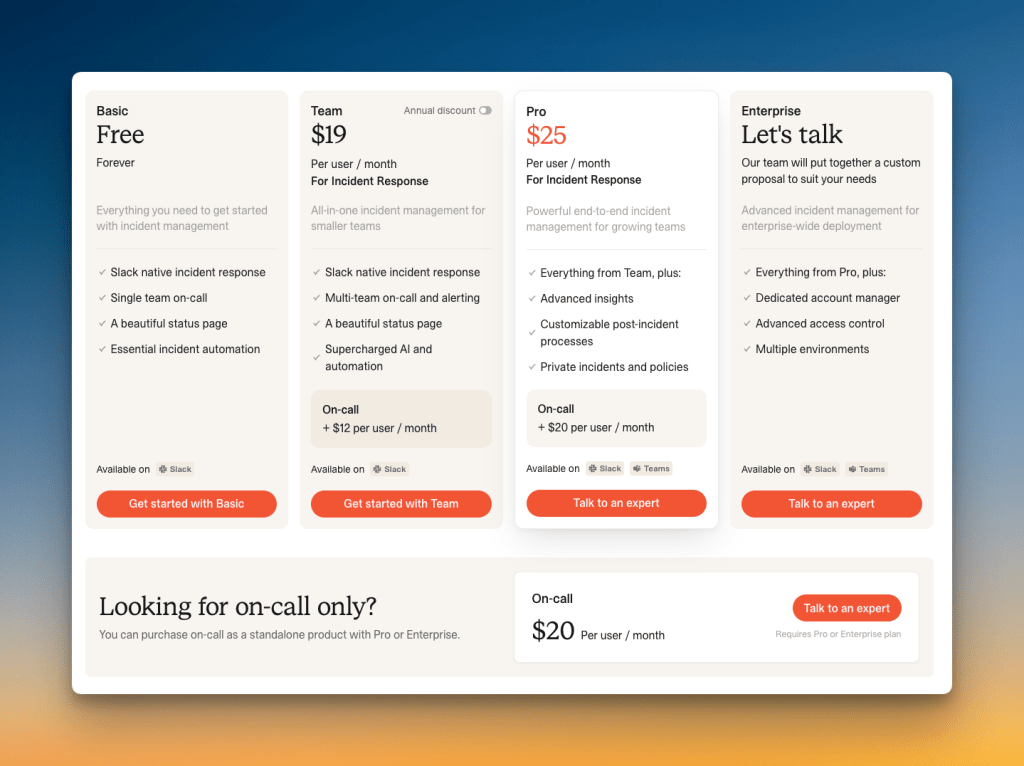
Incident.io offers four pricing tiers: Basic (Free), Team ($19/user/month), Pro ($25/user/month), and Enterprise (contact sales).
The structure looks simple at first. However, on-call management is a separate add-on cost. This increases the total price significantly.
What I liked
Incident.io offers a free tier that lets you test core features. This is helpful for small teams who want to try before they buy.
What I didn’t like
On-call management costs an extra $12 per user per month on the Team plan. On the Pro plan, it costs an extra $20 per user per month.
Also, you only get unlimited status pages on the Enterprise plan. This is a major limitation for a core communication tool.
So, Should You Choose Incident.io for Incident Management?
Incident.io gets a lot of things right. Its workflow automation is powerful. The flowchart-style escalation policies provide great control. Its post-incident dashboards provide useful insights.
But the platform has some clear downsides. The initial setup is complex. Important tools like status pages are limited on most plans. Simple actions like creating a ticket require extra steps.
Incident.io can also feel a bit rigid. You can’t add comments to on-call overrides. There is no central calendar view for all schedules. Managers can’t set alert preferences for their teams.
So, pick Incident.io only if you are comfortable with its add-on costs, can invest time in setup, and work around its limitations.
If that doesn’t sound like you, I have a better alternative. It closes the gaps Incident.io leaves, offers more flexibility, and is more affordable.
Spike: A Better Incident.io Alternative for Incident Management
Spike is a modern incident management platform trusted by teams across 40+ countries. It offers a user-friendly interface, powerful automation, and flexibility—all without any complexity or hidden costs.
Here’s why Spike is a better Incident.io alternative:
- Spike gives both managers and individuals control over alerts. Team leads can set alert methods, and users can set personal preferences.
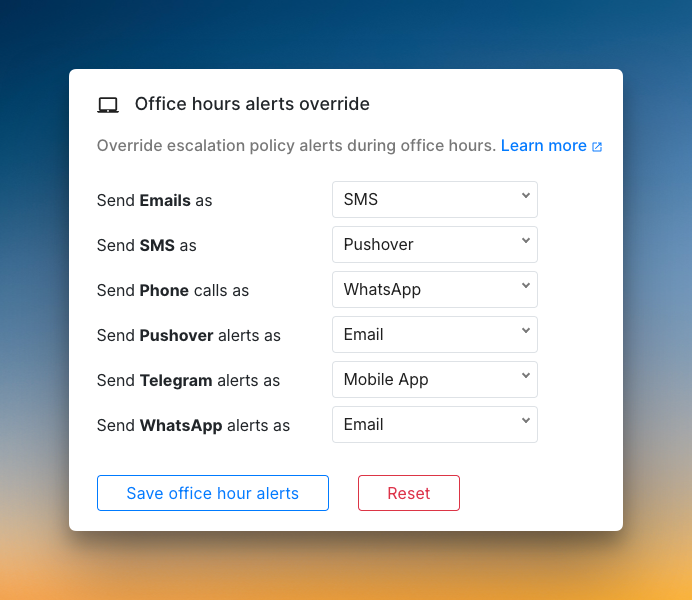
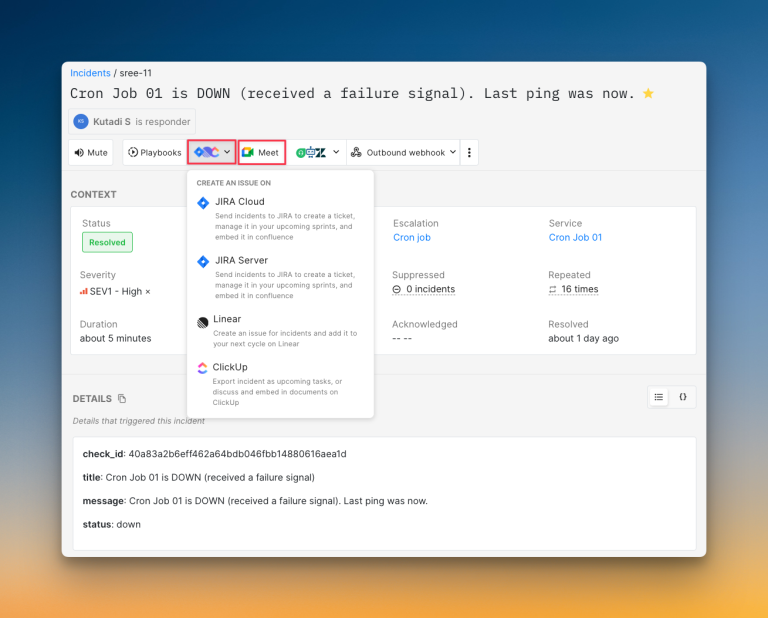
- You can create a war room or a ticket with a single click. There is no need to build complex workflows for simple, common actions.
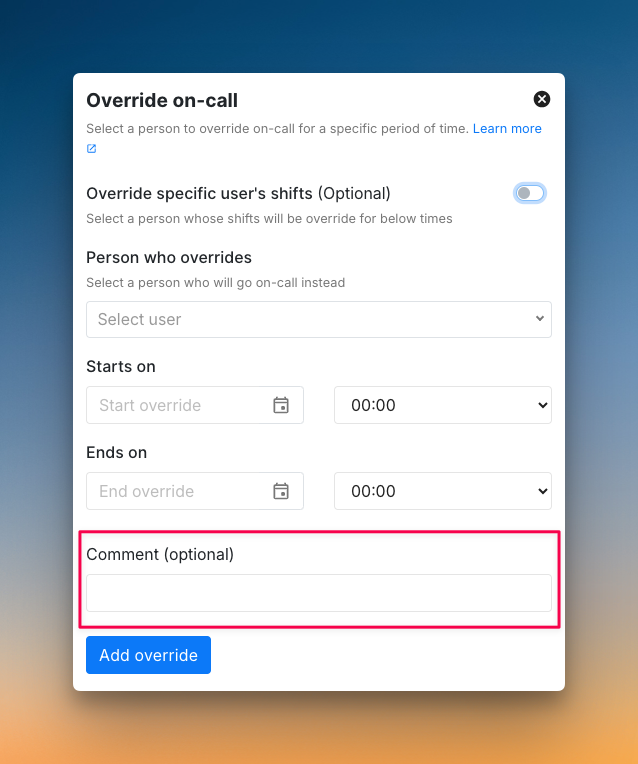
- On-call management is easier. You can clone schedules, add comments to overrides, and view a full history of all changes.
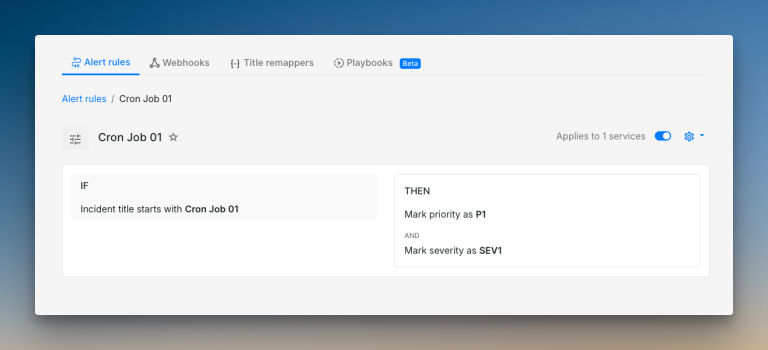
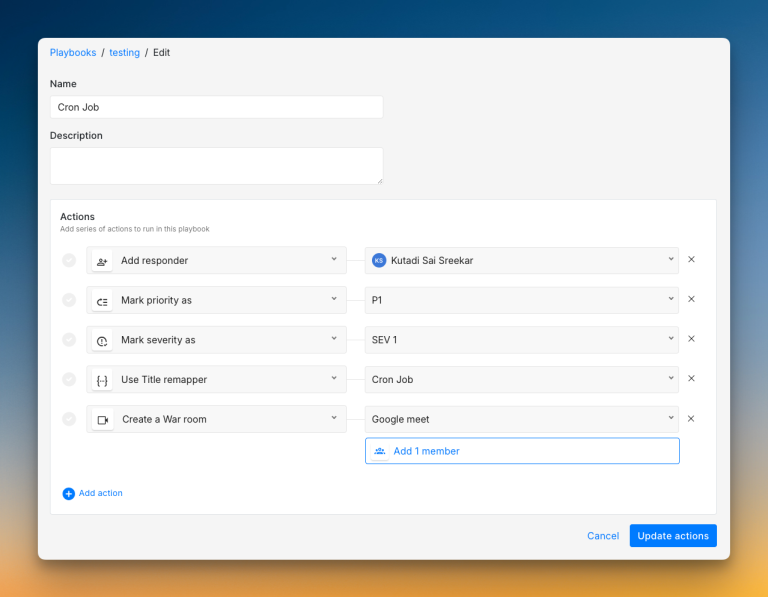
- You get powerful automation with Alert Rules and Playbooks at no extra cost. These help you reduce noise without a high price tag.
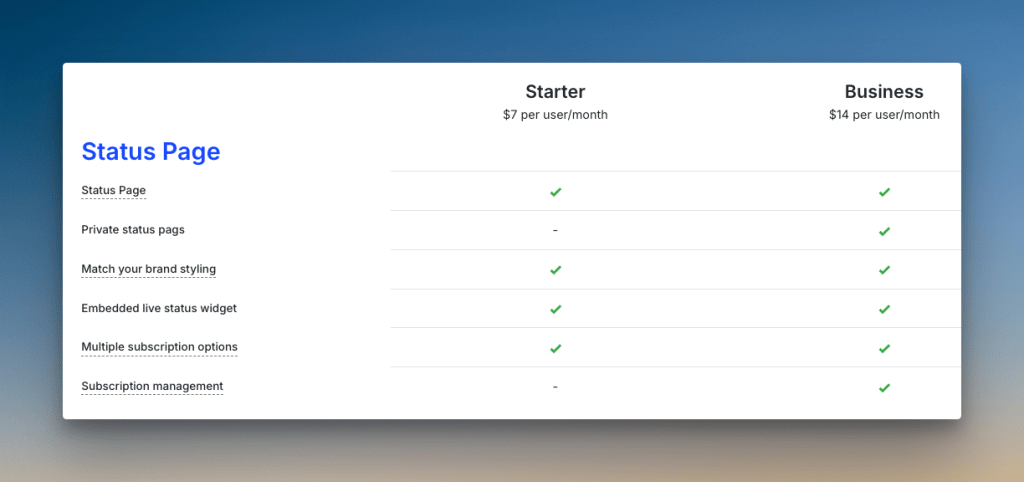
- Status pages are included on all plans. There are no surprise costs, so you can communicate freely with your users.
Check out these example status pages of Spike: AirBnB and SpaceX
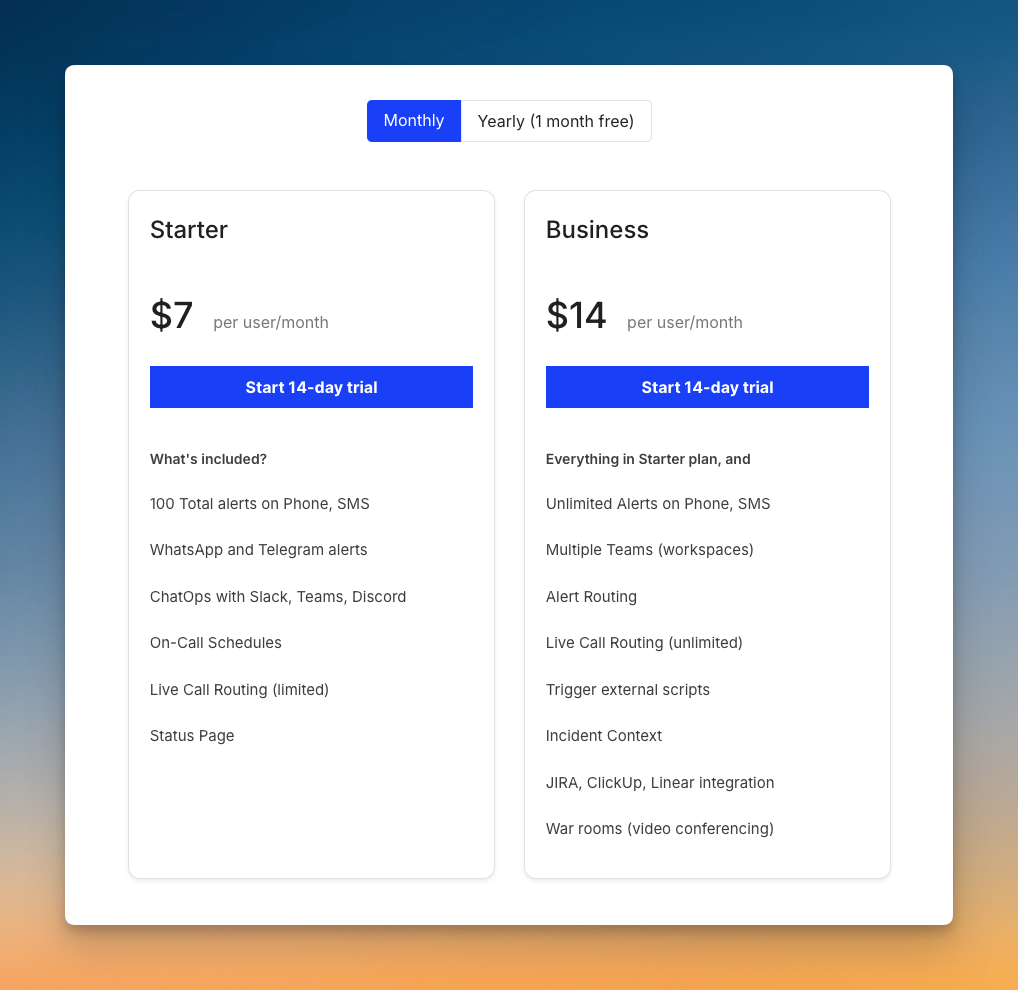
- Spike’s pricing starts with just $7/user/month. Plus, there are no expensive add-ons or any hidden costs.
Read Incident.io vs. Spike: Incident Management for a detailed comparison
Final Thoughts
Incident.io is definitely a solid tool. I was impressed by its flowchart escalation policies, workflow automation, and detailed post-incident tools.
But its full value comes with add-on costs and setup complexity. Plus, the platform felt somewhat rigid in key areas during my tests.
Spike solves these problems. It offers a simpler, more flexible platform for modern teams. And you get all the features in one package at a more affordable price.