

Behind every reliable service is a team of people watching for problems. But they don’t stare at screens all day. They rely on IT alerting systems.
An IT alerting system tells you when something is wrong. It finds problems fast, so your team can fix them before your business or customers are affected.
This article will explain everything you need to know about IT alerting. You’ll learn what it is, why you need it, how to set it up, and which tools work best.
What is IT Alerting?
IT alerting is the process of notifying the on-call engineer when something goes wrong with your system, such as an API endpoint returning 5xx errors, a server running out of disk space, or a database connection pool becoming exhausted.
In simple words, it’s like a fire alarm for your system. But when there’s smoke, it doesn’t just ring a bell; it directly calls the fire department.
The goal of IT alerting is simple: To alert the right people at the right time via the right channel.
Example of an Alert
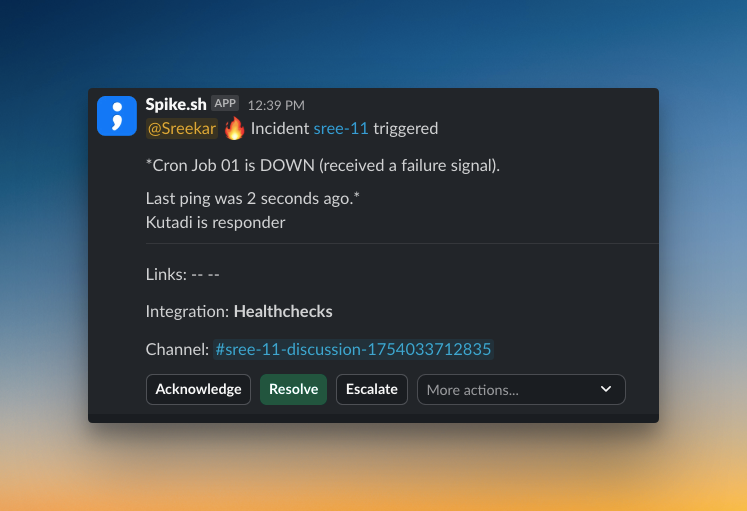
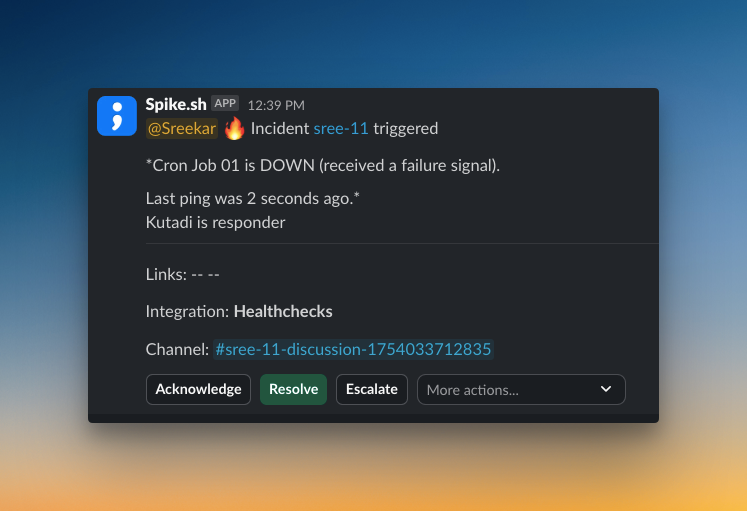
On Spike, I created a service called “Cron Job 01” and integrated it with Healthchecks.io. Then, I triggered a test alert. Here’s how it looks on Slack:
Difference Between an Alert and a Notification
People often mix these up, but they’re different.
An alert tells you about a problem that could impact your service or users and requires immediate action.
Whereas a notification gives you information that’s good to know but doesn’t need immediate action.
At Spike, if a server’s CPU usage gets a little high, we get a Slack message. It is just a notification. We keep an eye on it, but it does not demand immediate action.
But if that CPU usage crosses 70%, that is different. It becomes an alert. The on-call engineer gets a phone call right away.
“My monitoring tool sends alerts. Why do I need an alerting system?”
I hear this question a lot. Your monitoring tool is great at one thing: watching your systems. It can tell you when something is wrong.
Maybe it sends you an email. But what if you are asleep? What if you get hundreds of emails from an alert storm?
This creates alert fatigue. It becomes hard to find the real problems in all the noise. This is where a dedicated IT alerting system helps.
An IT alerting system does much more than just send a message.
- It finds the person who is on-call
- It sends alerts through multiple channels, like phone calls, SMS, and push notifications
- It escalates the alert if the first person does not respond
- It groups related alerts to reduce noise
Your monitoring tool spots the fire. Your IT alerting system calls the firefighter. It makes sure someone shows up to fix the problem fast.
Key Components of an Alerting System
Every effective IT alerting system needs these core components:
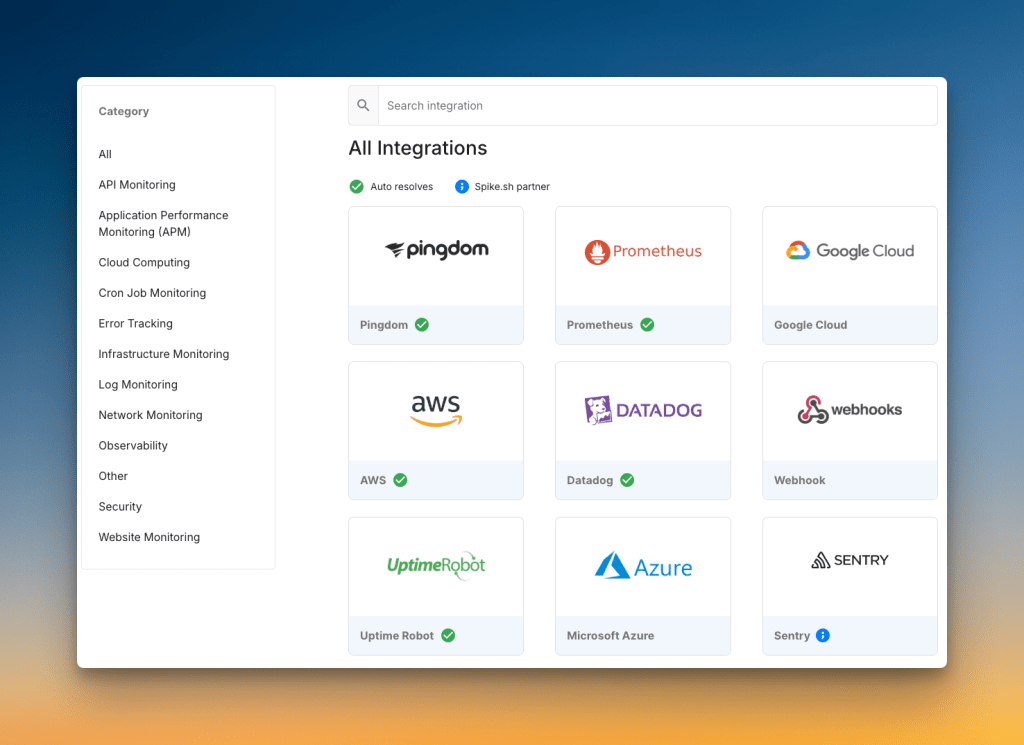
- Integrations: Your alerting platform connects with monitoring tools like Grafana, Prometheus, or Datadog. This is how it knows when problems happen.
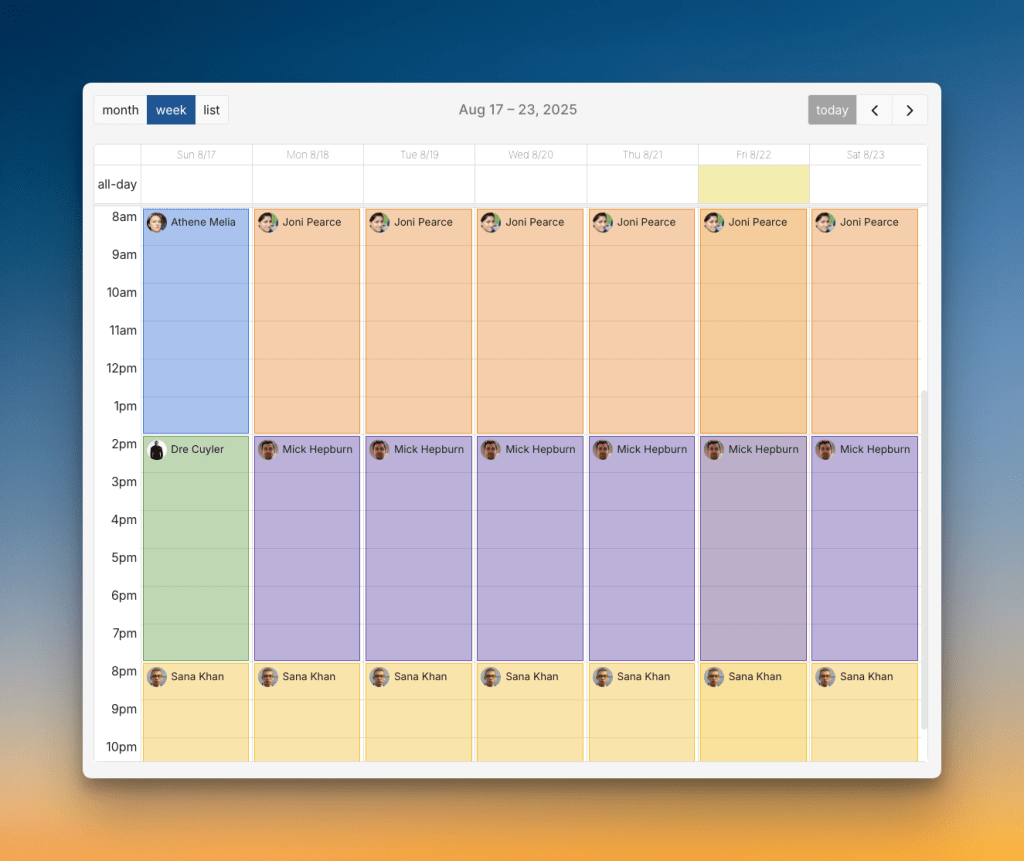
2. On-Call Schedules: These tell the system who should get alerts and when. They make sure alerts reach the right person during their shift, not someone who’s off duty.
To learn more about on-call schedules, read On-Call Schedules: Everything You Need to Know
3. Escalation Policies: What if the on-call person misses the alert or can’t fix the issue? Escalation policies automatically call the next person in line, so no critical alert gets missed.
To learn more about escalation policies, read Escalation Policies: Everything You Need to Know
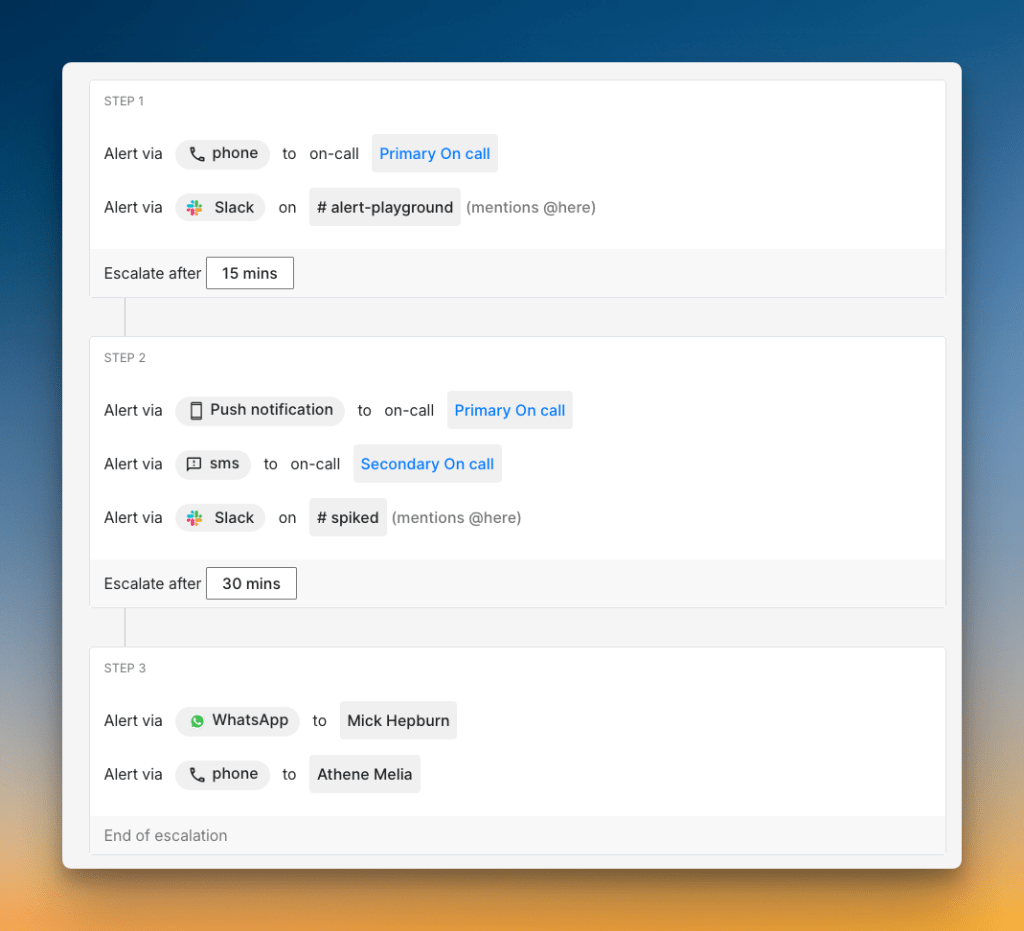
4. Multi-Channel Alerts: The system sends alerts through phone calls, SMS, push notifications, and emails. Multiple channels mean you won’t miss critical issues.
5. Alert Grouping: Related alerts get combined so you don’t receive 50 messages about the same server failure. This cuts down the noise and helps you focus.
How to Set Up an Alerting System
First things first, you need an alerting platform. Pick one that is easy to use and connects with the monitoring tools you already have (something like Spike). Then, follow these steps:
- Configure Alert Channels: Let your team add their contact information. This includes phone numbers, emails, Slack channels, and push notifications.
- Connect Monitoring Tools: Link your monitoring systems like Grafana or Datadog. Most tools offer direct integrations or webhooks that take a few minutes to set up.
- Create On-Call Schedules: Build your rotation schedule. Decide who will be on-call and for how long. Start with a simple weekly rotation.
- Build Escalation Policies: Decide what happens if someone misses an alert. For example, “If Daman doesn’t answer in 5 minutes, call Kaushik.”
Once you are done with this basic setup, trigger test alerts to see if the right people are alerted via the right channels and escalations work properly.
💡Pro-Tip: Start with phone calls for critical alerts and Slack messages for everything else. You can always adjust the channels later based on what works for your team.
Best Practices for Incident Alerting
Setting up alerts is easy. Setting up good alerts takes some thought.
- Make Alerts Actionable: Every alert should tell the responder what is broken and where to look.
❌ “CPU is high”
✅ “CPU on server web-01 is at 95%”
Spike’s customers use Title Remapper to get context-rich alerts.
2. Set Clear Severity Levels: Don’t treat every alert like a 3 AM alarm. Use different severity levels like sev1, sev2, or sev3 so people know what needs immediate attention.
3. Add Wait Time for Auto-Resolve Alerts: Give temporary issues time to fix themselves. Set a 2-3 minute delay before sending alerts for issues that often resolve automatically.
At Spike, we use Healthchecks.io to monitor our escalation system.
Sometimes, a sudden load would slow the system down for a moment. The health check would fail and trigger an alert instantly.
But by the time our on-call engineer looks into it, the system had already recovered on its own.
We fixed this with a two-minute wait time. Now, an alert only fires if the check remains in a failed state for two full minutes.
This simple change stopped most false alarms.
4. Add Acknowledgment Timeout: If someone acknowledges an alert but doesn’t resolve it within a set time, the next person should be alerted. This makes sure the issues get resolved quickly.
5. Repeat Escalation Policy: If no one responds, restart the escalation process after 5-10 minutes, so no critical alert gets missed.
Common Pitfalls in Incident Alerting
- Alerting the Entire Team: Blasting alerts to everyone creates noise. Instead, alert the person or team on-call.
Many Spike users avoid
@channelor@herefor Slack alerts.Instead, they use specific user mentions. For example, an alert that pings
@janedirectly when it is her turn on-call.For low-priority issues, they often choose the “no mention” option. The alert is logged in the channel for visibility, but no one gets an unnecessary notification.
2. Relying Only on Monitoring Tools: Your monitoring tools are great at catching system failures. But sometimes, a person will spot a problem first. Your alerting platform should have a way for humans to report problems, like live call routing.
3. Alert fatigue: Too many notifications cause alert fatigue. So, use alert rules to not create incidents or auto-resolve incidents for minor issues.
4. No Backup Responders: What if your on-call person misses an alert? Without a backup, a critical alert can get lost. Always have a secondary responder in your schedule.
5 Best IT Alerting Software (Plus Open-Source Options)
| Tool | Best for | Starting Price |
| Spike | Teams of any size wanting an affordable yet powerful tool | $7/user/month |
| PagerDuty | Large teams needing deep integrations | $25/user/month |
| Incident.io | Teams who live and work in Slack | $19 base + $12/on-call user/month |
| Squadcast | SolarWinds users needing noise reduction | $12/user/month |
| Zenduty | Teams needing alert filtering & ITSM integration | $6/user/month |
IT alerting software makes managing alerts much easier than trying to handle everything manually. Here are the top options for different teams:
- Spike – A simple, powerful, and affordable tool. It connects with 80+ tools and gets your attention with phone calls, SMS, Slack, or even WhatsApp. It’s a great fit for teams of any size who want a system that just works without a steep learning curve.
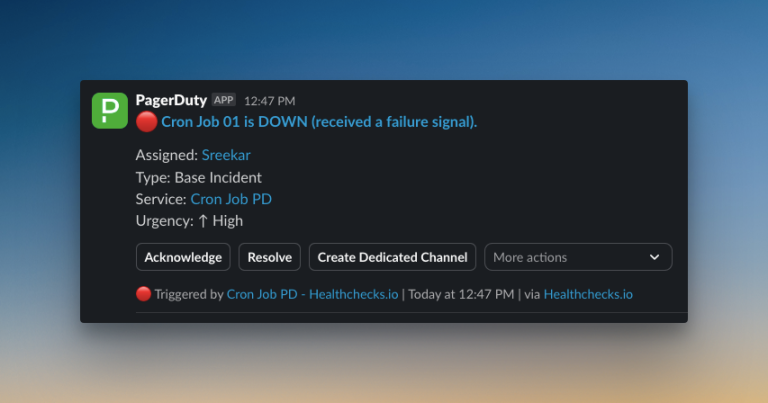
2. PagerDuty – A complex, enterprise-grade platform. It has over 700 integrations and uses AI to group alerts. However, its power comes with a higher price tag and complexity, making it better suited for large organizations.
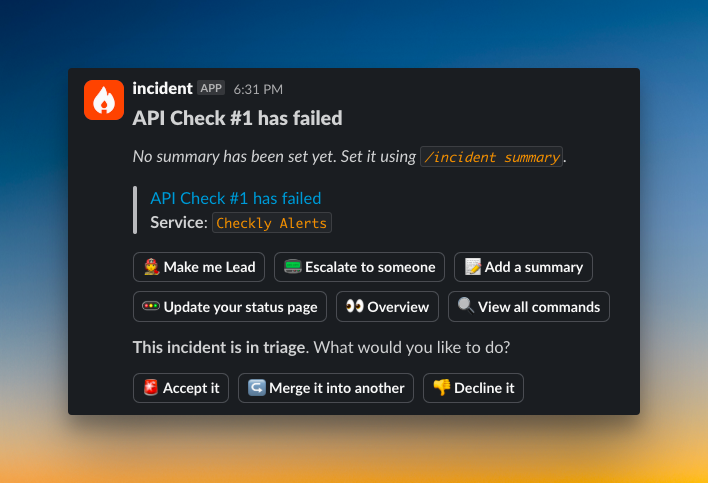
3. Incident.io – Follows a chat-first approach. Good for Slack-heavy teams, but charges extra for on-call scheduling features that come built-in with other tools.
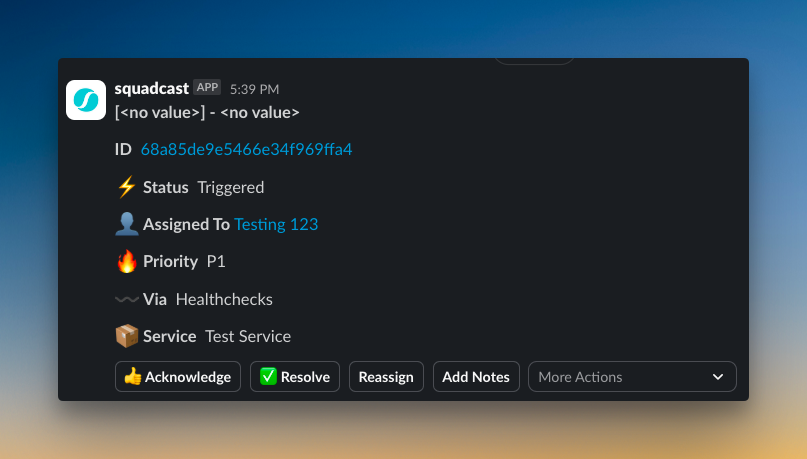
4. Squadcast – Focuses on intelligent alert routing and noise reduction. It was recently acquired by SolarWinds, so it’s a strong choice if you are already in their ecosystem.
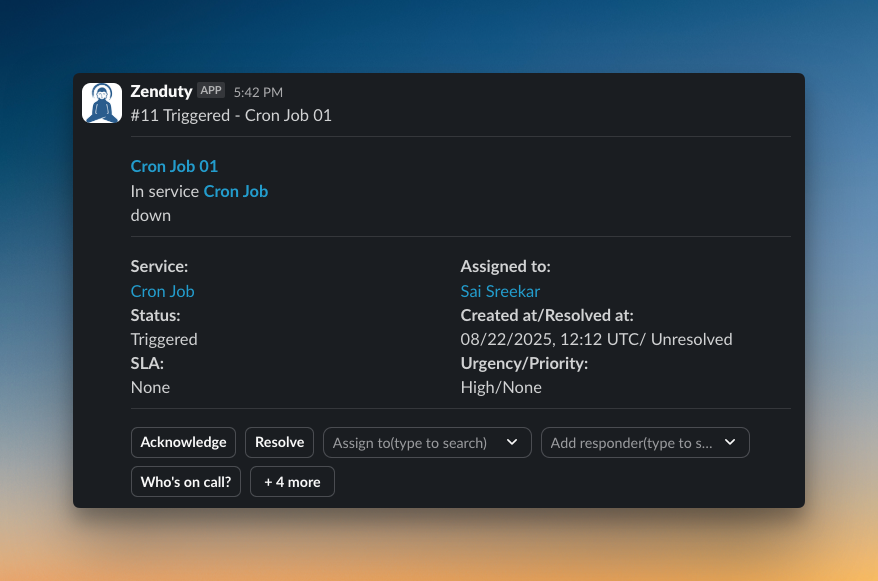
5. Zenduty – Offers custom alert rules and AI-powered incident summaries. Decent for small to mid-sized teams, especially those planning to integrate with broader ITSM workflows.
Open-Source IT Alerting Software
Open-source tools give you complete control but require significant time for setup and maintenance. Here are the popular choices:
- GoAlert – A self-hosted alerting tool with a simple interface, designed for reliable notifications through SMS, voice, and push channels.
- Grafana OnCall – Ideal for Grafana users, this tool integrates alerting and on-call scheduling directly into existing monitoring dashboards.
- Keep – An open-source tool that uses a declarative YAML setup to consolidate, group, and route alerts from various sources.
For more alerting tools, read the blog post: 9 Best IT Alerting Software in 2025
Conclusion
Alerting isn’t just about getting notifications when things break. It’s about building a system that protects your business, your customers, and your team’s sanity.
The best alerting systems are simple. They tell the right person about the right problem at the right time. They don’t wake people up for minor issues or let critical issues slip through the cracks.
Get started with the basics. Pick a good alerting platform that connects with your existing tools. Set up clear on-call schedules and escalation policies. Test everything to make sure it works.
Your first setup may not be perfect, and that’s okay. The key is to start somewhere and improve based on real incidents. Listen to your team’s feedback and adjust your rules as you learn what works.
Remember, every minute of downtime costs money and trust. But with proper IT alerting in place, you can catch problems early and fix them before anyone notices.
Next Steps
Getting an alert is the first step. But what do you do after the alert fires?
That is where incident response comes in. It gives your team a clear plan to fix the problem fast and keep everyone in the loop.
FAQs
- What’s the difference between alerting and monitoring?
Monitoring watches your systems and collects data. Alerting acts on that data to tell you when something is wrong. For example, monitoring tracks your server’s CPU usage. Alerting sends you a message when that usage stays at 95% for five minutes.
2. What’s the difference between an alert and an incident?
An alert is the signal that something is wrong. An incident is the actual problem that needs a fix. For example, a high CPU usage is an alert. A server crash caused by that high CPU usage is the incident. An incident can trigger multiple alerts.
3. How many alerts should I set up?
Start with 5-10 critical alerts for your most important services. Add more gradually as you learn what’s actually worth alerting on.