

You may have seen Incident.io pop up on LinkedIn or X. Maybe someone mentioned it on Reddit. Or you found it while browsing Slack apps for incident response.
But what is Incident.io really? And how does it help your team?
This post breaks down Incident.io in simple terms, covers its key features and benefits, and shows you how to get started.
I’ll also introduce you to a better, more affordable alternative if Incident.io doesn’t quite fit your needs.
Let’s dive in!
Table of Contents
What is Incident.io?
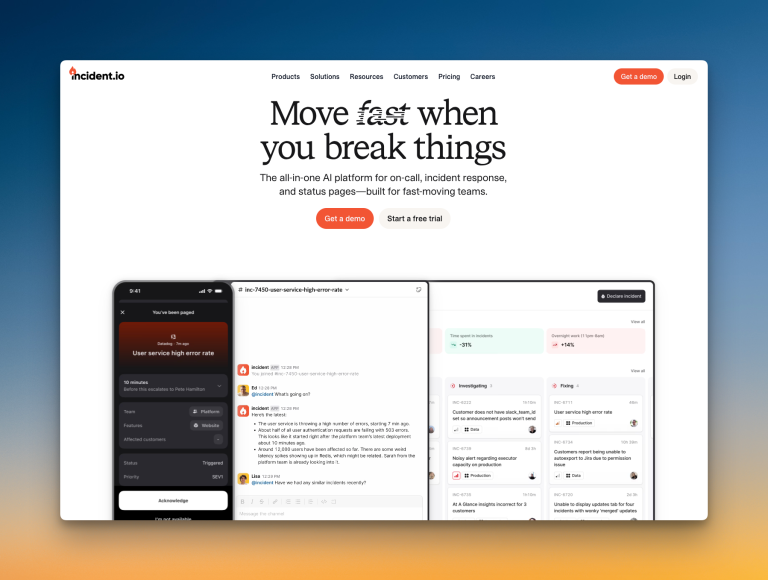
Incident.io is a standalone platform for incident management. It combines incident response, status pages, and automated workflows in one place. On-call management comes as a separate add-on.
The platform helps DevOps, SREs, and IT teams respond to incidents fast. This cuts downtime and improves reliability.
Incident.io lives inside Slack and Microsoft Teams. Teams can manage incidents where they already work without switching tools. It also offers automated workflows and AI-powered features that speed up resolution.
Key Features of Incident.io
Incident.io offers several features to help teams manage incidents effectively. Let’s take a look at some of them.
1. Alerting
Alerting makes sure responders know about incidents quickly. The faster they know, the faster they can fix it.
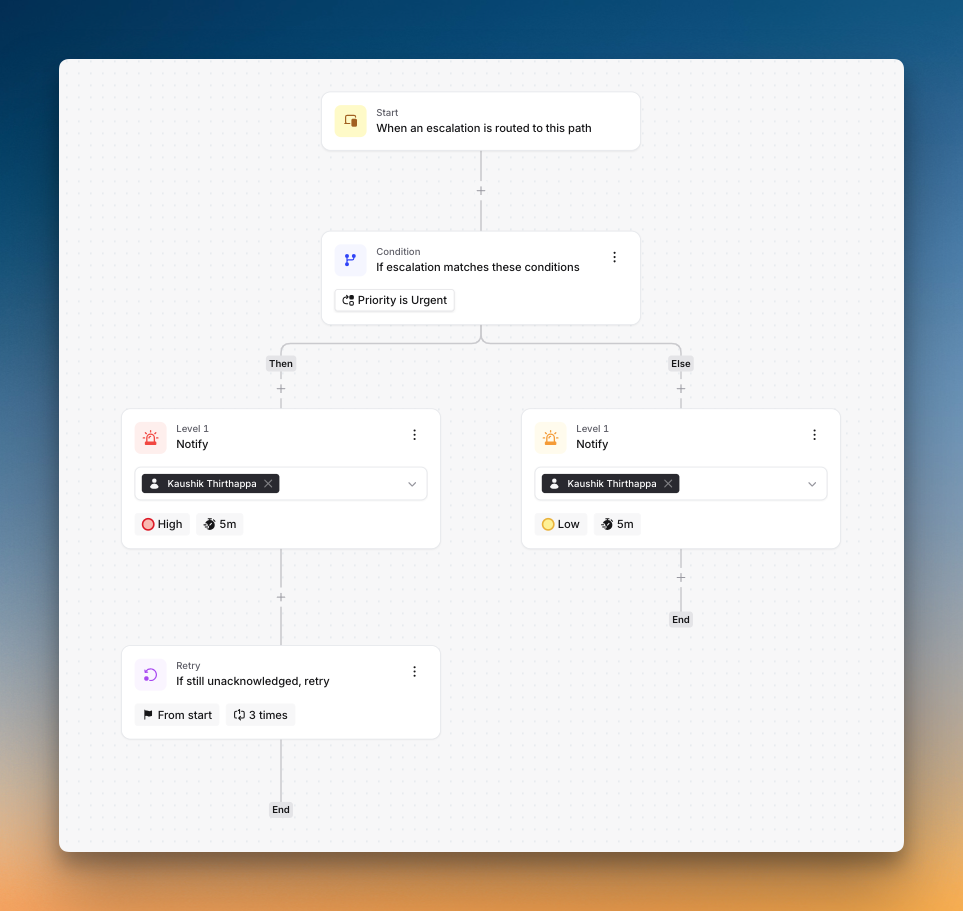
Incident.io sends alerts through phone, SMS, email, Slack, and push notifications. It uses flowchart-style escalation policies with if-else conditions. This lets you route alerts based on priority, time of day, or other factors.
For instance, when a production database crashes overnight, Incident.io calls the on-call database admin. If there is no response, it moves to the backup automatically. The same alert during business hours might go to a different person.
2. Incident Response
Incident response is how teams deal with an issue from detection to resolution. The main goal is to restore service as quickly as possible.
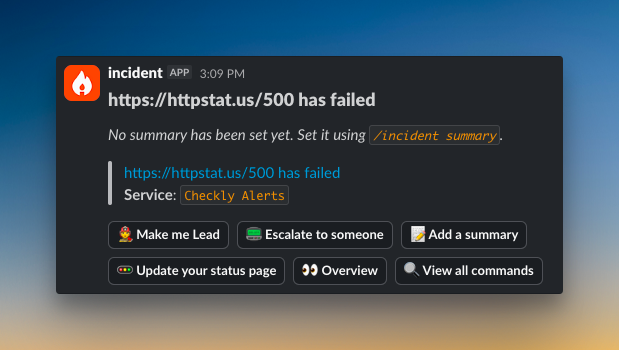
Incident.io puts incident response directly into Slack. Teams can track and manage incidents without leaving their chat tool. It uses powerful workflows to automate administrative tasks like assigning roles or inviting the right people to an incident channel. After the incident is resolved, it provides detailed dashboards that help you track metrics like MTTR and incident frequency.
Say your payment processor fails at peak hours, Incident.io logs the incident, alerts the payments team, and provides a shared space to coordinate until service is restored.
3. On-Call Management
On-call management splits the responsibility of incident response across the team. It creates a schedule of who responds and when.
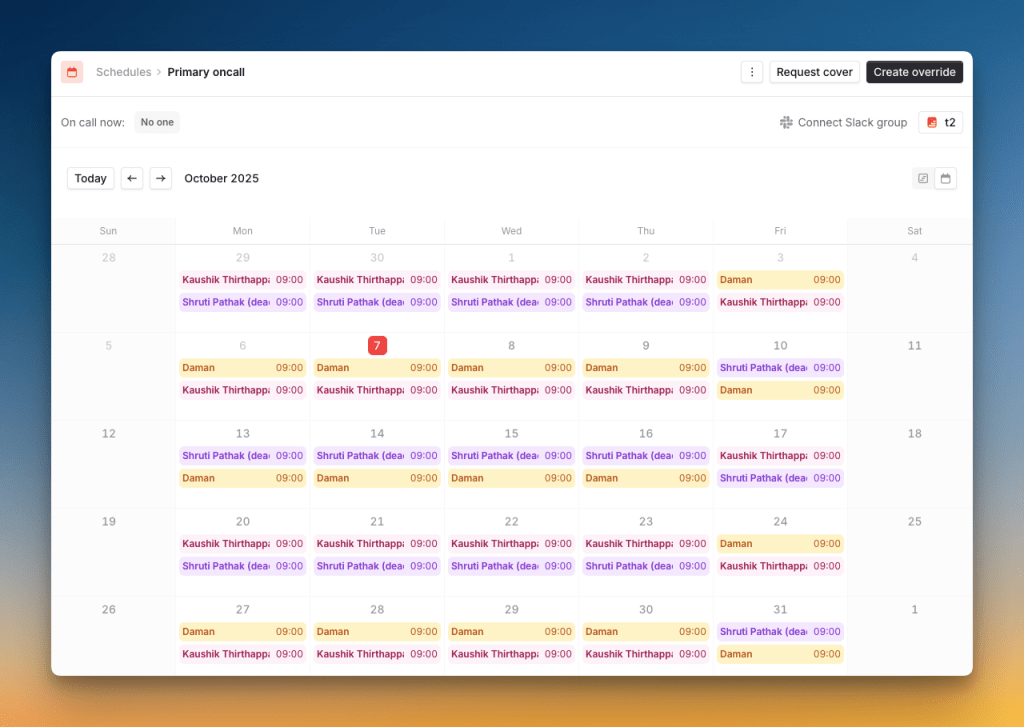
Incident.io offers flexible on-call scheduling. You can set up rotations, add multiple layers, and sync schedules with personal calendars via iCal. Overrides are easy to create by clicking directly on the calendar.
An IT team might set up a weekly rotation. Each team member takes a turn being the primary on-call responder. Incident.io automatically routes alerts to whoever is on duty.
4. Automation
Automation handles repetitive tasks so teams can focus on fixing the actual problem. It speeds up response time.
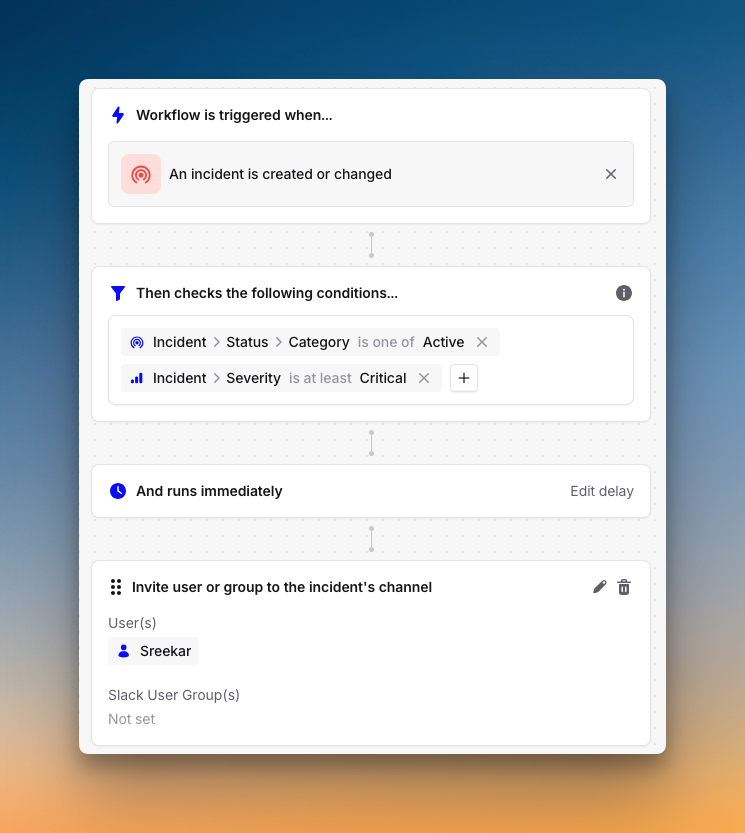
Incident.io automates incident workflows from start to finish. It can create Slack channels, assign roles, update status pages, and set severity based on alert rules.
For example, when your authentication service fails, Incident.io opens a war room, assigns a security engineer as lead, and posts a status update automatically.
Benefits of Incident.io
Incident.io offers several benefits for teams. Here are a few:
- Slack-native incident management: Manage incidents directly in Slack (or Microsoft Teams) without switching tools.
- Deep integrations: Pull data from monitoring tools, ticketing systems, and chat apps into a single incident view.
- Flowchart-style escalation: Escalation policies use if-else conditions to route alerts based on priority, time of day, or custom factors.
- End-to-end automation: Workflows create war rooms, assign responders, and post status updates without manual work.
- Actionable dashboards: Post-incident analytics track resolution times, frequency patterns, and improvement opportunities.
Getting Started With Incident.io
Step 1: Install Incident.io in Slack
The first step is to connect Incident.io to your Slack workspace.
Here’s how:
- Go to the Incident.io sign-up page
- Click Sign in with Slack
- Select your integrations (monitoring tools, issue trackers)
- Add Incident.io to Slack
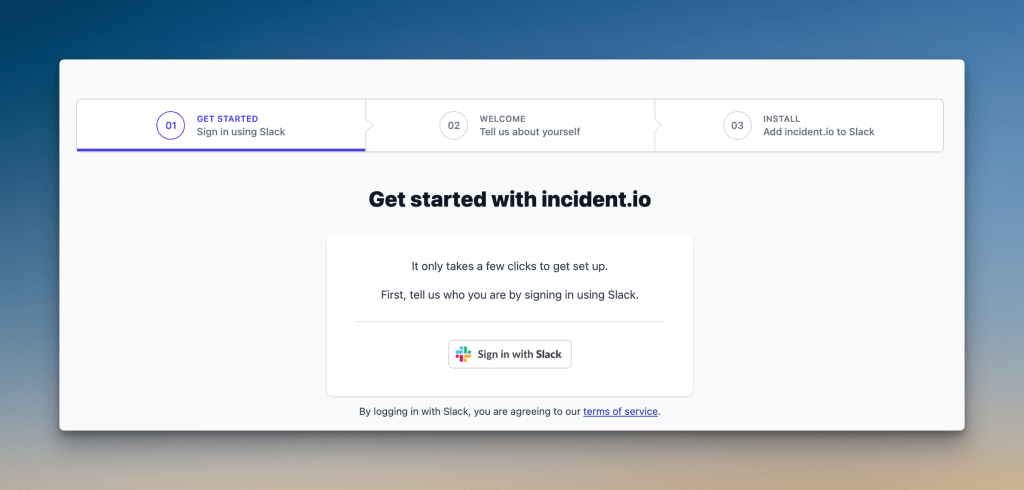
You’ll need a Slack admin for this step. Incident.io creates an #incidents channel and installs the app in your workspace. Everyone can then use Incident.io through Slack.
Step 2: Configure Teams and Schedules
Next, set up your teams and on-call schedules.
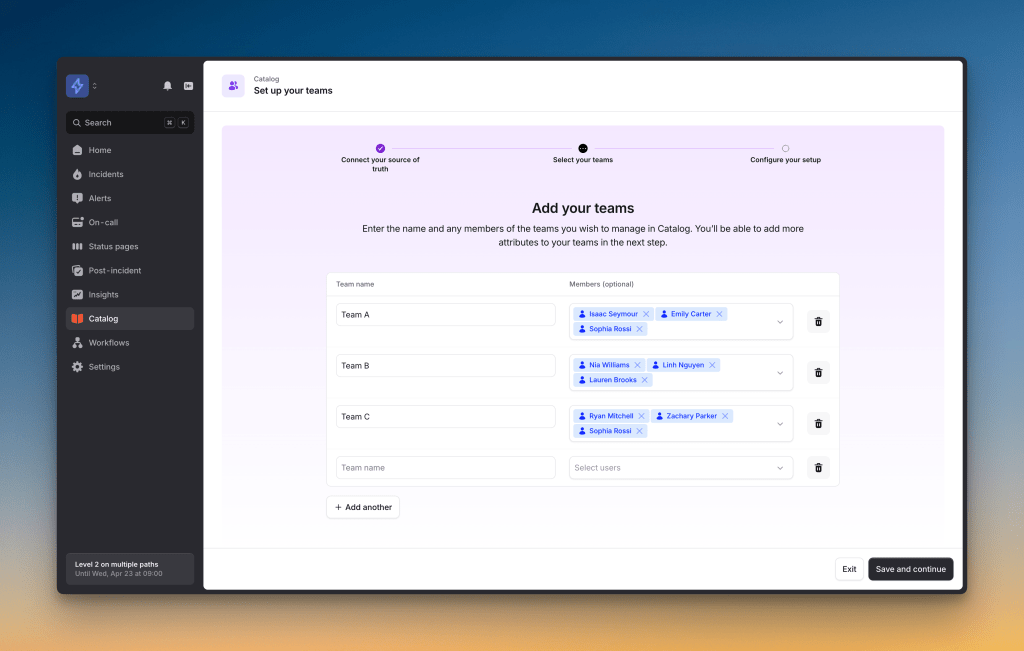
To configure teams:
- Go to Settings → Teams
- Use the wizard to connect teams from Slack or your identity provider
- Or create teams manually
To create schedules:
- Head to the Schedules section
- Create a new schedule or import from another tool
- Set handover times, active hours, and on-call individuals
- Add additional rotas if needed for follow-the-sun coverage
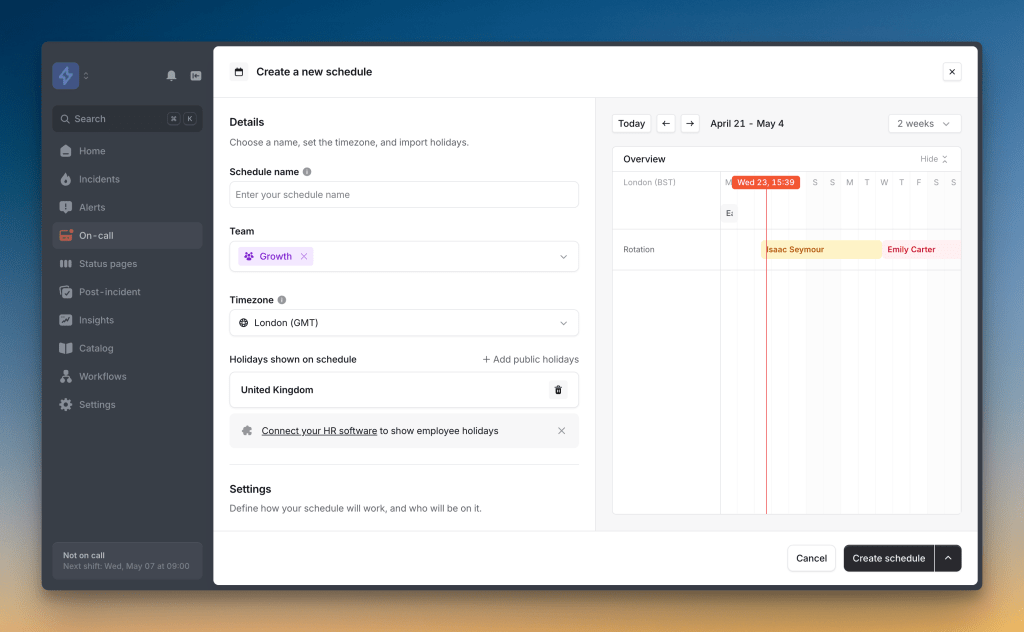
You can create overrides directly in the schedule view or by typing /inc cover in Slack.
Step 3: Set Up Escalation Paths and Alert Routes
Escalation paths decide who gets notified when alerts come in.
To create an escalation path:
- Go to Escalation paths
- Create a new path and name it
- Connect it to the relevant team
- Define who to notify at each level (schedules, individuals, or Slack channels)
- Set notification timing and repeat options
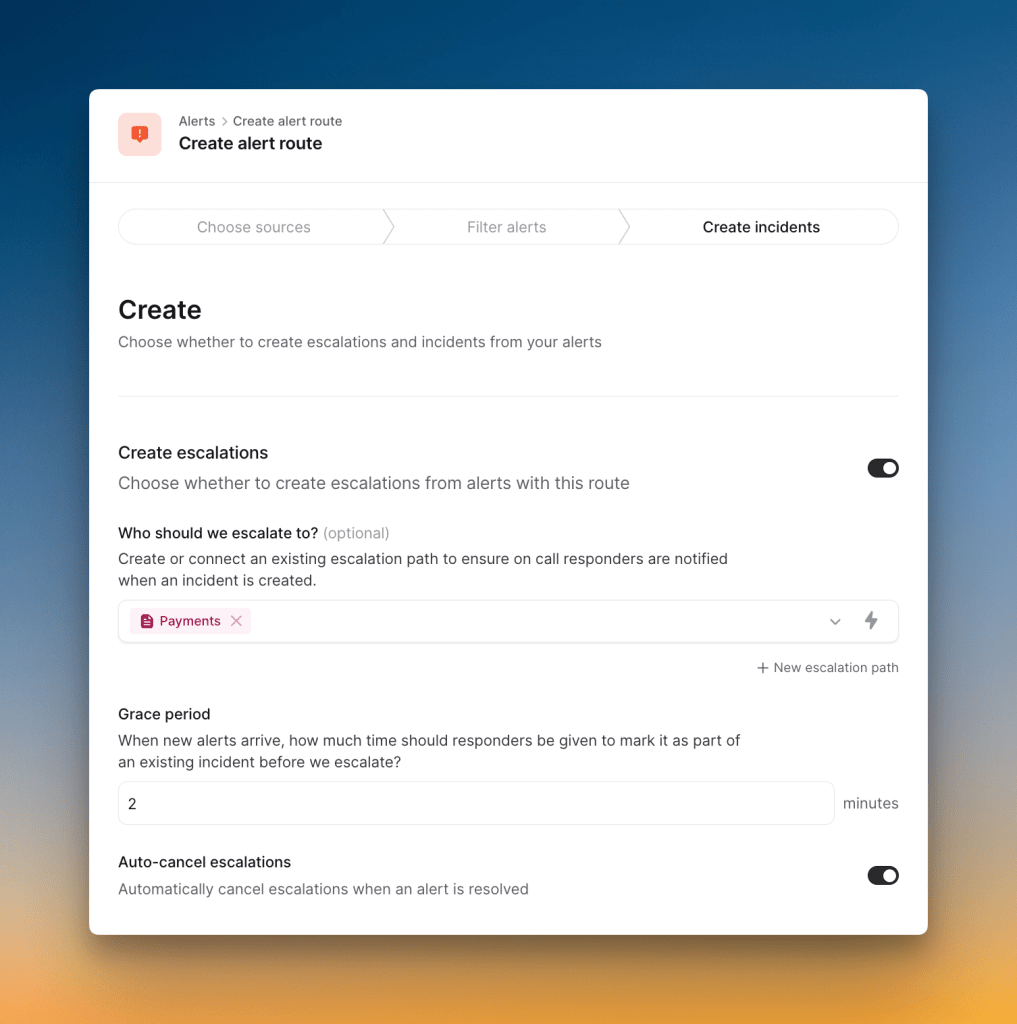
Then connect your monitoring tools:
- Head to Alert Configuration
- Choose your alert source (or use HTTP for custom integrations)
- Follow the setup steps and send a test alert
- Configure attributes and priority
- Create an alert route to escalate and create incidents automatically
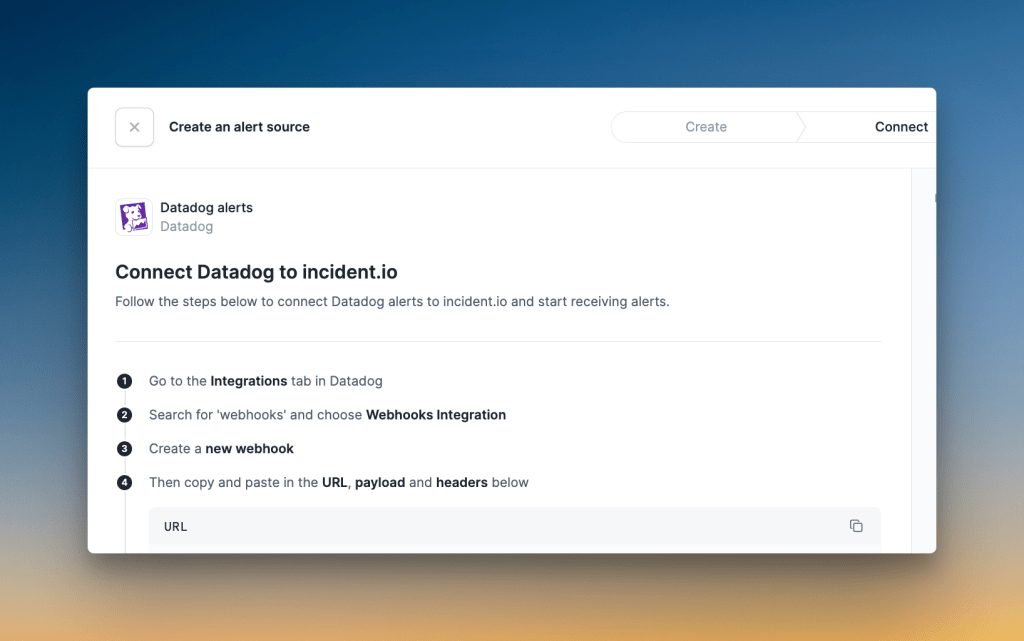
With these three steps done, Incident.io is ready to handle incidents.
Spike: A Better Alternative to Incident.io
Spike is an incident response platform focused on simplicity and speed. With over 15 million incidents processed and 750,000+ alerts delivered, it works well for teams of all sizes.
Here’s why Spike is a better choice than Incident.io:
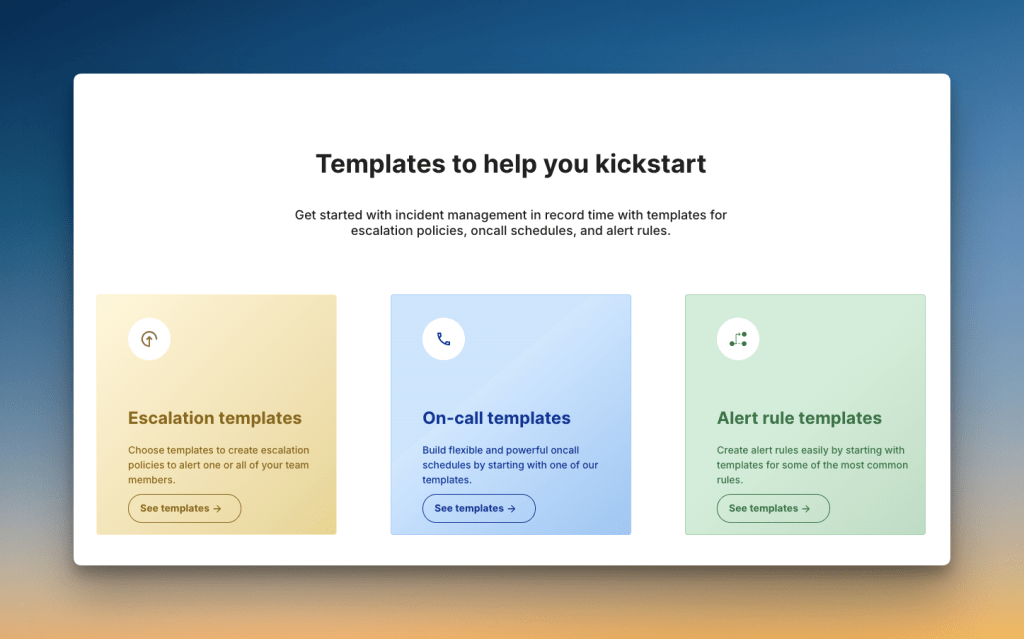
- Fast setup: Incident.io demands more configuration time. Spike gets teams started in under 5 minutes with ready-to-use templates for schedules, escalations, and alert rules.
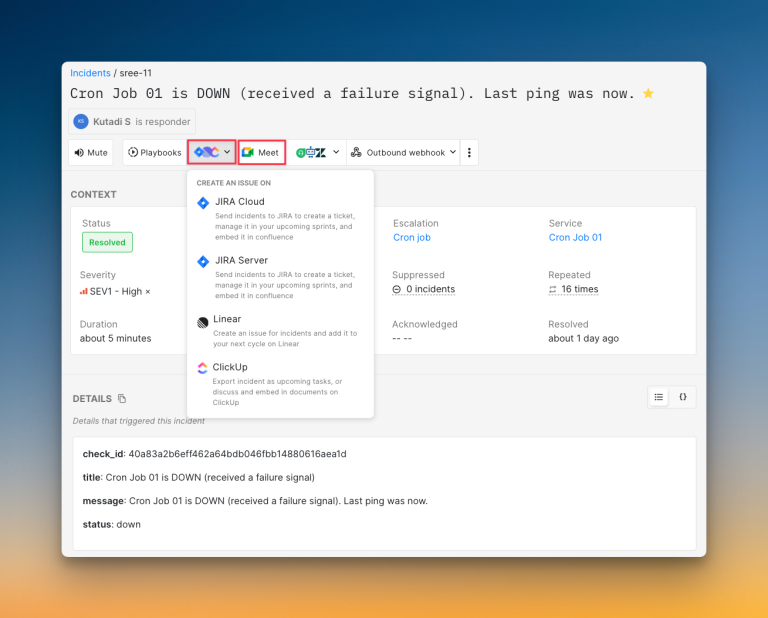
- Simple user interface: Spike combines an easy-to-use design with powerful controls. One-click actions let teams acknowledge alerts, update status pages, or join war rooms without extra steps.
- Affordable pricing: Spike starts at $7/user/month with all core features included. Incident.io starts at $19/user/month, but on-call management costs extra ($12-$20/user/month). Status pages are also limited on most plans.
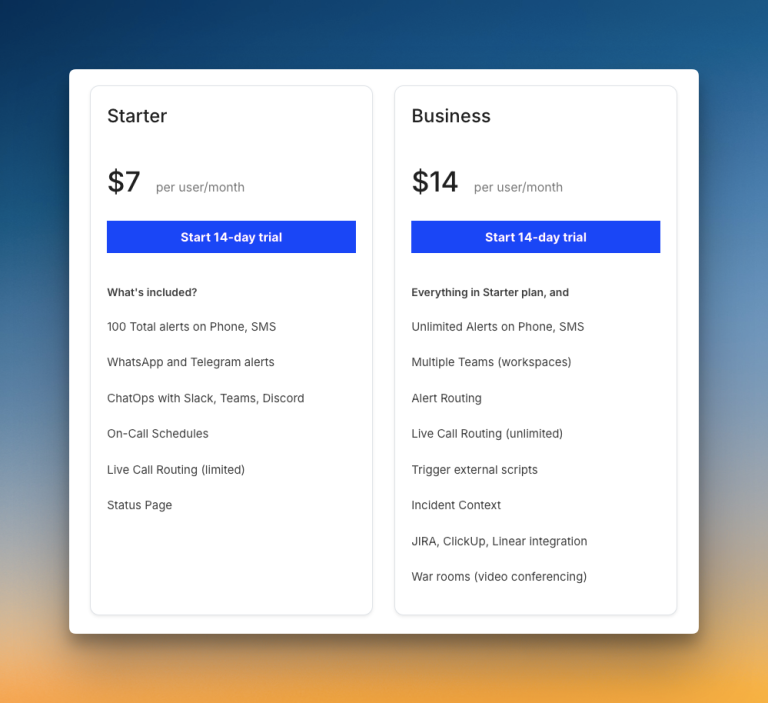
Teams can save up to 77% by choosing Spike over Incident.io. Learn more →
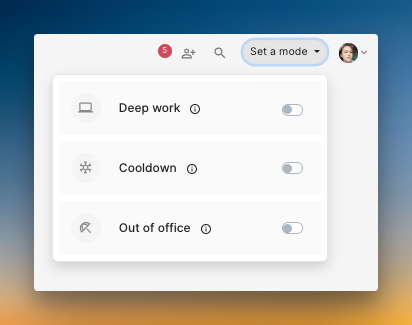
- Team wellbeing: Spike protects work-life balance with cooldown mode, deep work settings, out-of-office options, and alert suppression. These features come standard, not as paid add-ons.
Read Incident.io vs. Spike: Incident Management for a detailed comparison
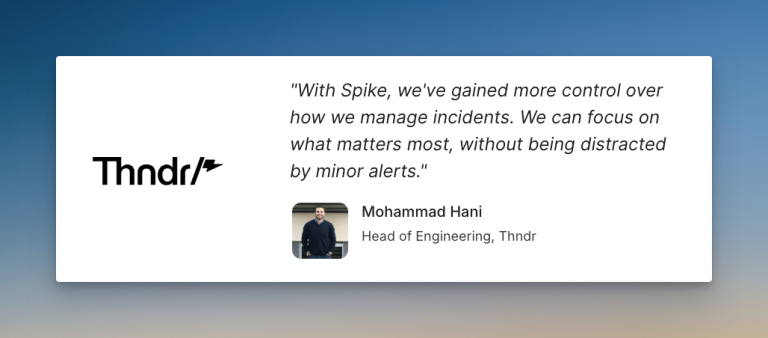
Hear what Mohammad Hani, Head of Engineering at Thndr, says about Spike
FAQs
Is Incident.io a monitoring tool?
No, Incident.io is not a monitoring tool. It’s an incident management platform that receives alerts from monitoring tools. Monitoring tools detect problems. Incident.io handles what happens next by alerting responders and organizing the response.
How much does Incident.io cost?
Incident.io offers four pricing tiers. The Basic plan is free for up to 5 users. The Team plan costs $19/user/month plus $12/user/month for on-call. The Pro plan is $25/user/month plus $20/user/month for on-call. Enterprise pricing requires contacting sales.
Is there a free trial for Incident.io?
Yes, Incident.io offers a free Basic plan for up to 5 users forever. This includes basic incident response, single-team on-call, and one status page. Teams can test the platform before upgrading.
Does Incident.io require on-call management as an add-on?
Yes, on-call management is a separate add-on. The Basic plan includes single-team on-call only. Team and Pro plans charge $12-$20/user/month extra for full on-call capabilities. Most teams need this add-on, which increases the total cost.
Can I use Incident.io without Slack?
Incident.io is primarily built for Slack but also supports Microsoft Teams. The platform is designed to work inside these chat tools, so teams that don’t use Slack or Teams may find it less useful.